The Admin Guide
You run the school day-to-day: teachers, students, the schedule, payments and communication. This guide follows the exact order that gets a school running — Teachers → Availability → Students → Schedule — then covers every tool you'll use daily.
The setup order (why it matters)
| # | Step | Why it can't be skipped |
|---|---|---|
| 0 | Super Admin created a pricing plan | Enrollment requires a plan. If none exists, ask your Super Admin — see the Super Admin guide. |
| 1 | Configure instruments & rooms | Teachers and enrollments are organised by instrument; lessons can be assigned to rooms. |
| 2 | Add teachers | A lesson always belongs to a teacher. |
| 3 | Teachers set availability | You cannot book a slot the system doesn't know is free. |
| 4 | Enroll students | Enrollment = student + instrument + teacher + slot + plan. Everything downstream (schedule, payments, attendance) flows from it. |
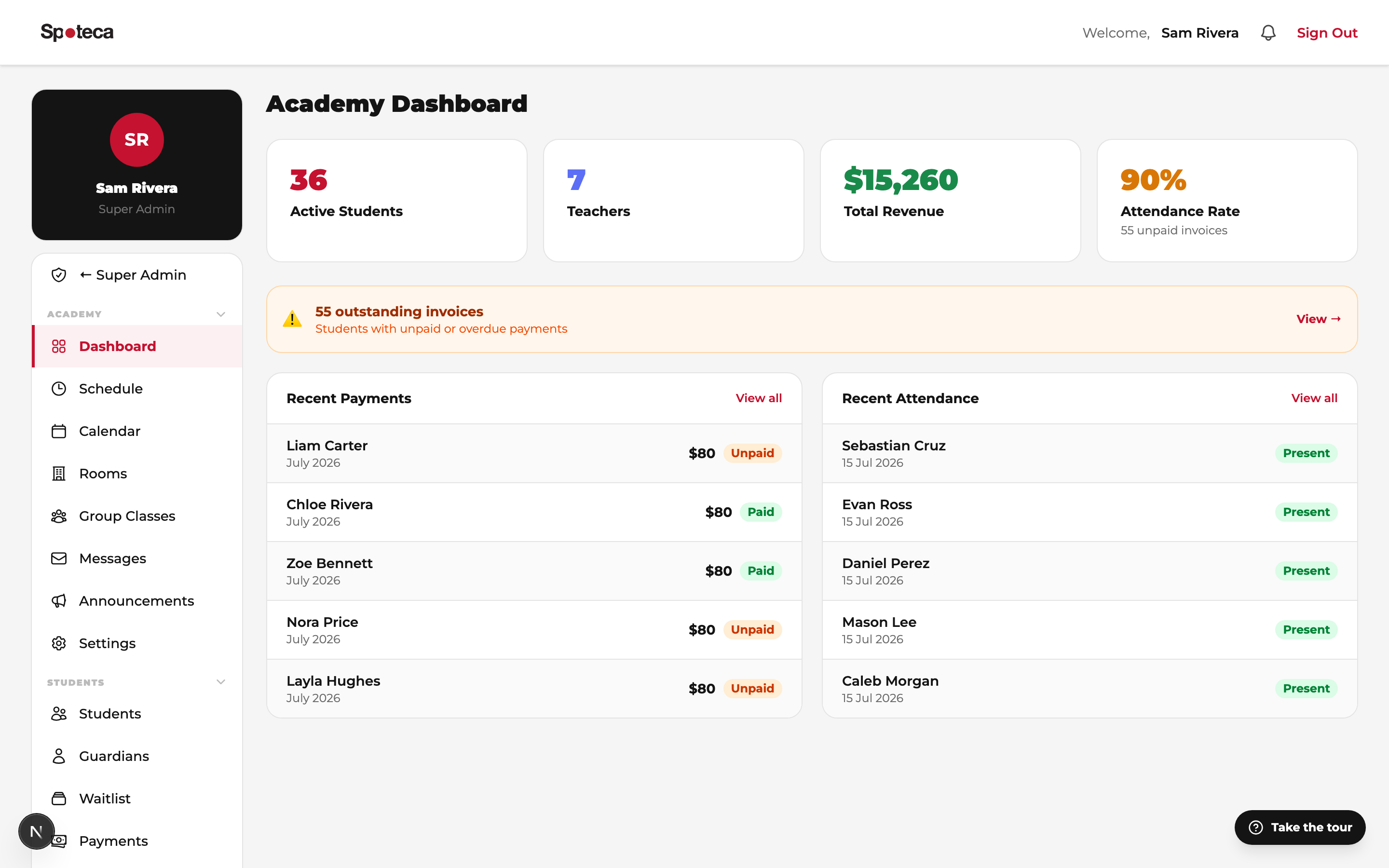
1 · Settings: subjects & policies
Sidebar → Academy → Settings
The Subjects Offered list — the subjects your school teaches (Piano, Ballet, Karate, English…) — appears everywhere: teacher profiles, enrollment forms, the curriculum, the public join page. It starts empty for a new school, and it's managed by the school owner under Super Admin → Teaching → Subjects. If the owner enables "Allow Admins to Manage Subjects" in their Preferences, you can add and edit subjects right here in Settings too. This page also holds your studio rooms and school policies.
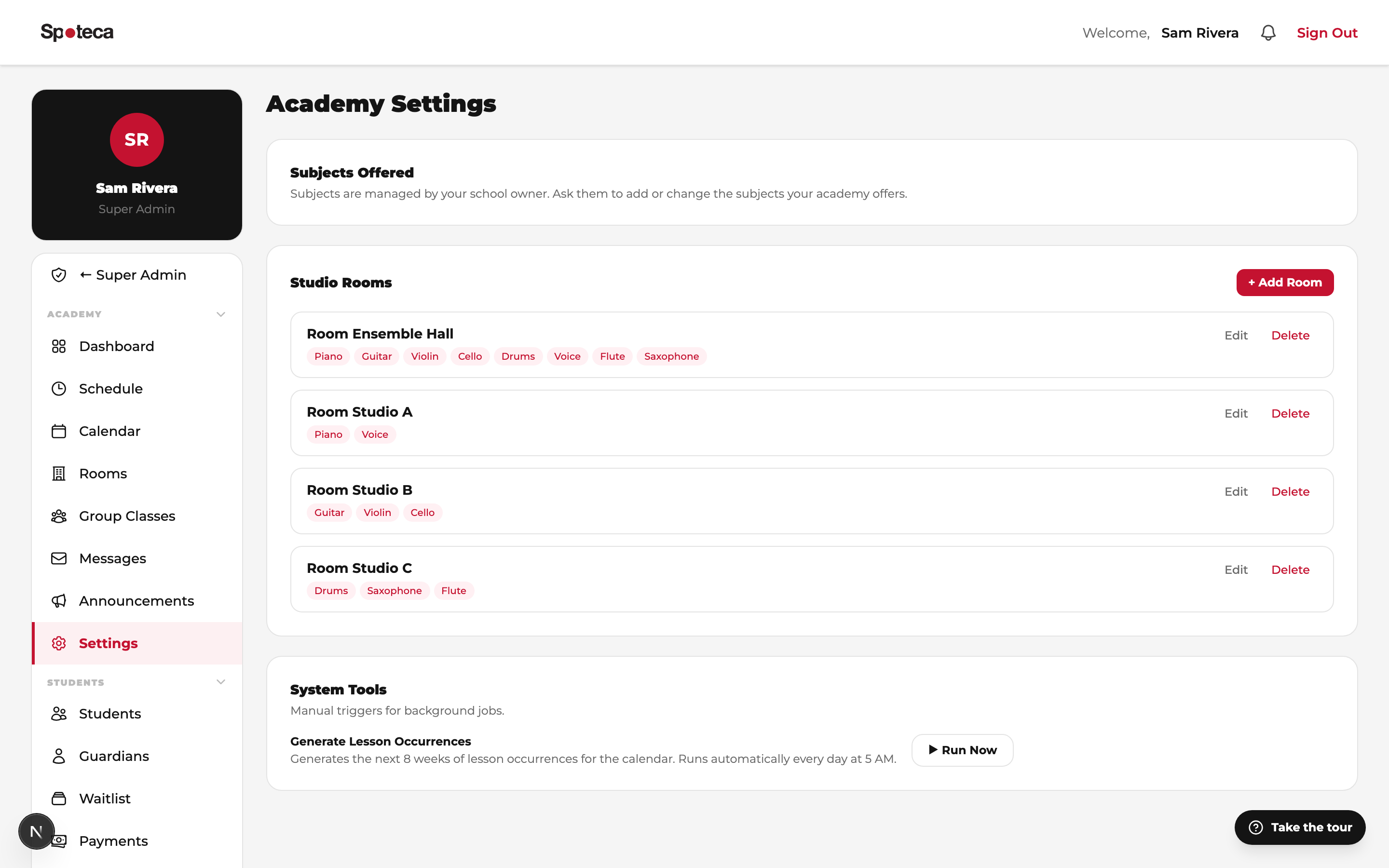
2 · Rooms
Sidebar → Academy → Rooms
Add each physical room with a name and the instruments it's compatible with (the drum room isn't for violin lessons). Mark rooms that allow group classes and set their capacity. When scheduling, Spoteca only offers compatible, free rooms — and guarantees no two lessons ever share a room at the same time.
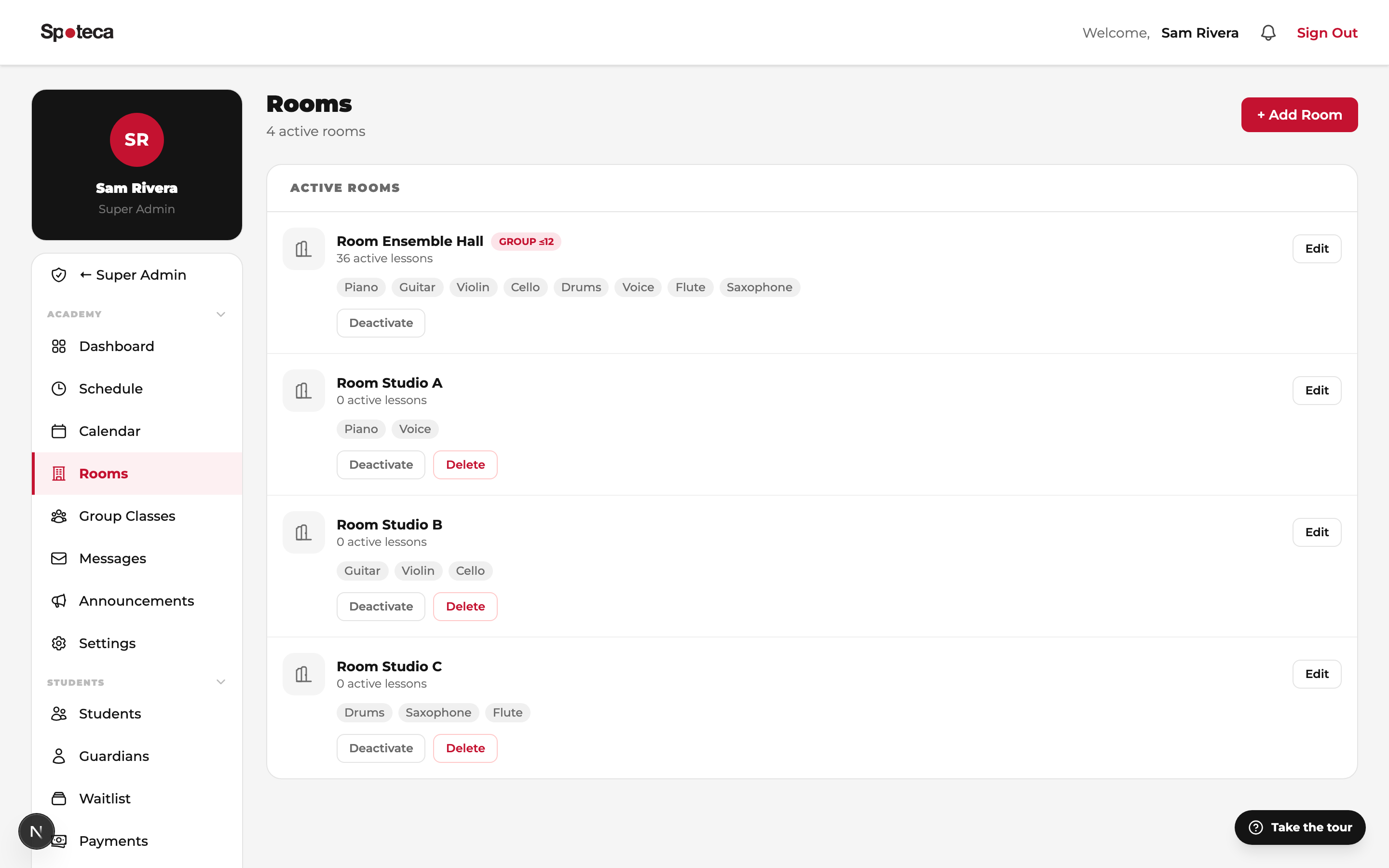
3 · Add teachers
Sidebar → Teachers → Teachers → + Add Teacher
Identity & login — all required
Full name, a username (what the teacher signs in with), a password (min. 6 characters — the teacher can change it later), email, phone number and whether that number has WhatsApp. A profile photo is required too (JPG/PNG, max 600×600) — it appears on schedules and the student's "My Teacher" page.
Instruments — at least one
Tap every instrument the teacher covers. This filters which teachers appear when you enroll a student for that instrument.
Bio & CV (optional)
A short bio (visible to students) and a CV file.
Hand the teacher their username + password and point them to the Teacher guide. Their first job is the next section.
4 · Teacher availability — the critical step
There are two ways to get availability into the system — pick per teacher:
Option A — Teachers set their own hours (freelance-style)
Each teacher logs in with the credentials you created, opens My Schedule → My Availability, and paints the hours they can teach (click or drag on the weekly grid, 15-minute precision, then Save availability). Full walkthrough with screenshots in the Teacher guide.
Option B — The school sets fixed hours (bulk import)
If your school dictates working hours (e.g. all teachers work 15:00–20:00, Mon–Fri), skip the teacher logins entirely: the Super Admin imports an Excel availability sheet — one row per teacher / day / 15-minute slot. See Import Data for the exact format. Teachers can still refine their grid afterwards.
5 · Add & enroll students
Sidebar → Students → Students
Two buttons, two purposes:
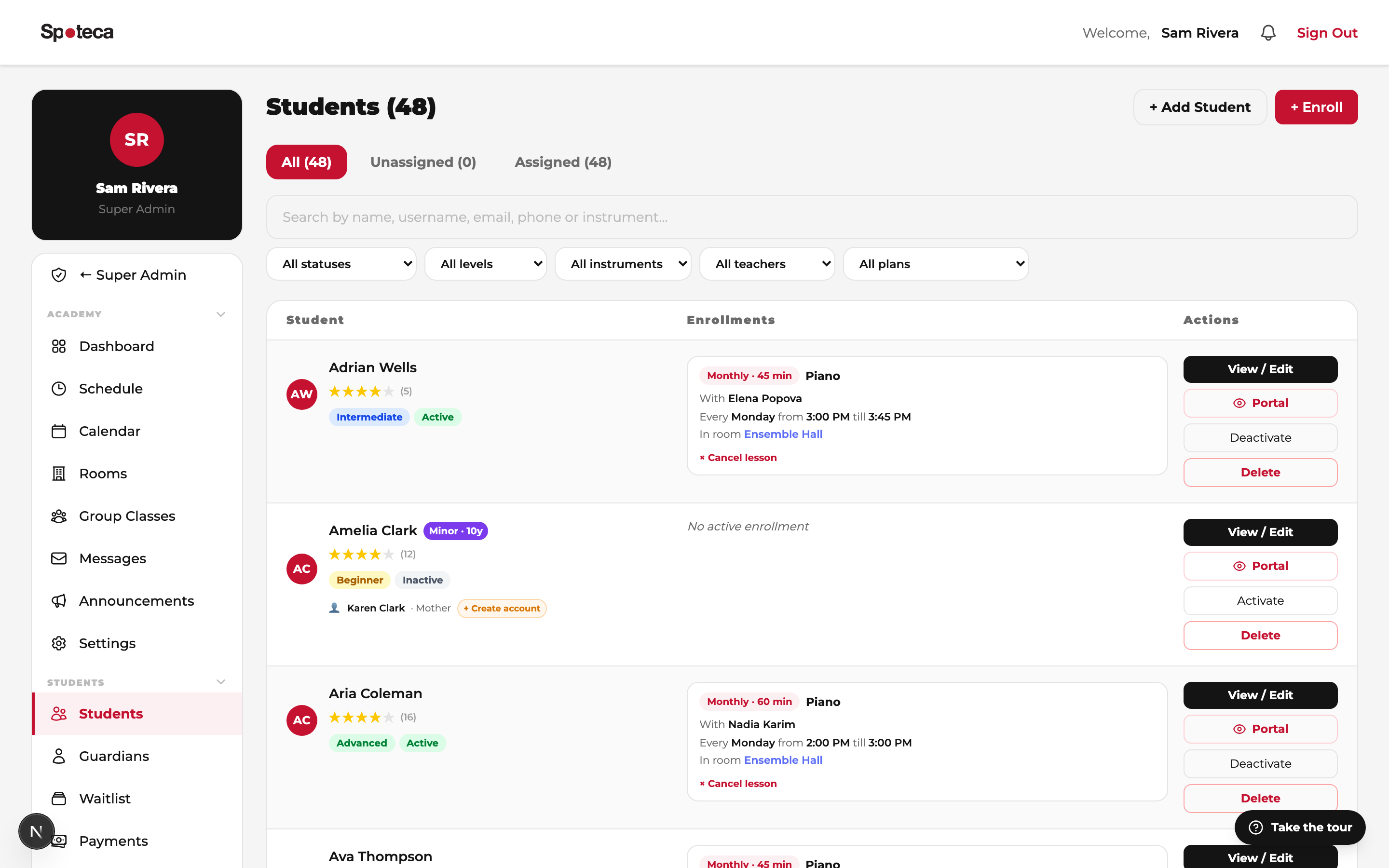
- + Add Student — creates a student profile only (no lessons yet). Use for waitlisted kids or imports.
- + Enroll — the full flow: creates the student (or picks an existing one) and their enrollment with teacher, weekly slot and pricing plan. This is your everyday button.
The Enroll flow, step by step
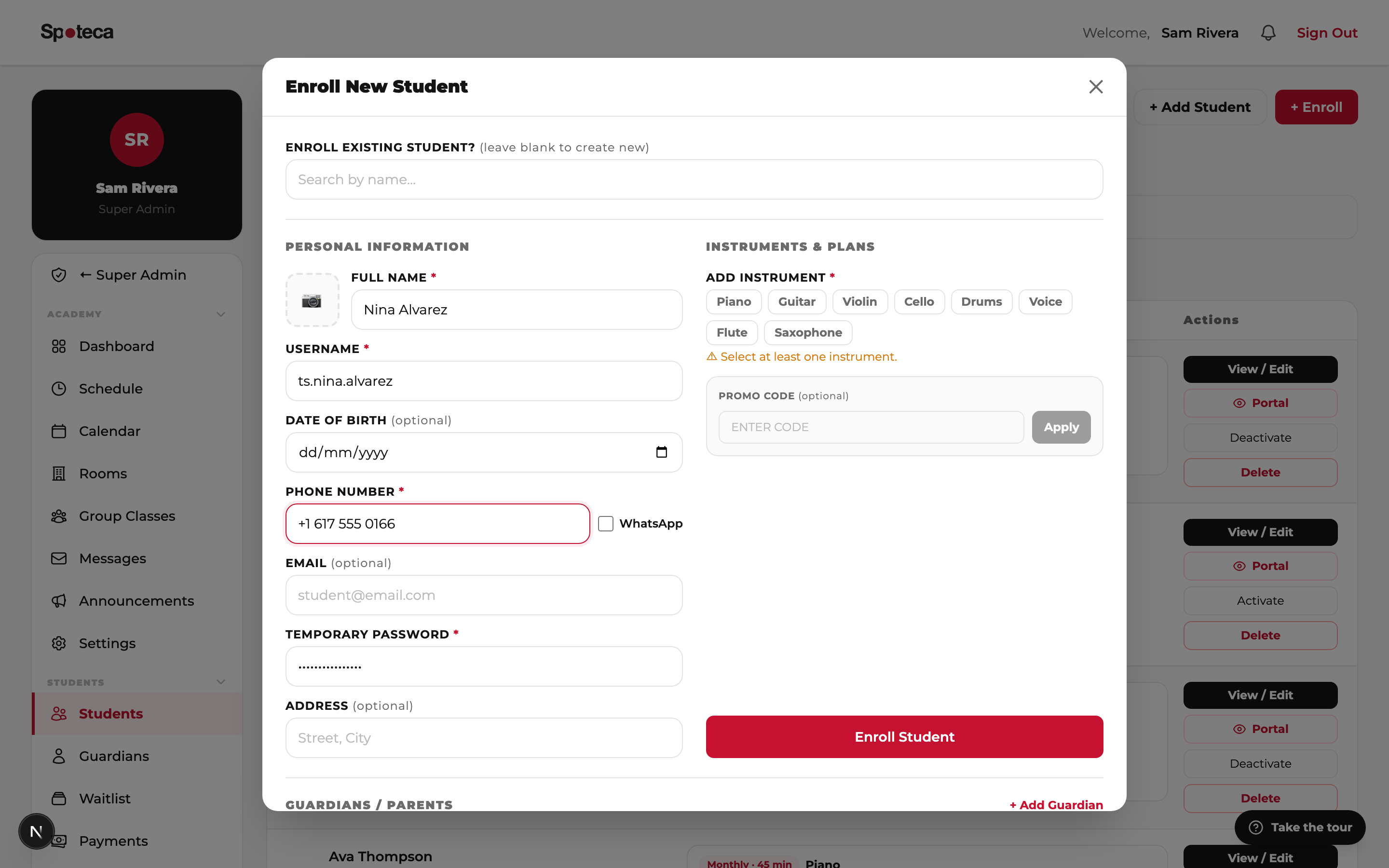
Student details
Name, username + temporary password (their login) and phone number are required; date of birth, email and address are optional. Existing student? Search by name instead. Enrolling a minor? At least one guardian (parent) must be added in the Guardians section of the same form.
Instrument
Choose from your school's instrument list. A student can hold several enrollments (piano and guitar), each with its own teacher, slot and plan.
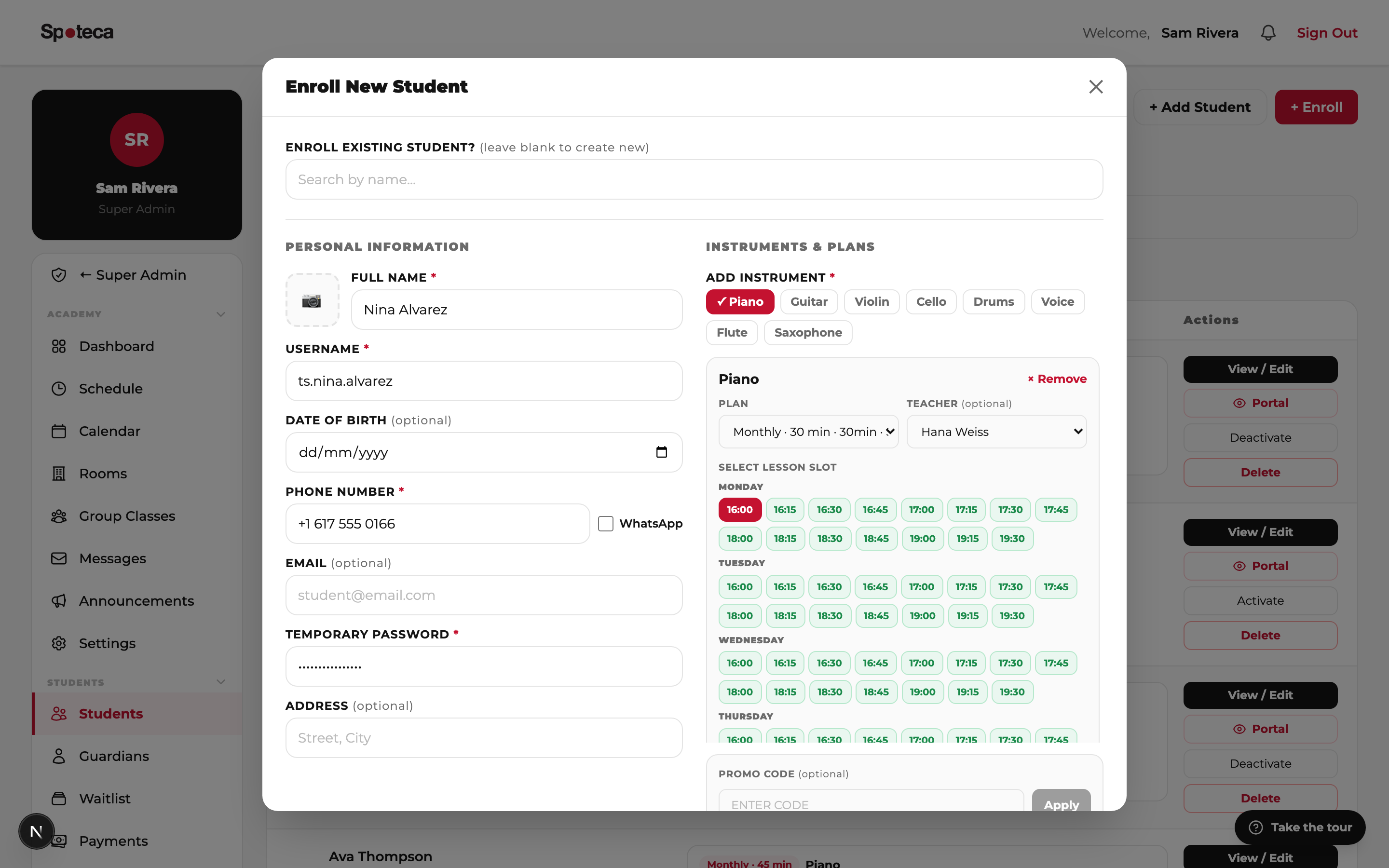
Teacher & slot
Spoteca lists only teachers who teach that instrument, then only their free, available slots (teacher availability minus existing bookings). Pick the weekly day + time. A compatible free room can be assigned in the same breath. If the chosen plan includes 2+ lessons per week (intensive), the form asks you to pick each additional weekly slot with the same teacher.
Pricing plan
Choose one of your school's plans. The plan drives everything financial: invoice amount and cycle, teacher pay, reschedule allowance.
Confirm
Click Enroll Student. Spoteca instantly creates the weekly recurring lesson, generates the first payment, and (if enabled) notifies the teacher.
Student profiles
Open any student for the full picture: enrollments, lessons, attendance, payments, notes, guardians, and extended fields (emergency contact, medical notes, referral source, tags…). Your school can even define custom fields that appear on every student form.
6 · The public enrollment link
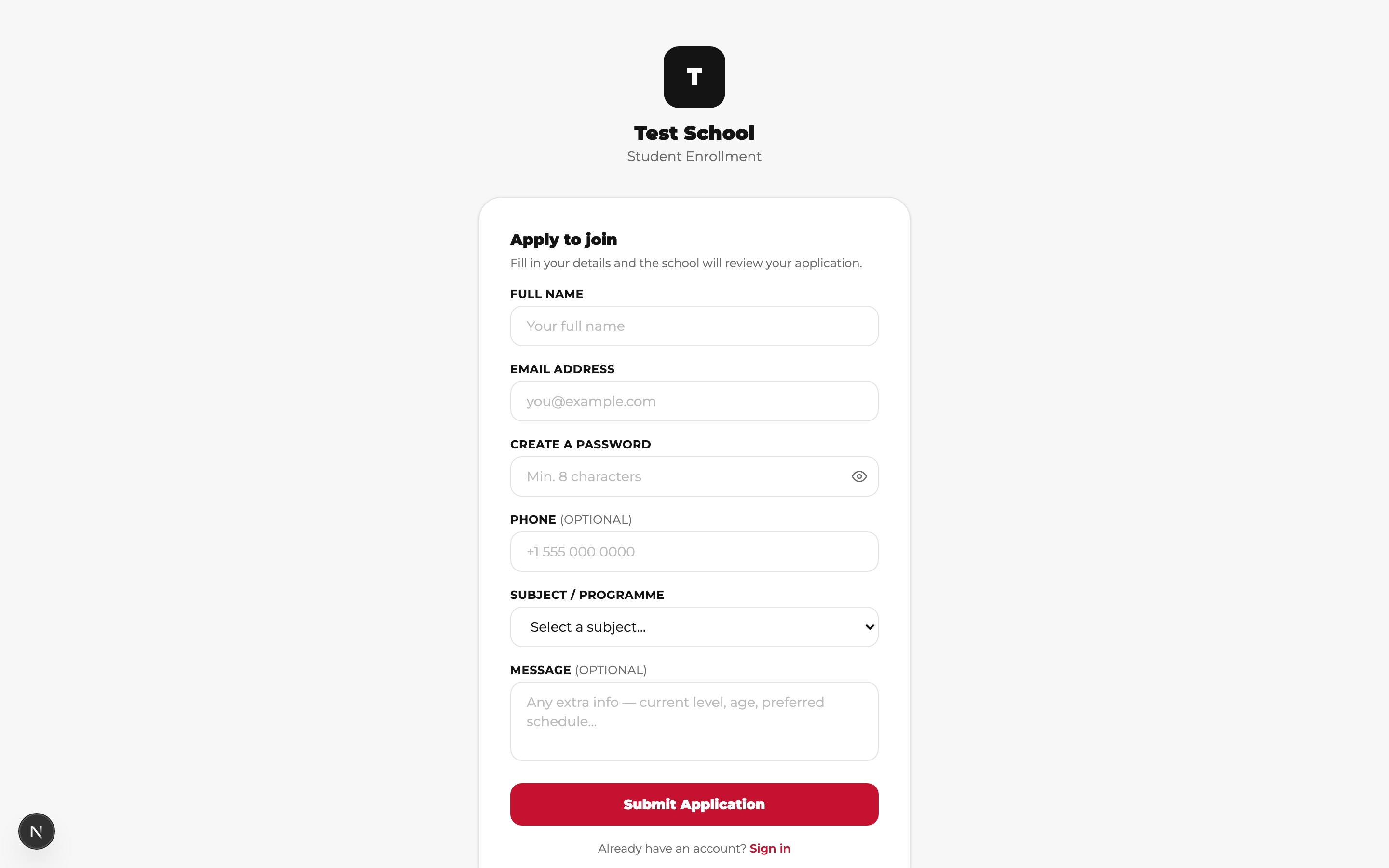
First, the Super Admin enables it: School Settings → Self-Enrollment (Public Signup) — the toggle reveals your copyable join link and a ready-made QR code. Then share spoteca.com/join/yourschool on WhatsApp, Instagram or your website. Prospects create their own student account (name, email, password, phone, subject of interest, message) and land in your pending students — you complete the enrollment when they're ready. It's your always-on lead-capture page, branded with your logo.
7 · Schedule & calendar
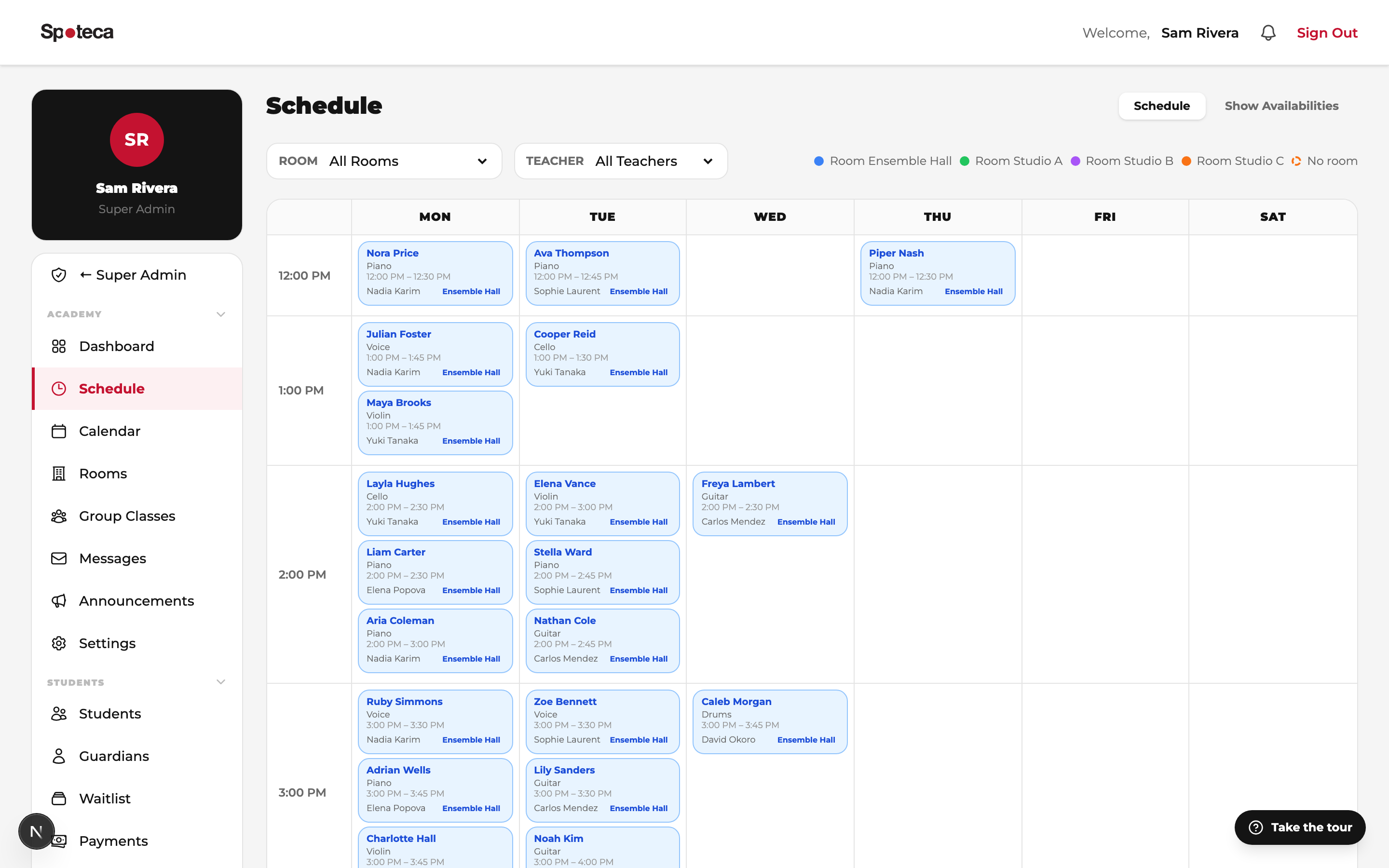
Sidebar → Academy → Schedule — the weekly grid across all teachers. It shows every teacher's availability and bookings side by side:
Click any green slot to enroll a student straight into it — the enroll form opens with teacher, day and time pre-filled. This is the fastest way to fill your week.
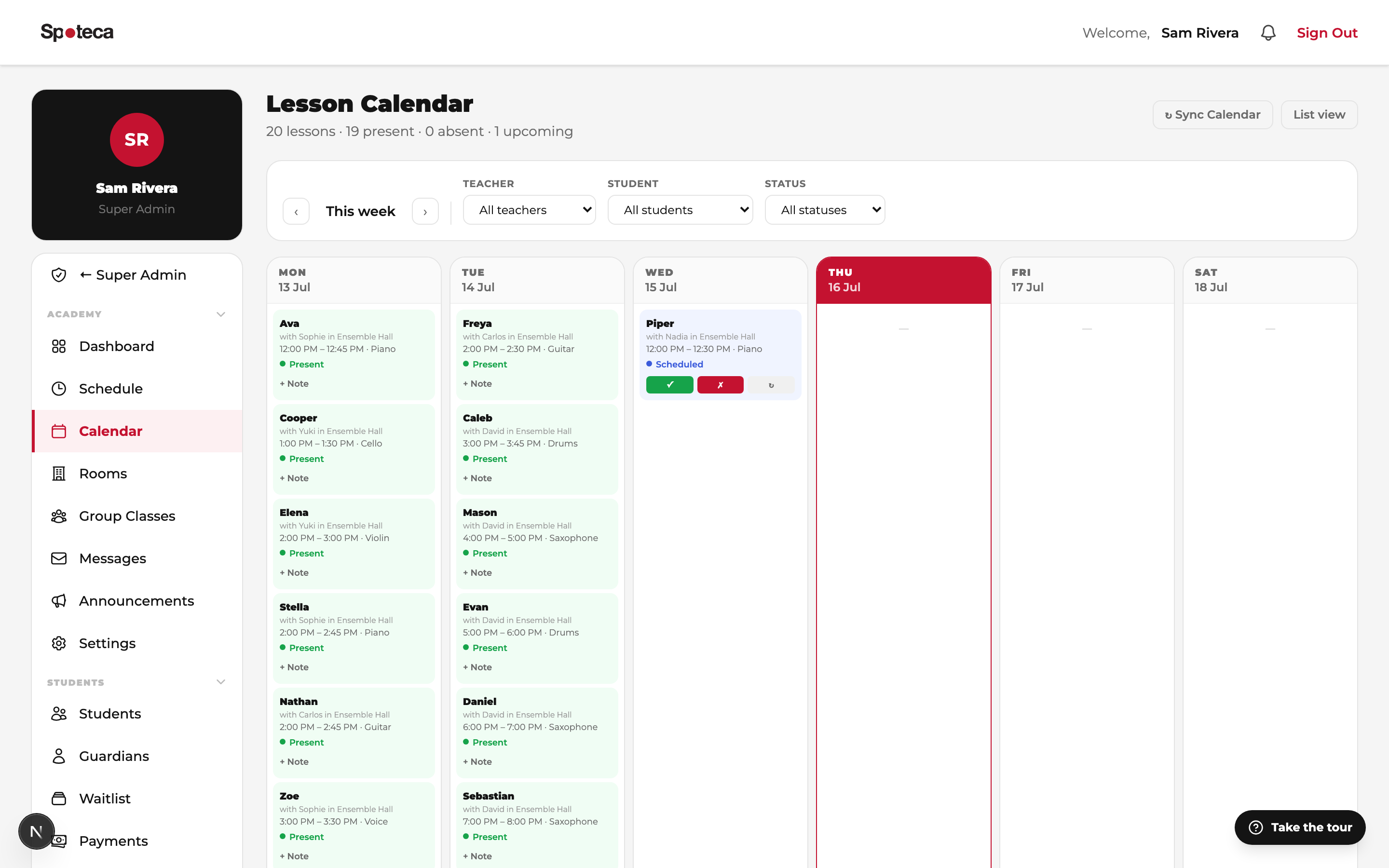
Sidebar → Academy → Calendar — the date-based view: every lesson occurrence on real dates, including one-time events, group sessions and reschedules. Rooms can be assigned from here too.
8 · Reschedules, absences & closures
Student reschedules
Each pricing plan allows N reschedules per month. Move a single occurrence to another free slot of the same teacher; the system enforces the monthly allowance and records the chain (original → new). Permanent slot changes are supported too.
Teacher absences
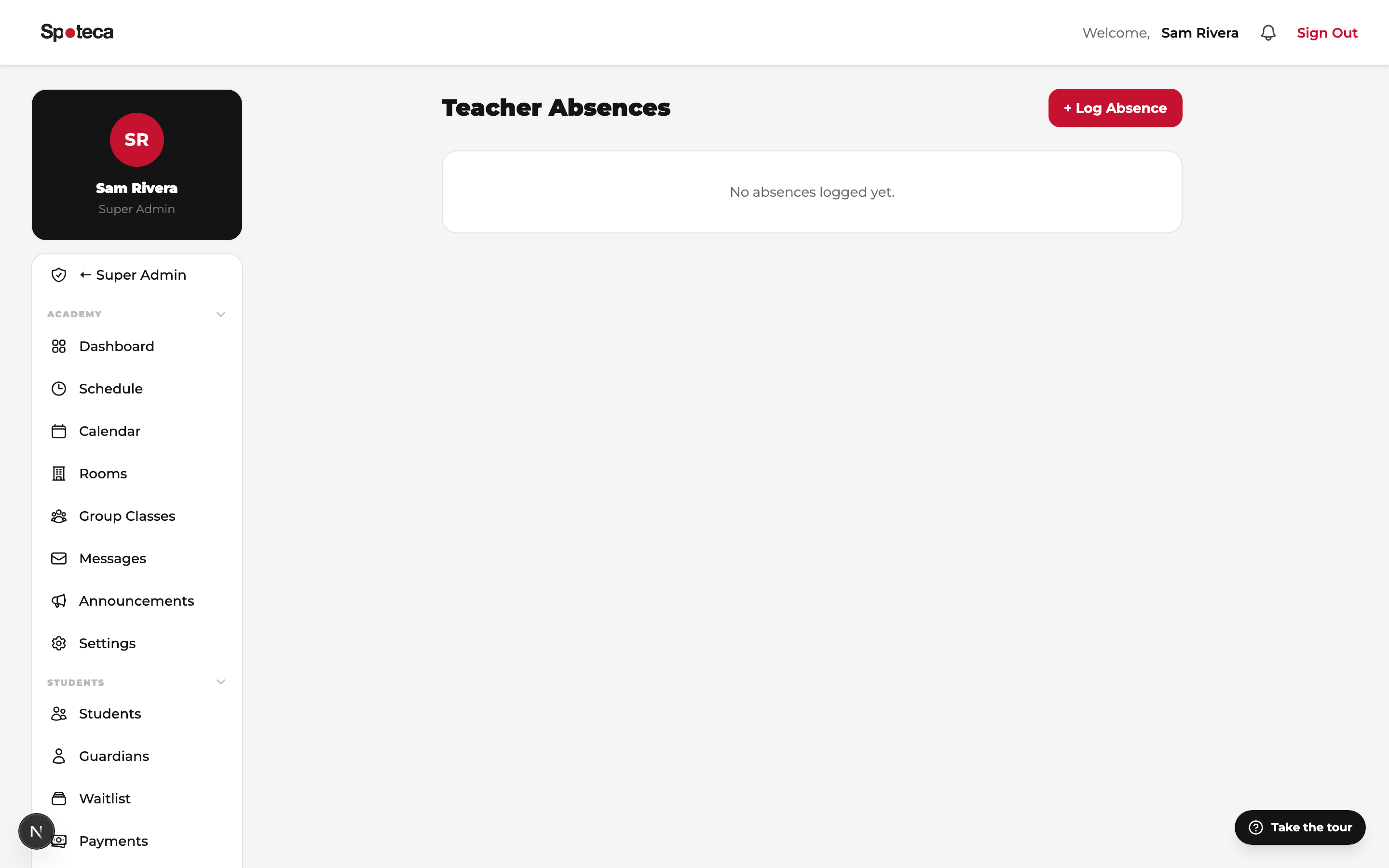
Sidebar → Teachers → Absences — log sick days, vacation or personal leave for a date range. Spoteca finds every affected lesson and walks you through rescheduling each one into a free slot. If no slot works, issue a refund — cash, or credit automatically applied against the student's next invoice.
Academy closures
Holidays close the whole school for a date: every teacher is marked absent and all lessons that day are handled the same way (reschedule or credit).
9 · Group classes & events
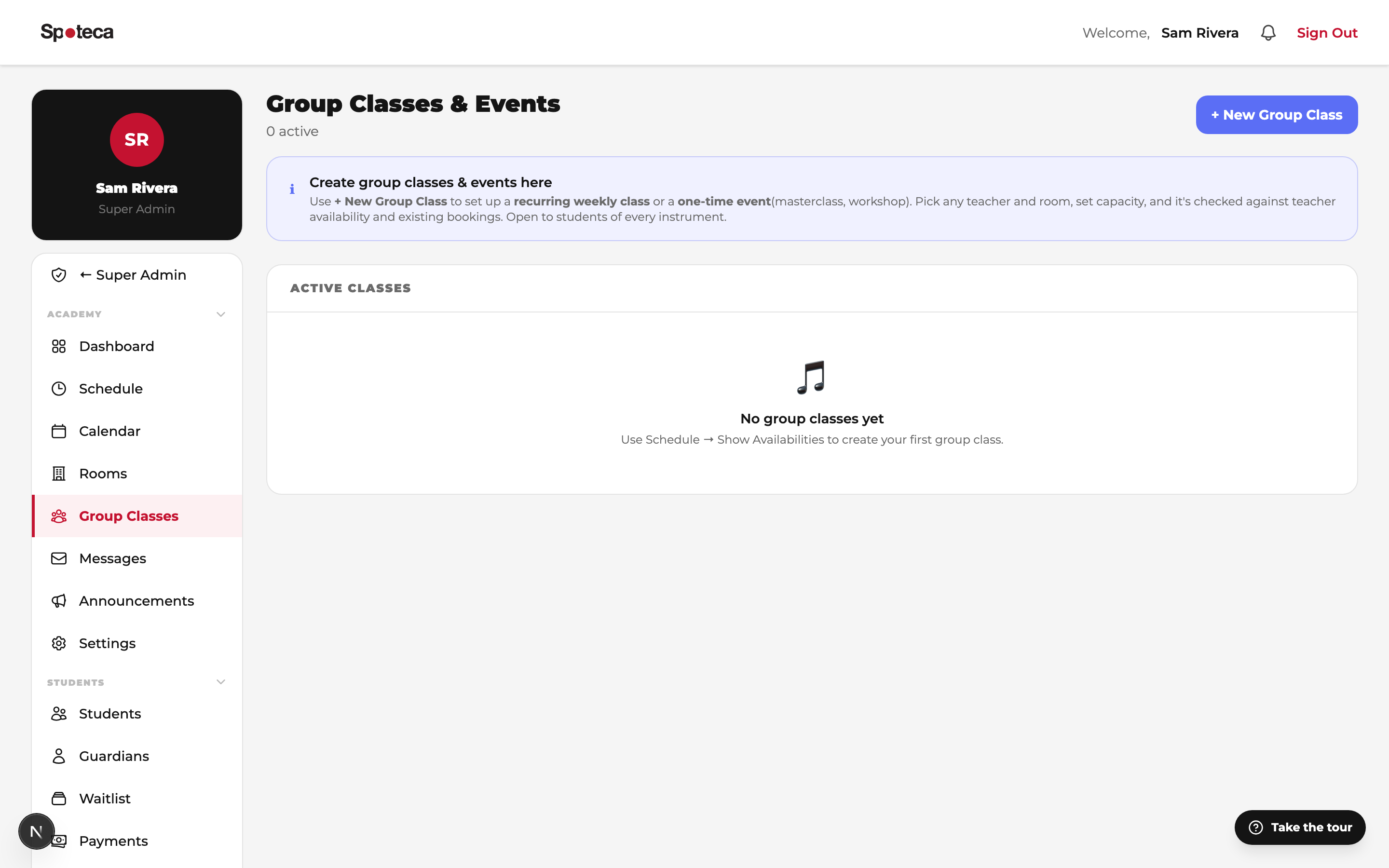
Sidebar → Academy → Group Classes
Theory circles, ensembles, workshops: pick a teacher, room, weekly day/time (or a one-time date for events/recitals), a group pricing plan, and enroll multiple students. Group extras:
- Capacity — cap the class size; full classes can feed the waitlist.
- Minimum students to start billing — don't charge anyone until the class is viable (you can override and start billing manually).
- Per-session attendance — each session tracks attendance per student.
- One-time events — set a date instead of a weekly day for recitals, masterclasses, open days.
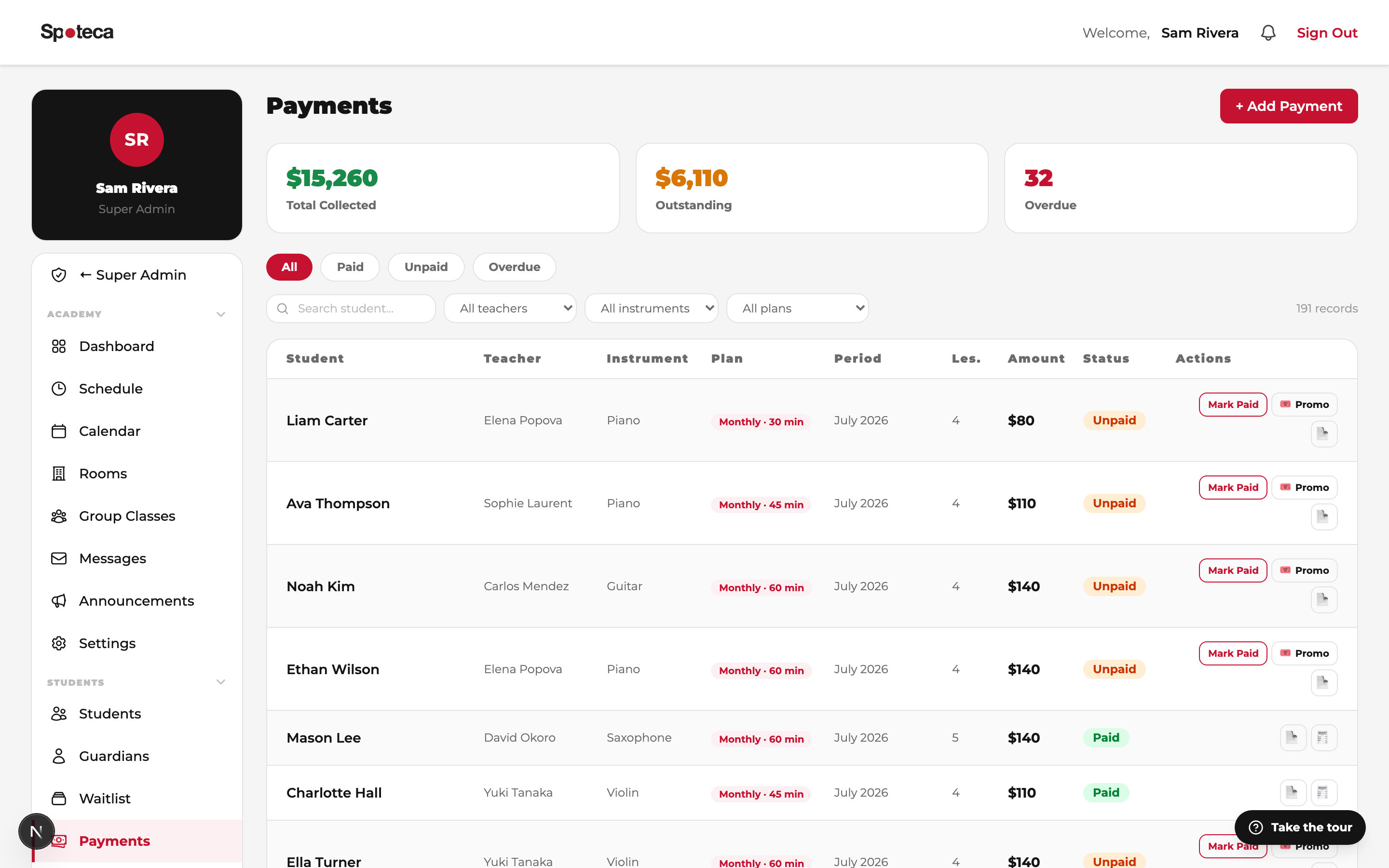
10 · Payments & promo codes
Sidebar → Students → Payments
- Statuses — Paid, Unpaid, Partial, Overdue, Cancelled. Overdue students are flagged automatically and can receive payment reminders.
- Documents — every payment produces a numbered invoice and, once paid, a numbered receipt (PDF, branded with your logo). Refund receipts exist too.
- Promo codes Students → Promo Codes — percentage or fixed discounts; school-wide, per-plan, or for one student; usage caps and expiry dates. Applied at payment time, the discount trail is kept.
- Credit — refunds issued as credit sit on the enrollment and get deducted from the next invoice.
11 · Teacher payments
Sidebar → Teachers → Teacher Payments
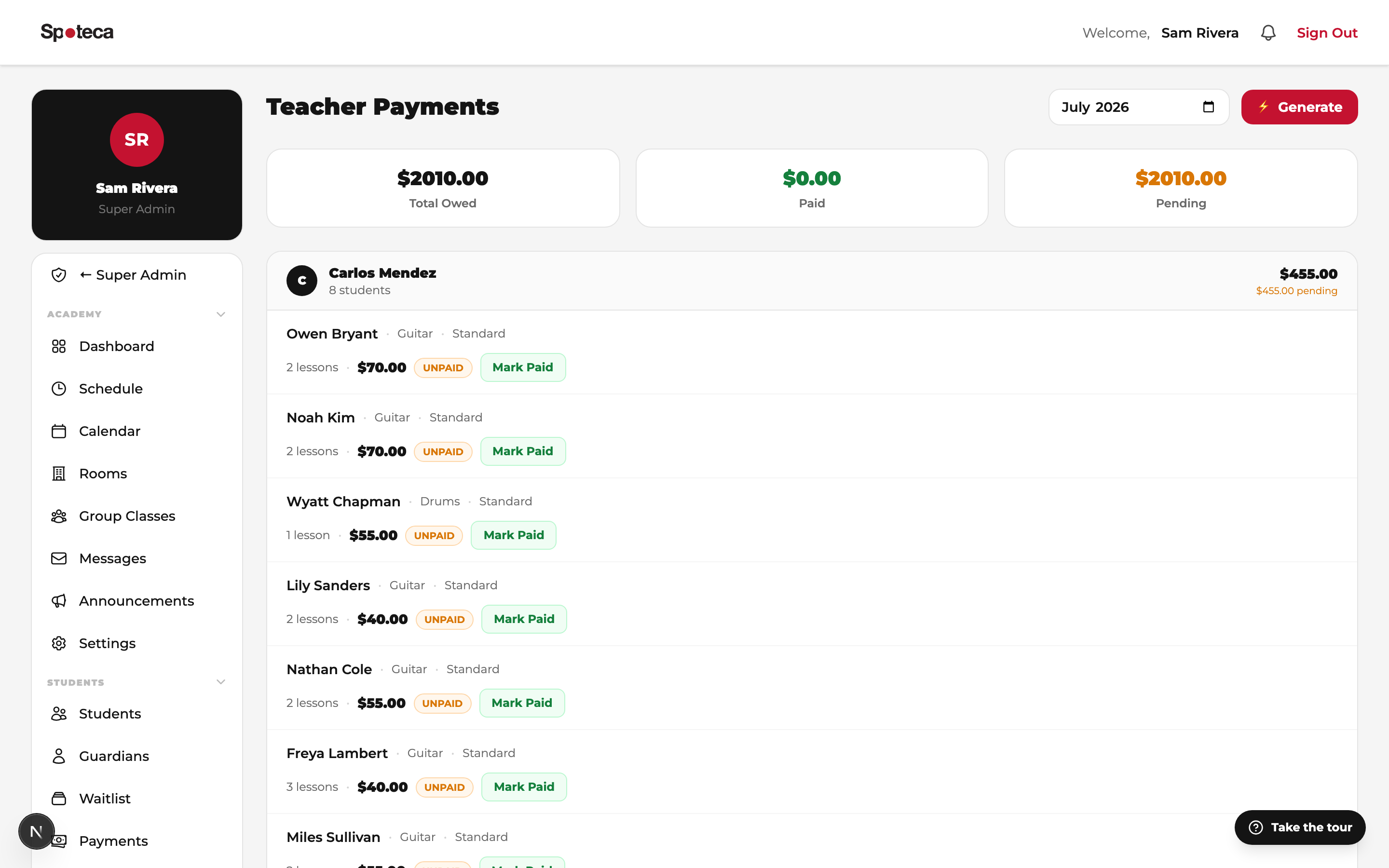
Teacher pay is calculated automatically each month from delivered lessons × the plan's teacher rate (with per-teacher overrides where set). Plans marked pay-per-attendance count only sessions marked Present. Apply deductions with a note when needed, mark payouts as paid, and export a PDF pay statement per teacher. Teachers see the same numbers in their own portal — no more spreadsheet disputes.
12 · Attendance & lesson notes
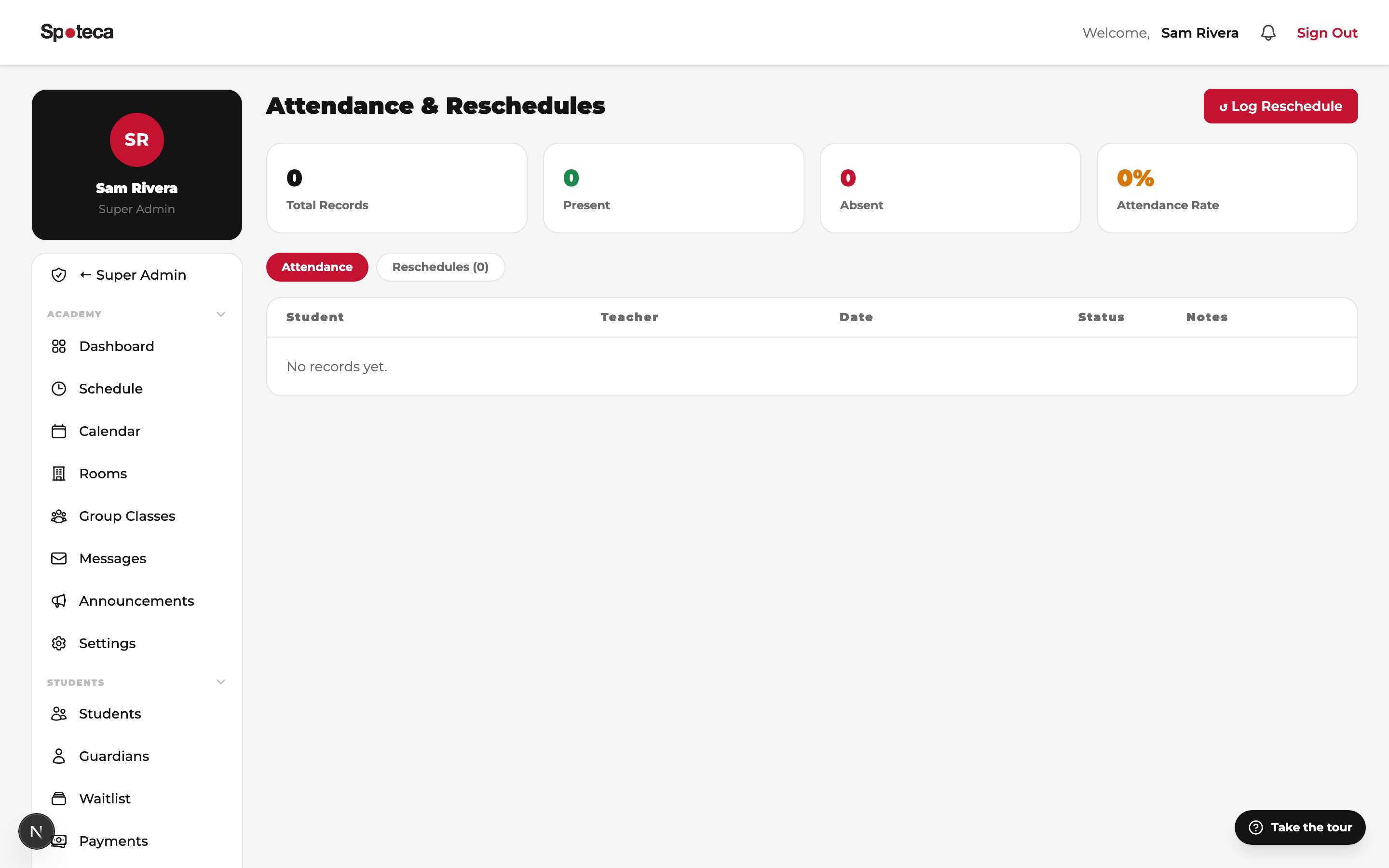
Sidebar → Academy → Attendance (admins can mark it; teachers usually do). Statuses: Present, Absent, Late, Excused. Attendance links to payments where relevant (pay-per-attendance plans) and feeds the student flags system.
Sidebar → Students → Lesson Notes gives you oversight of every note teachers write — content, homework, rating and attachments — so you always know teaching is happening and parents are getting feedback.
13 · Messages & announcements
Messages Academy → Messages — direct chat with any teacher, student or guardian. Read receipts and reactions included; every conversation is logged in one place (goodbye, WhatsApp chaos).
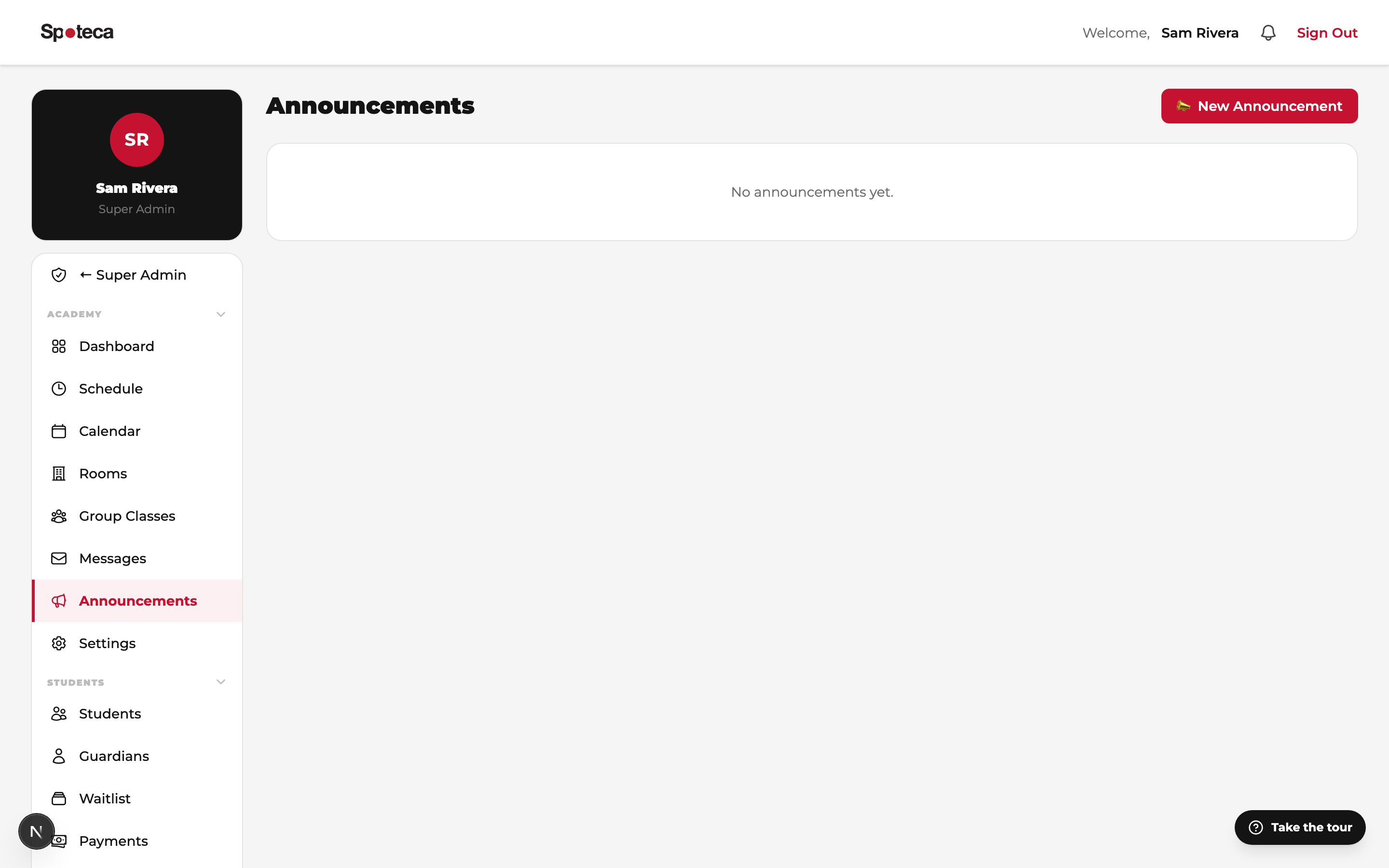
Announcements Academy → Announcements — one-to-many broadcasts: all students, all teachers, or everyone. Ideal for holiday closures, recital invitations, policy updates. Recipients get an in-app notification (and push, if they enabled it).
14 · Waitlist, guardians & reports
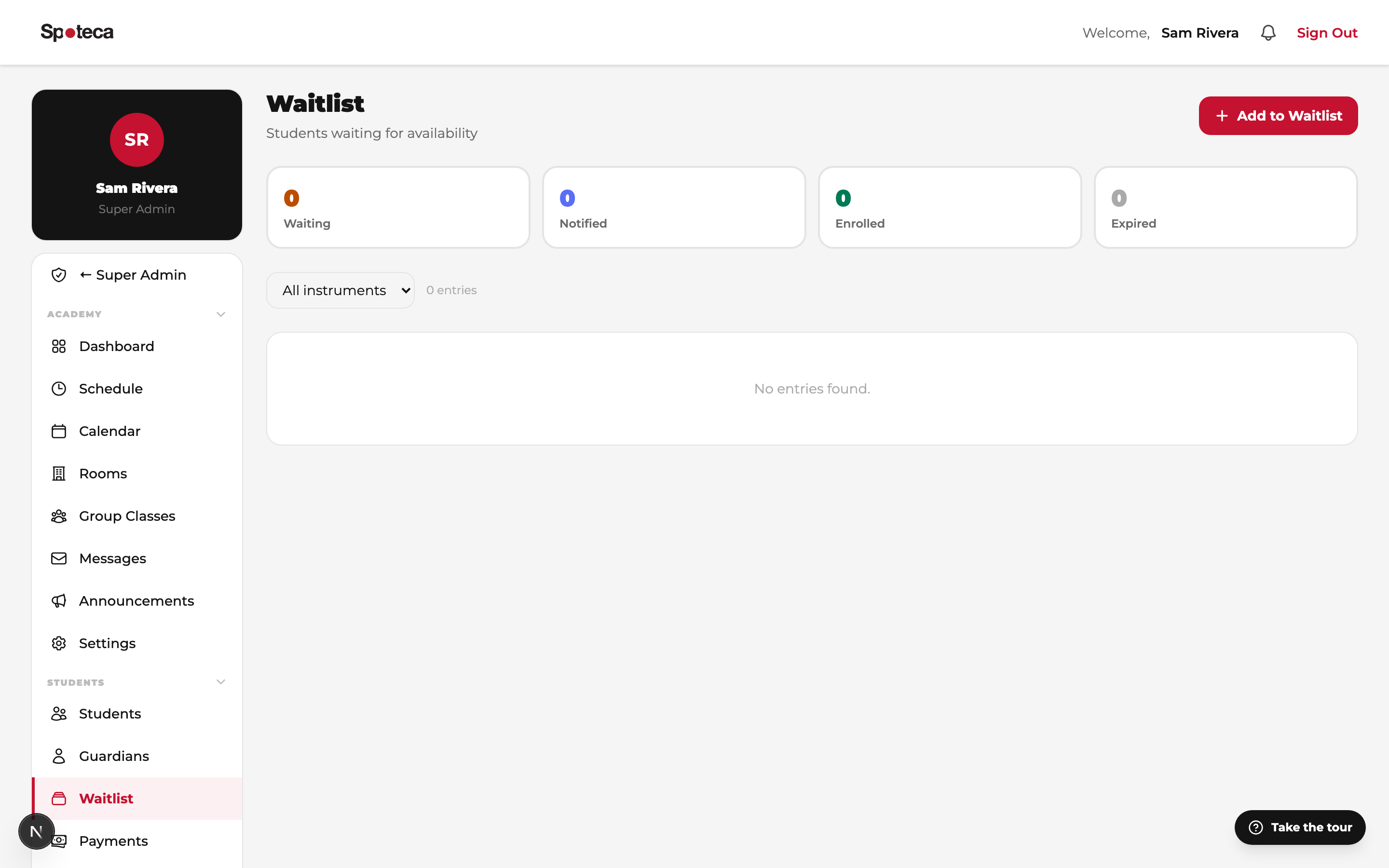
- Waitlist Students → Waitlist — park prospects per instrument with preferred days and teacher; when a slot frees up, notify and enroll in two clicks.
- Guardians Students → Guardians — link parents to students; optionally give them their own parent portal login.
- Reports Students → Reports — per-student progress reports and school-level summaries, exportable as branded PDFs.
FAQ
I can't pick a slot when enrolling — the list is empty.
The chosen teacher has no (remaining) availability. Check Section 4 — either the teacher hasn't painted their grid, or every available slot is already booked.
Can one student learn two instruments?
Yes — add a second enrollment on the same student. Each enrollment has its own teacher, slot, plan and invoices.
How do trials work?
Create a Trial pricing plan (one-time). Enroll the prospect on it; after the session, you're notified to either convert them to a full plan or archive.
A parent wants to move Thursday's lesson only.
That's a reschedule of one occurrence — the weekly slot is untouched. The plan's monthly reschedule allowance applies.
What if a teacher leaves?
Use the reassign tools on the teacher's page to move their students to another teacher, then deactivate the account. History is preserved.
Next → The Teacher Guide: availability, lessons, notes & pay