The Super Admin Guide
You own the school. This guide takes you from creating your account to a fully configured academy that your Admin team, teachers, students and parents can use every day. Follow the sections in order — the setup sequence matters.
Your role at a glance
Spoteca has six account types. As Super Admin you hold the keys: school-level settings, curriculum, pricing, admin accounts, billing and analytics. Day-to-day operations (enrolling, scheduling, collecting payments) live in the Admin view — which you can also access at any time.
| Role | Who it's for | What they can do |
|---|---|---|
| 👑 Super Admin | School owner / director | Everything: curriculum, pricing plans, school settings, admin accounts, billing, analytics, import/export, audit log — plus the full Admin view. |
| 🗂️ Admin | Front-desk / operations staff | Teachers, students, enrollments, schedule, rooms, payments, attendance, messages, announcements. Cannot change school-level settings. |
| 🎹 Teacher | Your instructors | Own schedule & availability, their students, lesson notes, curriculum progress tracking, their pay summary. |
| 🎓 Student | Learners | Their schedule, journey/progress, attendance, payments, notes and messages. |
| 👨👩👧 Guardian | Parents | A dedicated portal tracking their child: schedule, attendance, journey, payments, messaging the school. |
| 🛠️ Platform Admin | Spoteca staff | Platform-level support (not part of your school). |
1 · Create your school
Go to spoteca.com/signup. Signup takes two short steps and about two minutes. No credit card is required.
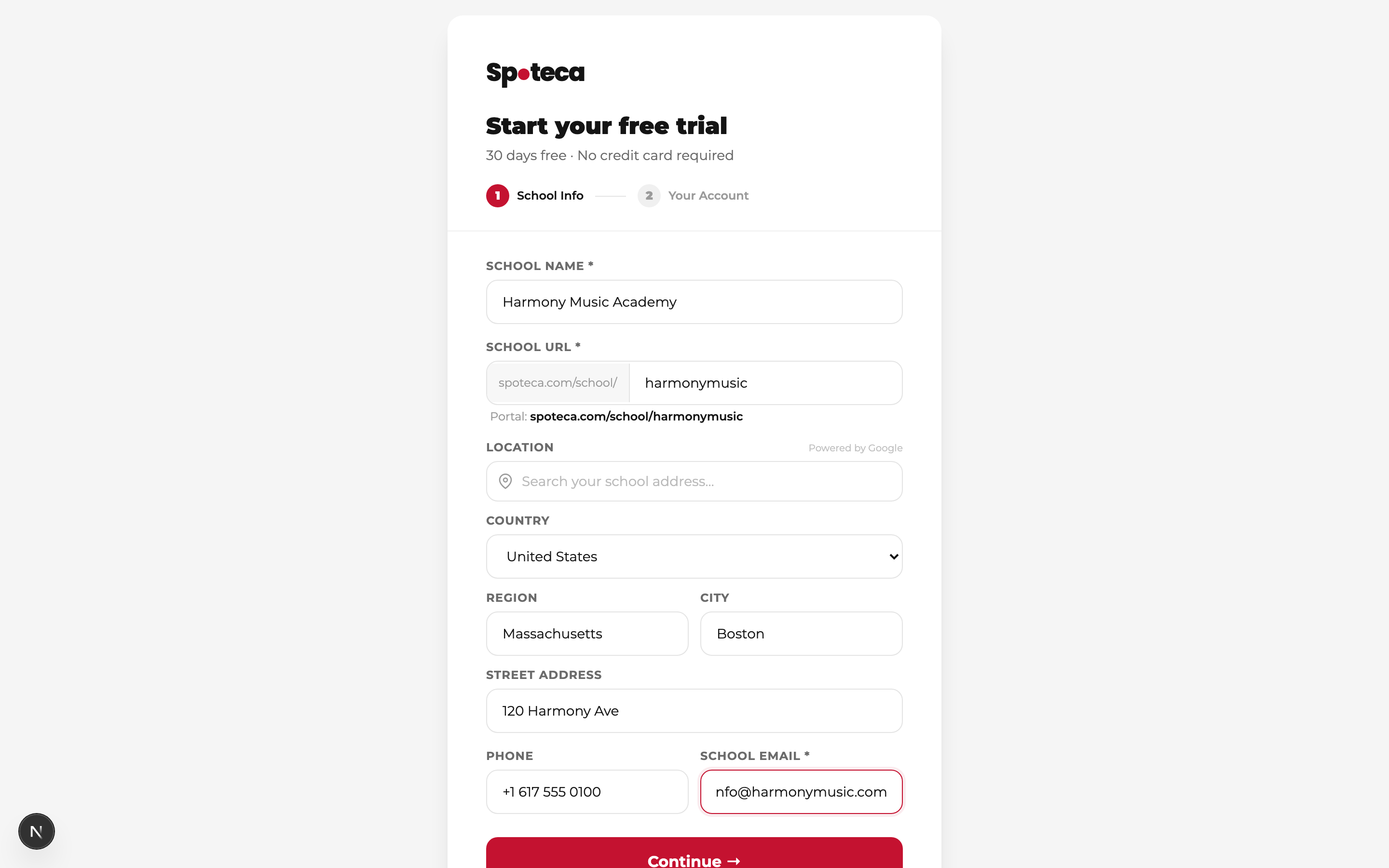
Step 1 — School info
School Name — your academy's public name (e.g. Harmony Music Academy).
School URL — auto-generated from the name; this becomes your private portal address: spoteca.com/school/yourname. Keep it short — it's what your teachers, students and parents will use to log in. You can edit it before submitting.
Location & contact — address (with Google search assist), country, region, city, phone, and the school email (required — used for billing and important notices).
Step 2 — Your owner account
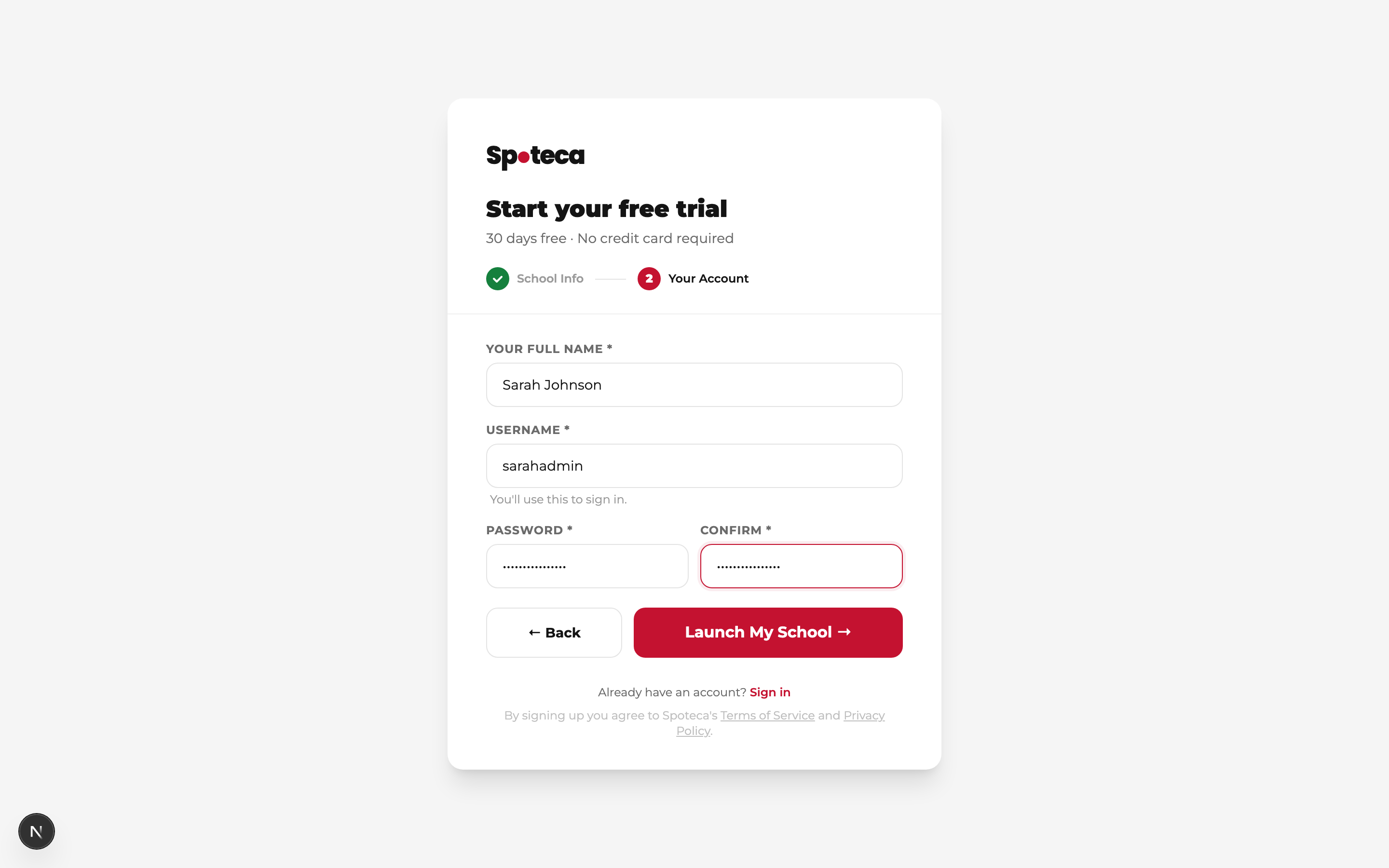
Your full name, a username (this is what you'll sign in with — not your email), and a password (min. 8 characters). Click Launch My School → and you're signed in automatically, landing on your Super Admin dashboard.
2 · Your dashboard & the guided tour
On first login a guided tour walks you through the sidebar. You can replay it anytime with the ? button. The dashboard shows live counters (students, teachers, admins, enrollments, revenue, unpaid payments), your plan status, and recent activity.
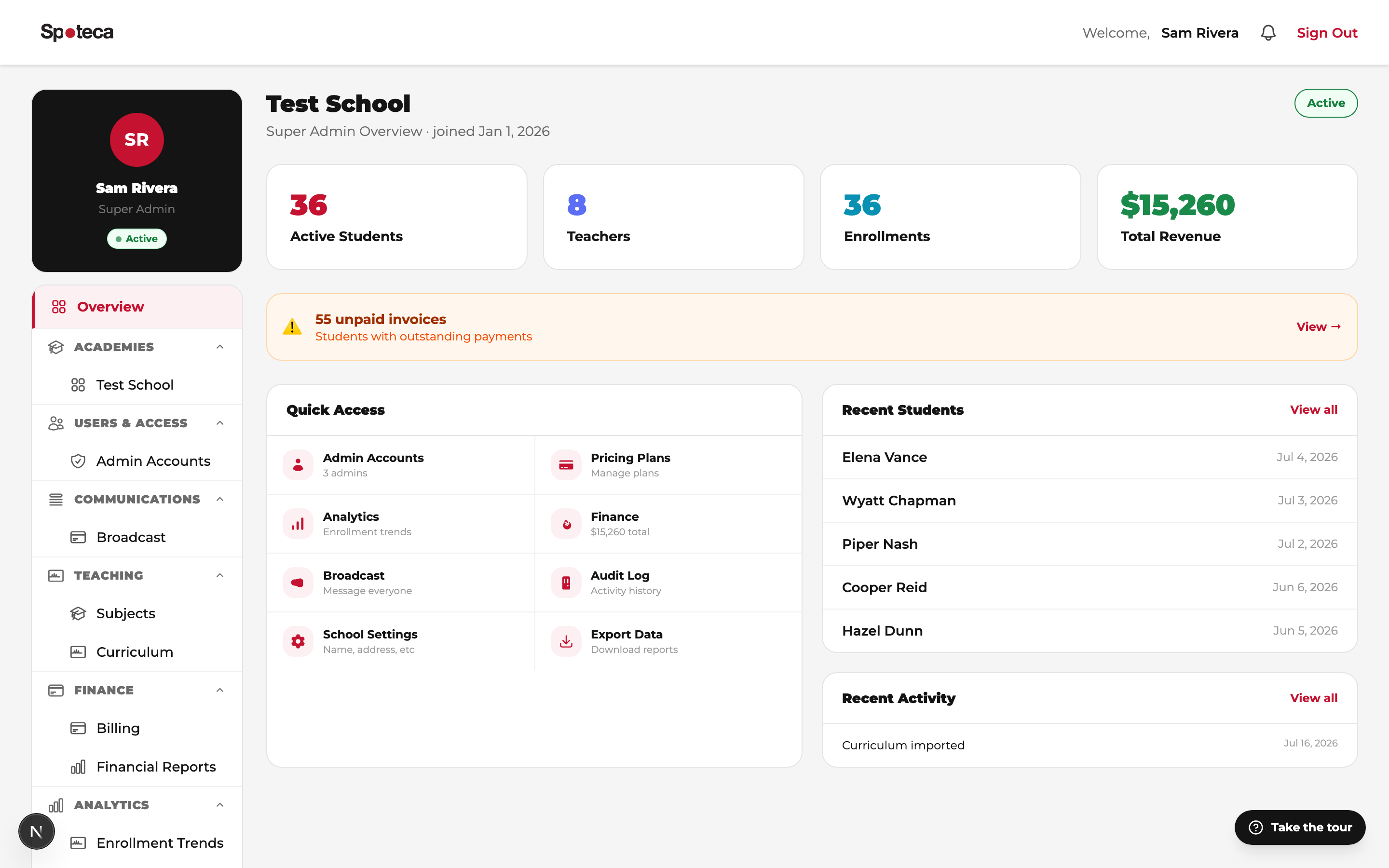
The sidebar is organised into groups: Academies (your school's Admin panel), Users & Access (Admin Accounts), Communications (Broadcast), Teaching (Curriculum), Finance (Billing, Financial Reports), Analytics (Enrollment Trends, Room Utilization, Teacher Performance, Student Flags) and System (School Settings, Audit Log, Export/Import Data).
3 · Create pricing plans
Sidebar → System → School Settings → Pricing Plans
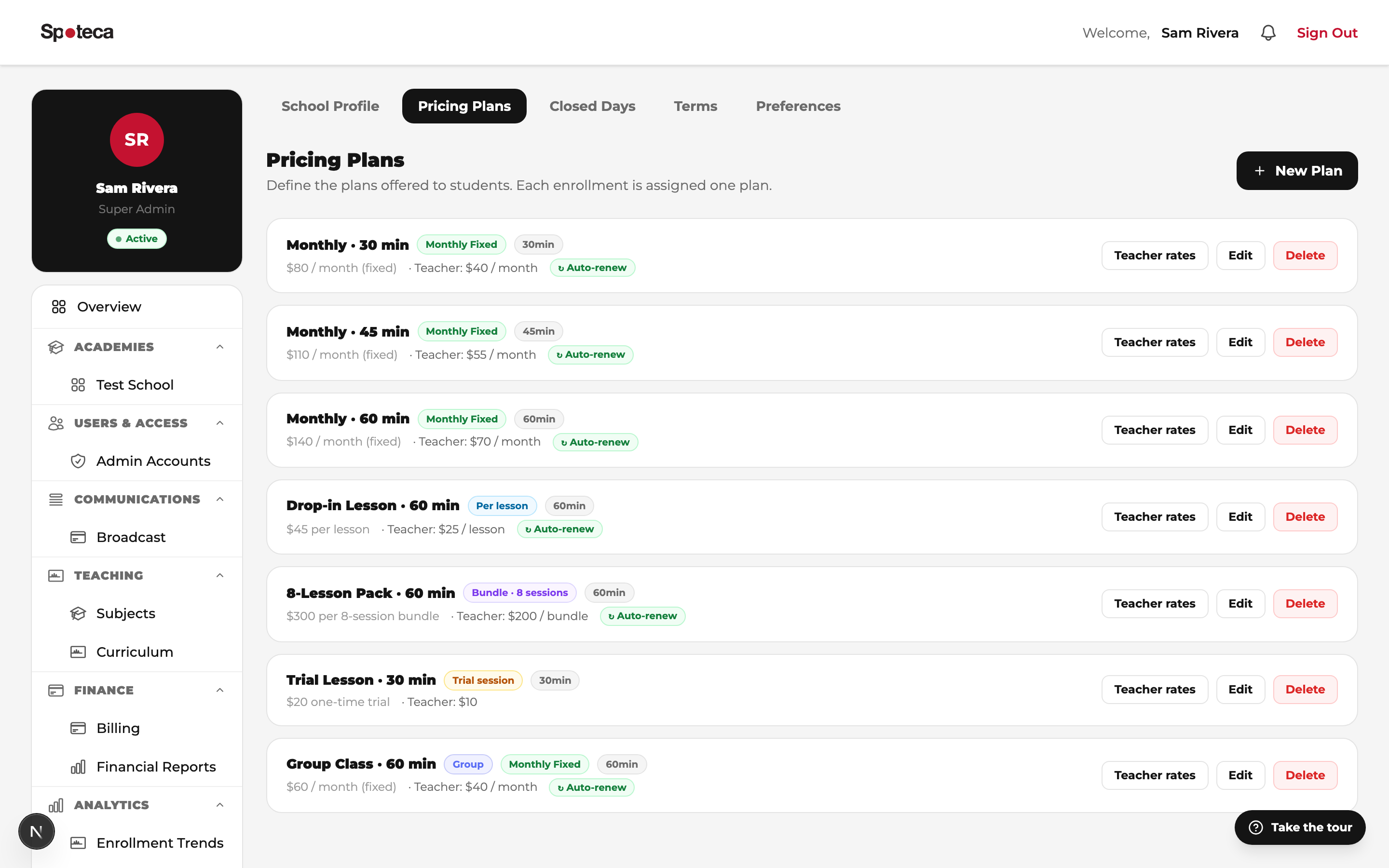
A pricing plan bundles everything about how a lesson type is sold: lesson duration, billing style, student price, and what the teacher earns. Clicking New Plan first shows templates — Monthly subscription, Lesson pack, Term program, Per lesson, Trial lesson, or Custom — plus ready-made library presets (10-Class Pass, Tutoring 5-Hour Pack). Pick one and a short 3-step wizard opens; everything stays editable:
The lesson
Name it (e.g. "Monthly 60min", "8-Session Pack" — students and staff see this name everywhere), pick Individual or Group Class, choose a duration — 15, 30, 45, 60, 90 or 120 minutes — and for individual plans set lessons per week (1–5). Choose 2+ for intensive students: same teacher, and the extra weekly slots are picked at enrollment.
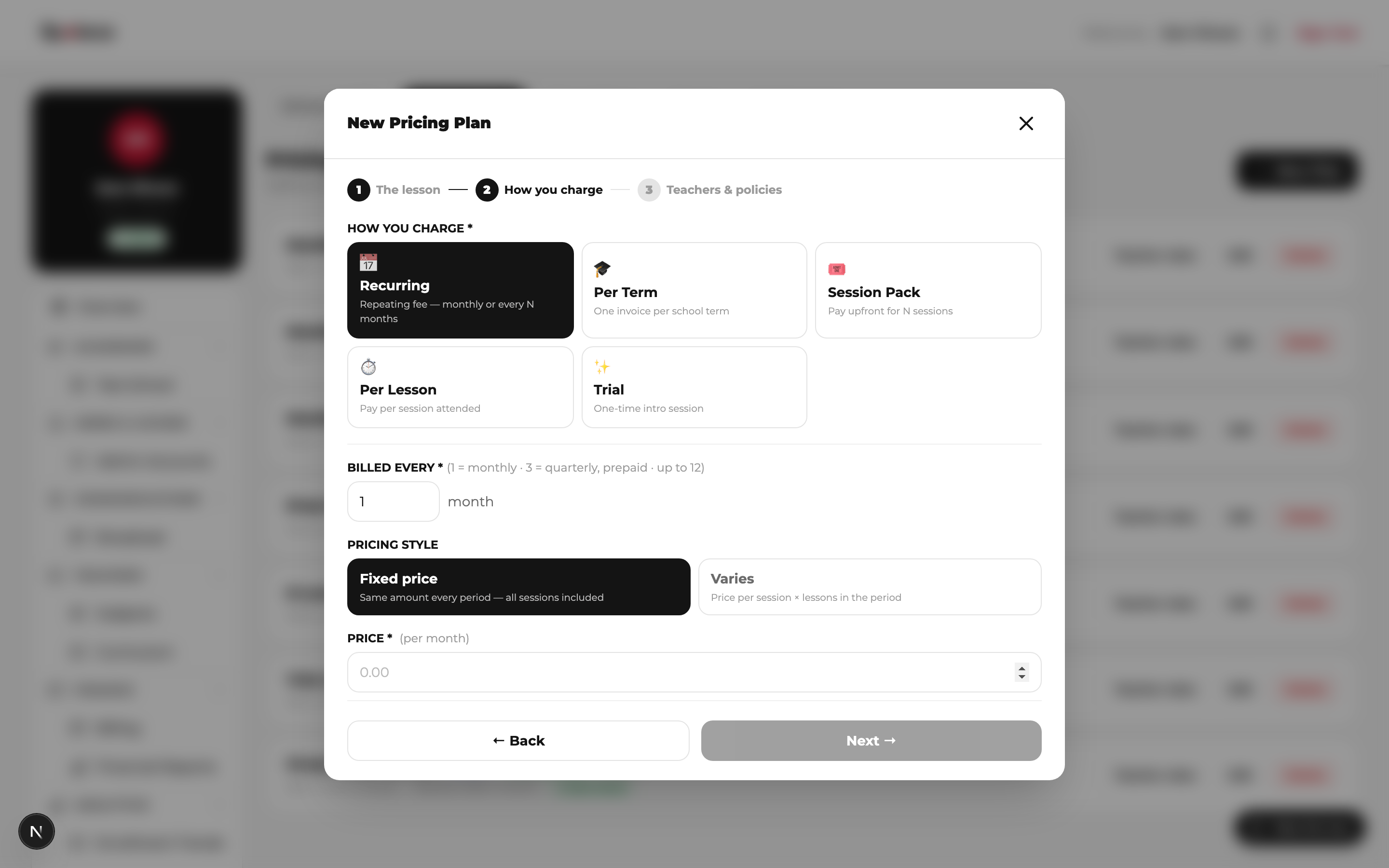
How you charge
Pick one of five billing models:
| Billing model | How the student pays | Best for |
|---|---|---|
| 📅 Recurring | Repeating fee, billed every 1–12 months (1 = monthly, 3 = quarterly prepaid…). Choose Fixed price (same amount every period) or Varies (session price × lesson days in the month — months with 5 Mondays cost more than months with 4). | The classic subscription — and prepaid multi-month plans. |
| 🎓 Per Term | One invoice per academic term, using the term dates you define in School Settings → Terms. Optionally cap sessions ("up to 15 lessons per term" — unused ones expire). | Conservatories and academies that charge semester tuition. |
| 🎟️ Session Pack | Pack of N sessions paid upfront; auto-renews with a new pack when used up. | 4/8/10-lesson cards, class passes, tutoring hour packs. |
| ⏱️ Per Lesson | Price per individual session. | Drop-in or pay-as-you-go students. |
| ✨ Trial | One-time introductory session; never renews; admin is notified when it's done. | Converting prospects — pair it with your public enrollment link. |
Teachers & policies
How is the teacher paid? — pick the rate basis: per month (rate × months in the billing period), per billing period / per term (one total for the whole cycle), per scheduled lesson, or per attended lesson (only sessions marked Present count). Set the rate — this drives automatic teacher-pay calculation, and the wizard previews the total per period. You can later add per-teacher overrides from the plans list (e.g. your senior piano teacher earns more on the same plan). Also set reschedules allowed per month — how many times a student may move a lesson.
Advanced billing (optional)
Open ⚙️ Advanced Billing to fine-tune: invoice lead days (how many days before the period the invoice is generated — default 7), payment due date, mid-period joiners (prorated by remaining lessons, full price, or free until the next period) and installments (split a term or period fee into 2, 3, 4 or 6 equal payments). The defaults suit most schools — you never have to touch this.
4 · School settings & branding
Sidebar → System → School Settings
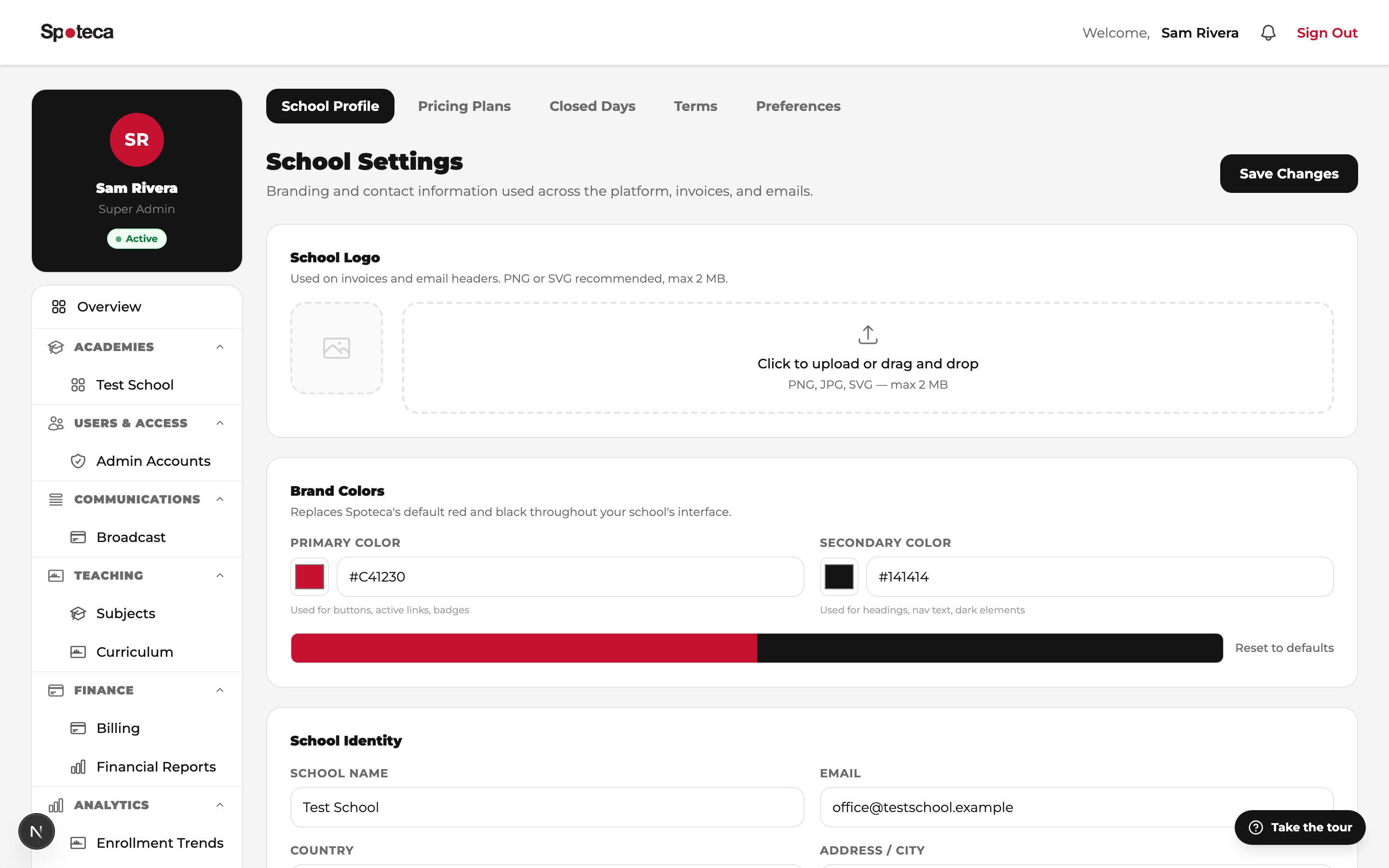
Set your logo (appears on the login portal, dashboards, invoices and receipts — max 2 MB), brand colors, currency (shown on invoices and receipts — USD, EUR, JOD and more), school name/identity, email footer and closed days. This page also hosts the Pricing Plans panel from the previous step, plus two more tabs:
- Terms — define your academic terms (e.g. Fall 2026: Sept 7 – Dec 18). Required for Per Term pricing plans: each enrolled student is invoiced once per term, automatically, before the term starts.
- Preferences — school-wide toggles: student reschedule requests, whether teachers see payments, self-enrollment, and whether Admins may manage the Subjects list.
5 · Admin accounts
Sidebar → Users & Access → Admin Accounts
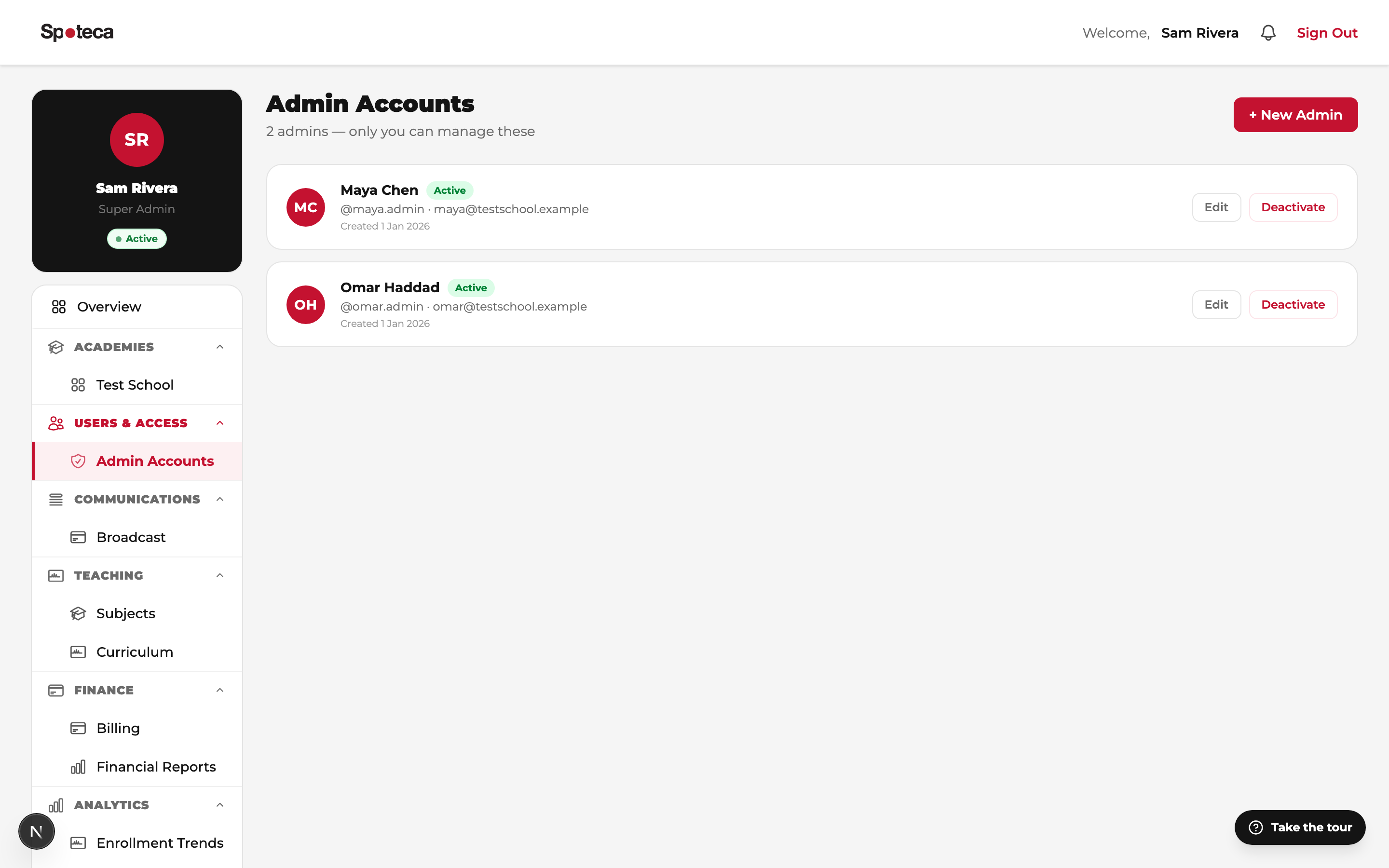
Create an Admin login for each staff member who runs daily operations. Admins can manage teachers, students, scheduling, payments and communication — but cannot touch curriculum, pricing plans, school settings or billing. If you're an owner-operator, you don't need a separate Admin account: you already have the full Admin view.
6 · Switch to the Admin view
At the top of your sidebar, under Academies, click your school's name to jump into the Admin dashboard — no logout needed. This is where teachers and students are added, so your next steps continue in the Admin guide: add teachers → have them set availability → enroll students.
7 · Import your existing data (Excel)
Sidebar → System → Import Data
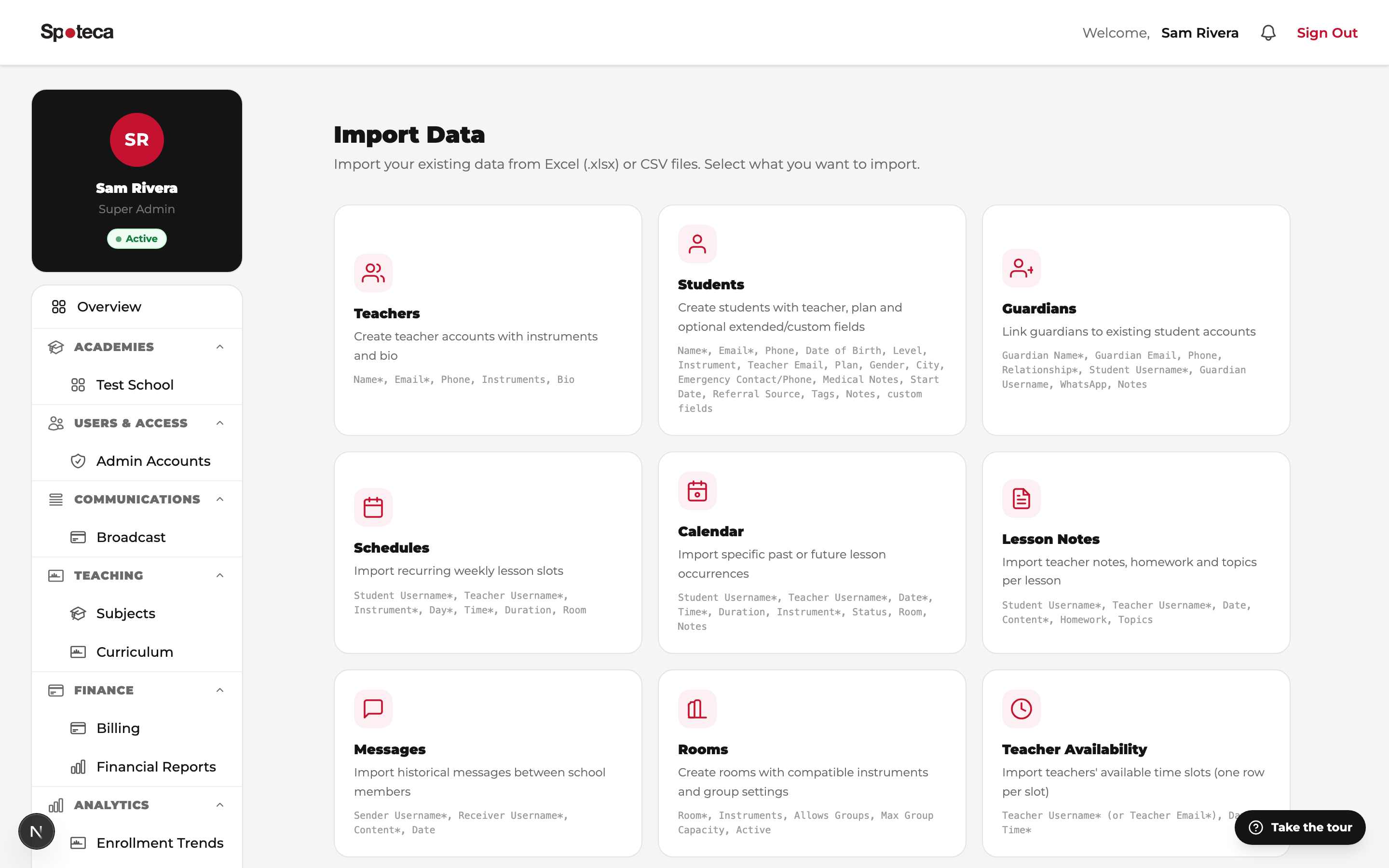
Moving from spreadsheets, My Music Staff, or another system? Import your whole school from Excel files. Each entity has a downloadable template with the exact columns:
- Teachers — names, usernames, instruments, contact info.
- Students & Guardians — profiles, contacts, parent links.
- Schedules — existing weekly lessons.
- Availability — teacher available slots (see below).
- Rooms, Calendar, Notes, Messages — everything else.
Fixed school hours? Import availability instead of asking teachers
If your school assigns teachers fixed working hours (e.g. everyone teaches 15:00–20:00), you don't need teachers to paint their own availability. Prepare one sheet with a row per teacher per slot:
| Teacher Username | Day | Time |
|---|---|---|
| nadia.k | Monday | 15:00 |
| nadia.k | Monday | 15:15 |
| nadia.k | Monday | 15:30 |
| …one row per 15-minute slot, per day, per teacher. Duplicate rows are skipped automatically, so you can re-import safely. You can also identify teachers by Teacher Email instead of username. | ||
Tip: build the sheet in Excel with autofill in minutes — column of 15-minute times, copy per day, copy per teacher. After import, teachers can still fine-tune their own grid.
8 · Set up the curriculum — when you're ready
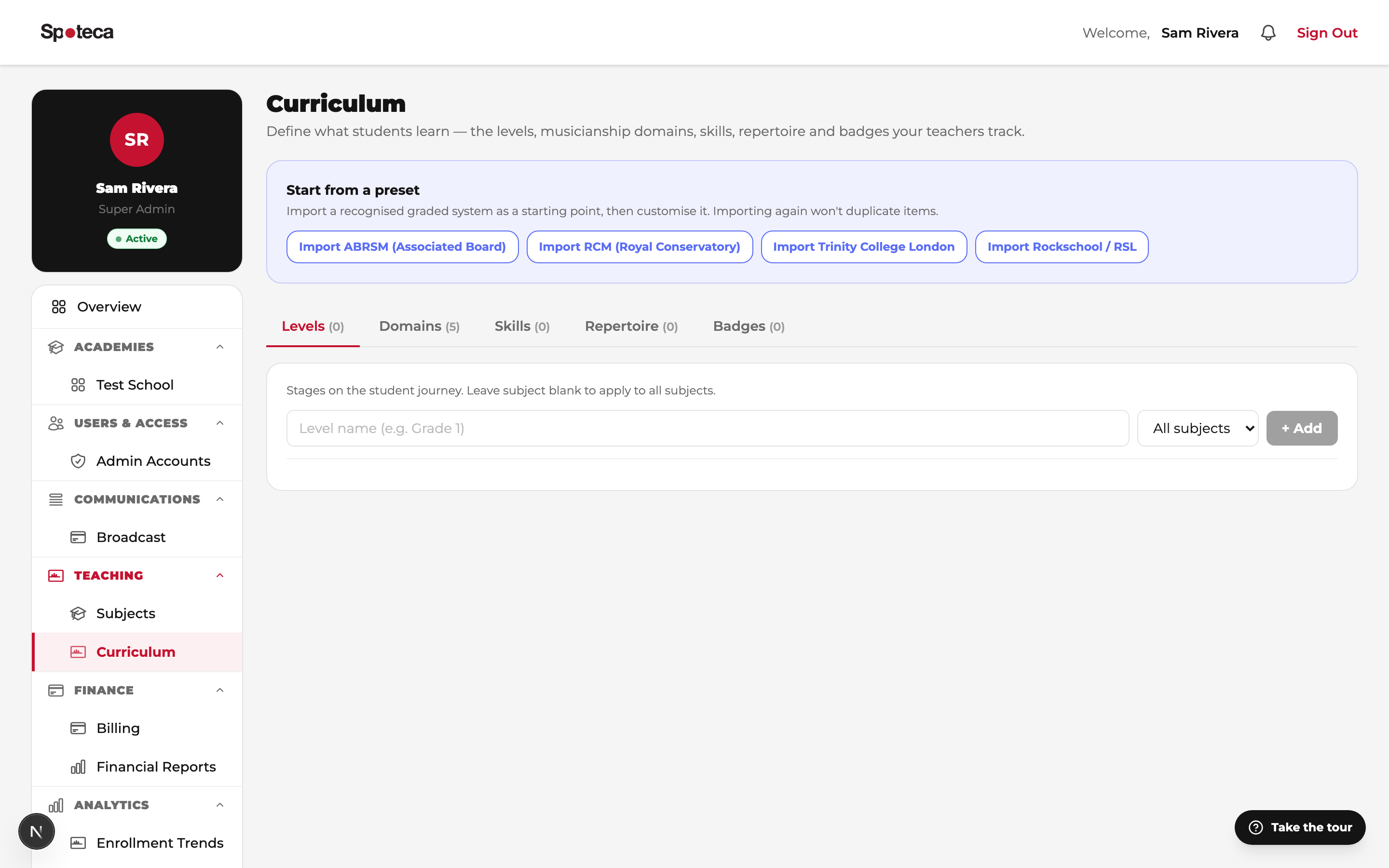
Sidebar → Teaching → Curriculum
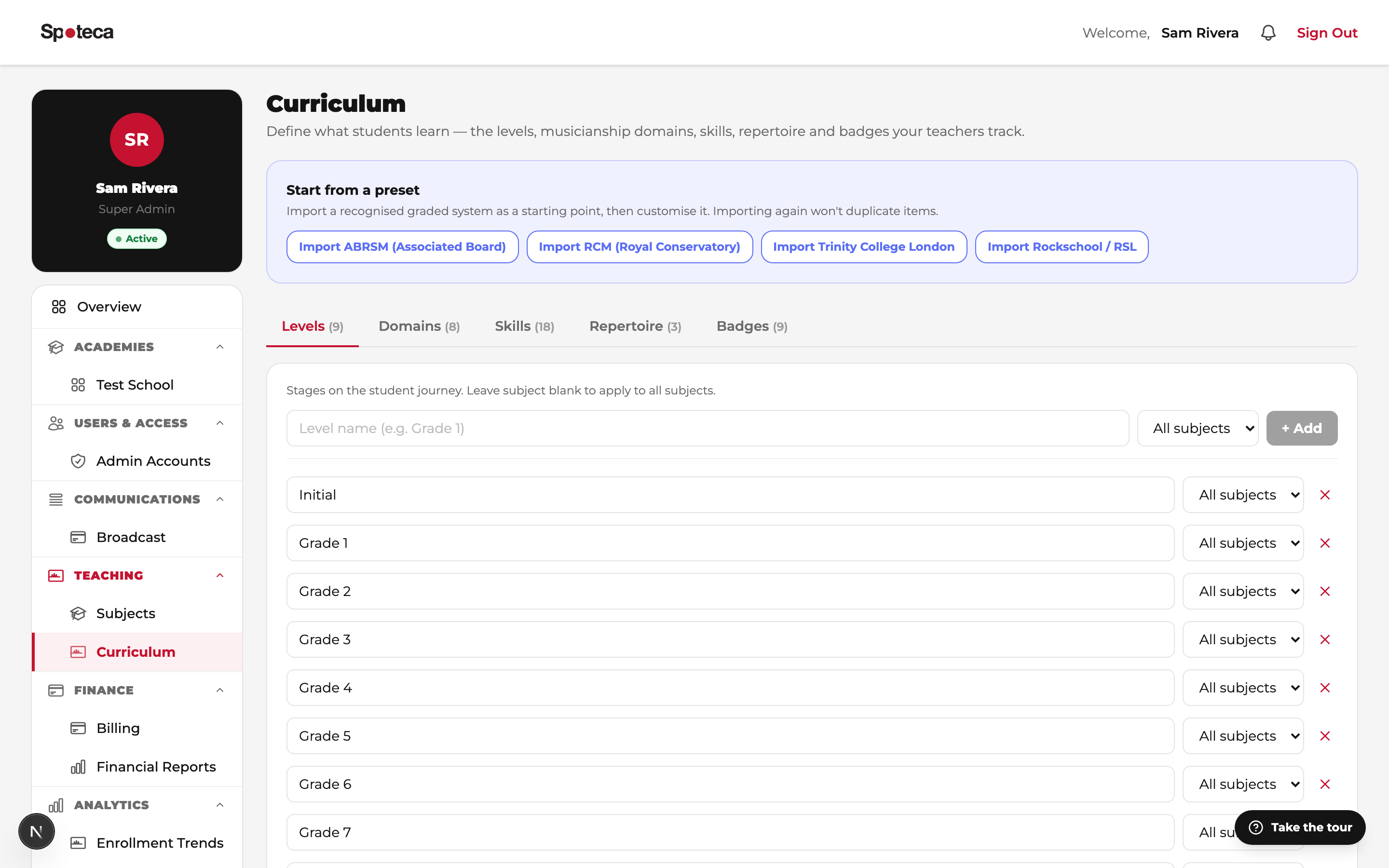
The curriculum defines what students learn at your school. It powers each student's Journey page, the teacher's progress-tracking tools, badges, and printable progress reports. It has five building blocks:
| Block | What it is | Examples |
|---|---|---|
| Levels | Stages on the student journey, optionally per-instrument. | Grade 1…8, Beginner/Intermediate/Advanced |
| Domains | Musicianship areas you track. | Technique, Theory, Aural, Sight-reading, Rhythm, Performance |
| Skills | Discrete competencies inside a domain, tied to a level and (optionally) an instrument. | "Scales & arpeggios for Grade 2", "Read bass clef" |
| Repertoire | Your school's piece library, by instrument and level. Teachers assign pieces to students and track them from Assigned → Learning → Polishing → Performed. | "Für Elise — Beethoven (Grade 3)" |
| Badges | Milestones awarded manually or automatically by rule. | First practice, 7-day practice streak, 10 pieces performed, 25 skills mastered |
The fast way: import a preset
Click one of the preset buttons — ABRSM, RCM, Trinity, or Rockschool — and Spoteca imports a complete graded system (levels, domains, skills and starter badges) in seconds. Everything stays fully editable, and importing twice never duplicates items. Start from the preset closest to how you teach, then rename, delete and add to make it yours.
Building manually
- Levels tab — add each stage ("Grade 1"…). Leave instrument blank to apply to all instruments, or create instrument-specific levels.
- Domains tab — add areas like Technique or Theory (with an optional icon).
- Skills tab — add skills inside a domain; optionally pin to a level and instrument.
- Repertoire tab — add pieces (title, composer, instrument, level).
- Badges tab — create badges. Rule-based badges award themselves: first practice, practice streak (N days), pieces performed (N), skills mastered (N). Leave the rule empty for manually-awarded badges (e.g. "Grade passed").
9 · Your Spoteca plan & billing
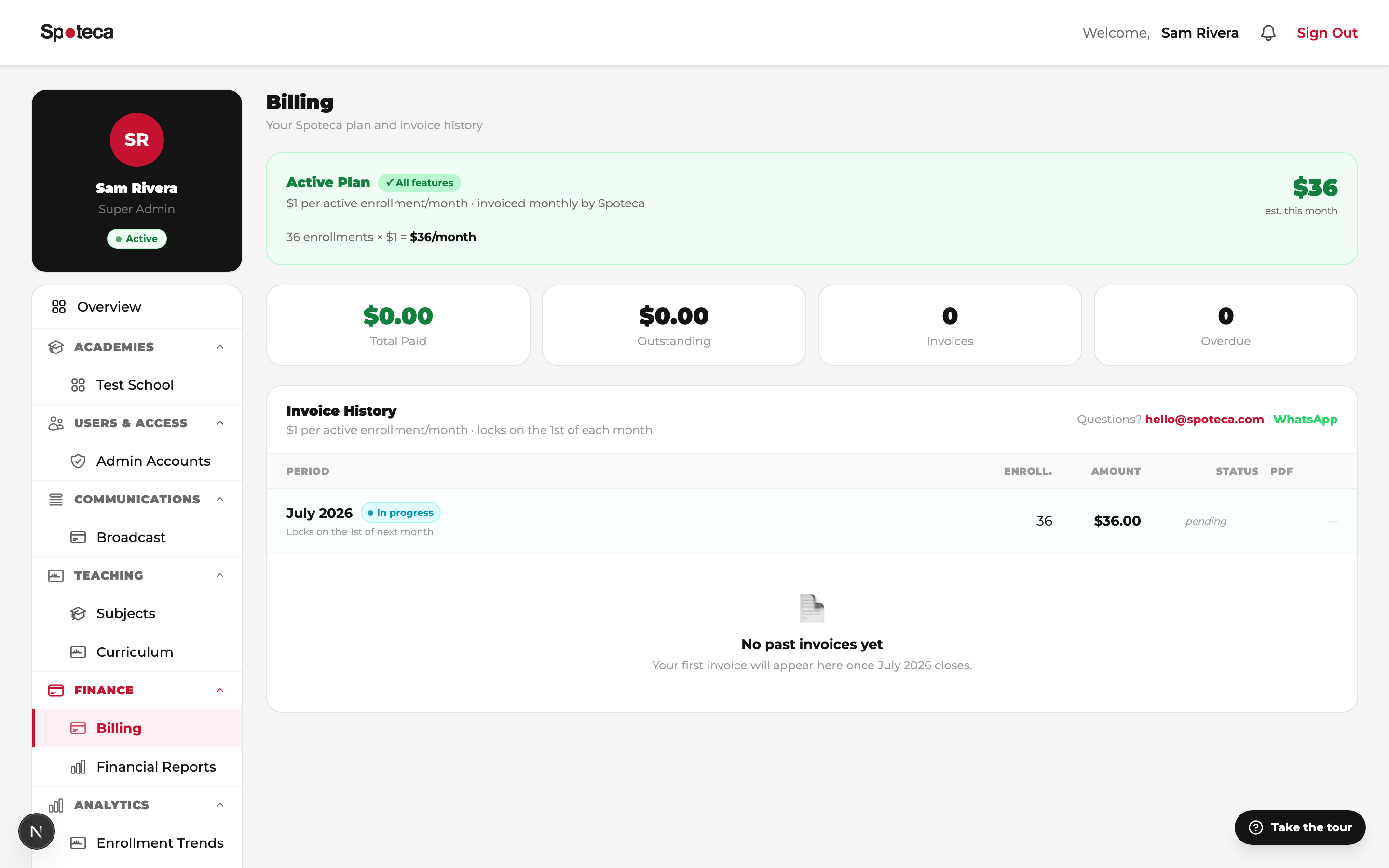
Sidebar → Finance → Billing
| Plan | Cost | Limits |
|---|---|---|
| Free | $0 forever | All features, up to 10 active enrollments. No time limit, no card required. |
| Growth | $1 per active enrollment / month / branch, capped at $100/month | Unlimited enrollments. Starts with a 30-day free trial. Paused or ended enrollments are never billed. |
An active enrollment is one student-instrument subscription that was active at any point in the billed month. A student taking piano and guitar counts as two enrollments. Your monthly usage snapshot and invoices appear on this page.
10 · Analytics & reports
- Enrollment Trends Analytics → Enrollment Trends — new sign-ups, dropouts and growth over time.
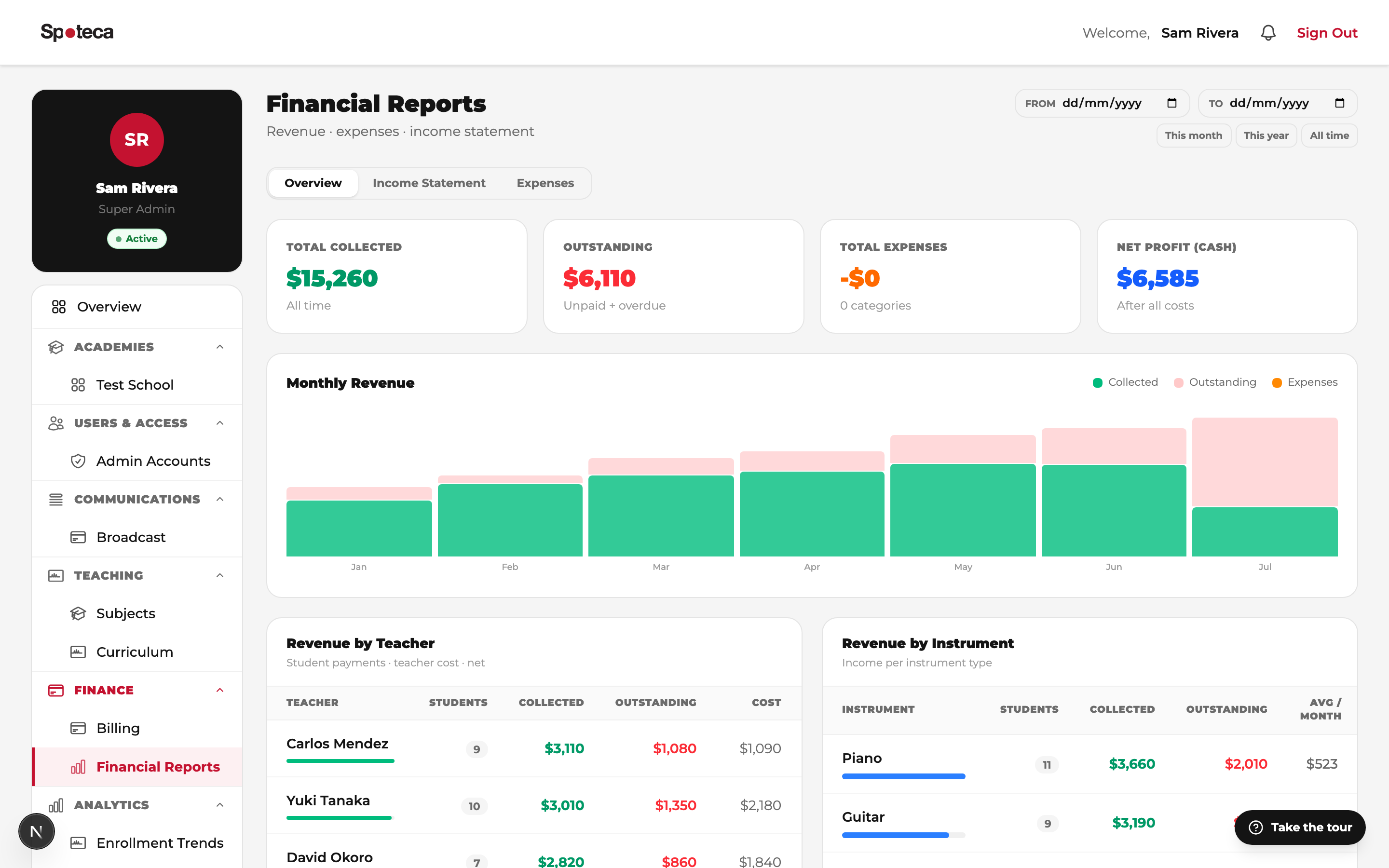
- Financial Reports Finance → Financial Reports — monthly revenue, teacher payroll totals, expenses and margin.
- Teacher Performance — lessons delivered, retention and ratings per teacher.
- Room Utilization — how busy each room is; spot dead hours and bottlenecks.
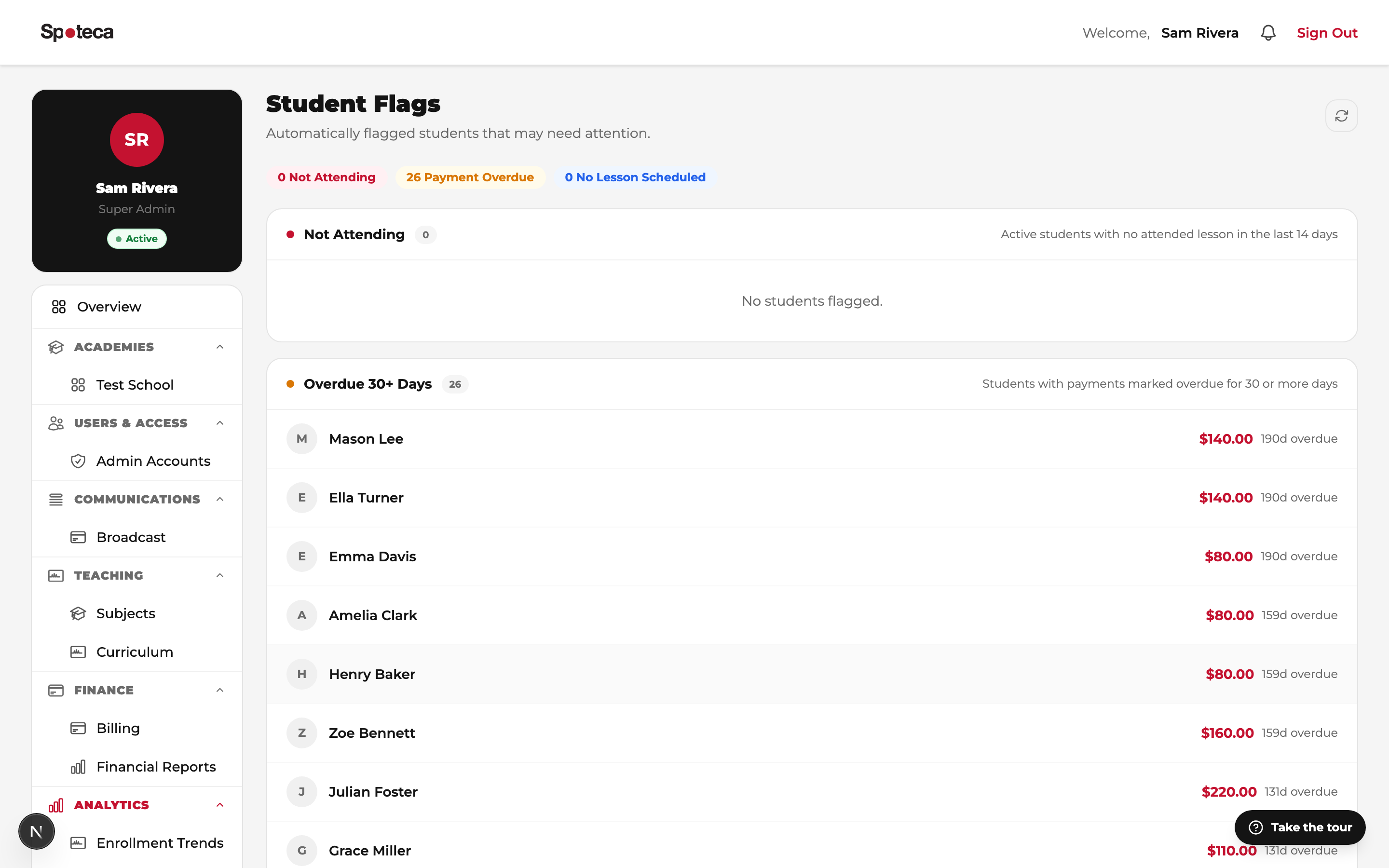
- Student Flags — Spoteca automatically flags students with overdue payments, recent absences, or no upcoming lessons, so nobody slips through the cracks.
11 · Broadcast & audit log
Broadcast Communications → Broadcast — send an announcement to the whole school, all teachers, or all students at once (holidays, recitals, policy changes). Recipients see it on their dashboard and in notifications.
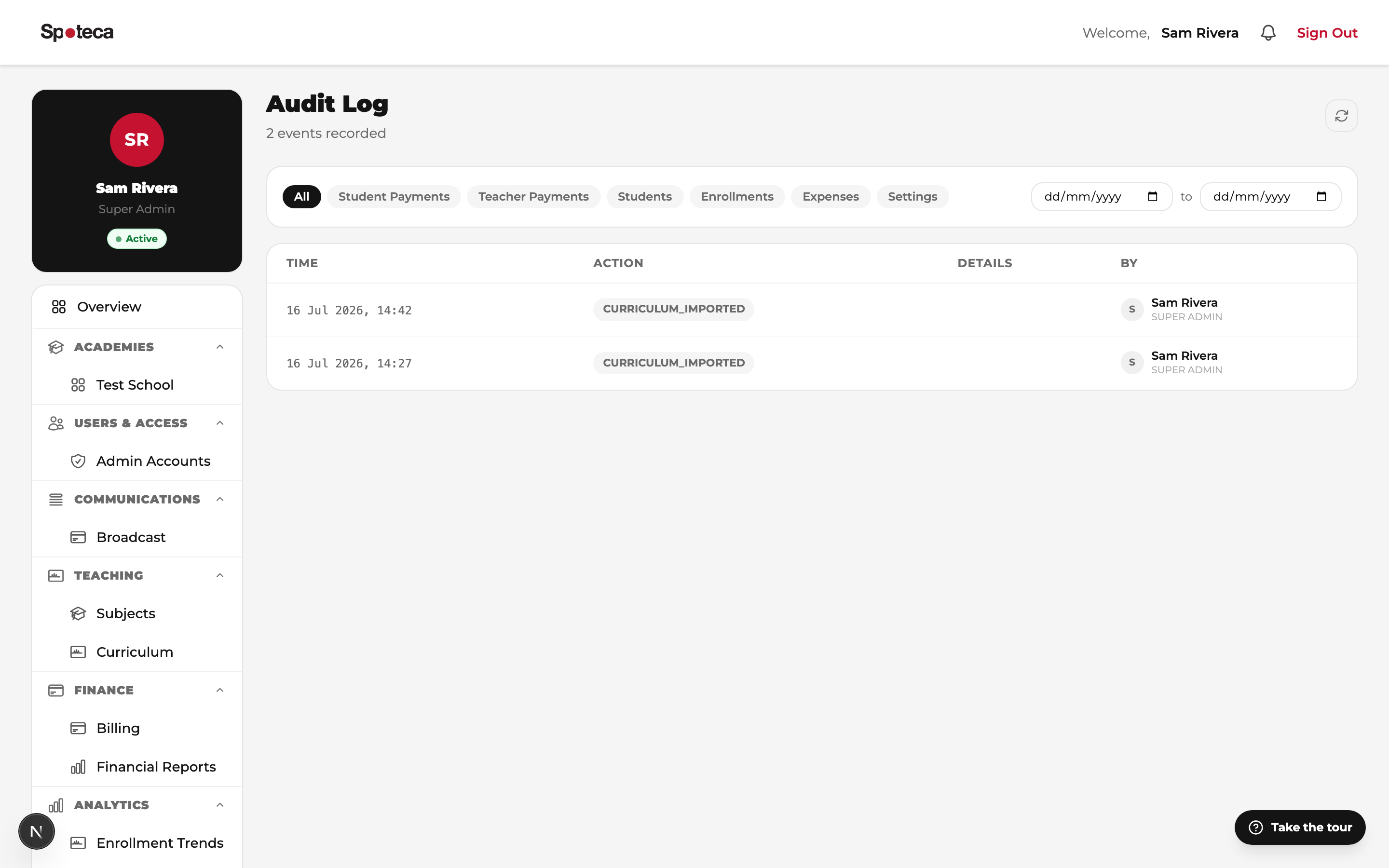
Audit Log System → Audit Log — every important action (payment marked paid, student created, enrollment removed, setting changed) is recorded with who did it and when. Your accountability layer.
FAQ
What must I finish before my staff can work?
At least one pricing plan — that's the hard requirement. Then add teachers and get availability set. The curriculum can wait: enrollment works without it, but Journey pages stay empty until it exists.
Can I change the portal URL (slug) later?
Contact Spoteca support (hello@spoteca.com) — changing it affects everyone's login links.
What happens when I hit 10 enrollments on Free?
You'll be prompted to upgrade to Growth before adding the 11th active enrollment. Nothing is deleted; existing enrollments keep working.
Can I run multiple branches?
Yes — each branch is its own school on Spoteca, billed per branch. Contact support to link them.
I own the school and also teach. Two accounts?
Yes — create yourself a Teacher account (Admin view → Teachers). Keep the Super Admin account for management; use the teacher login for your own schedule and availability.
Next → The Admin Guide: teachers, students, scheduling & payments