The Teacher Guide
Welcome! Your admin created your account — this guide gets you teaching. One thing before anything else: set your availability. Until you do, the school cannot schedule a single student with you.
1 · Your first login
Your admin gives you a username and password. Go to spoteca.com/login (or your school's portal link), sign in, and you'll land on your teacher dashboard. Change your password anytime in Account Settings.
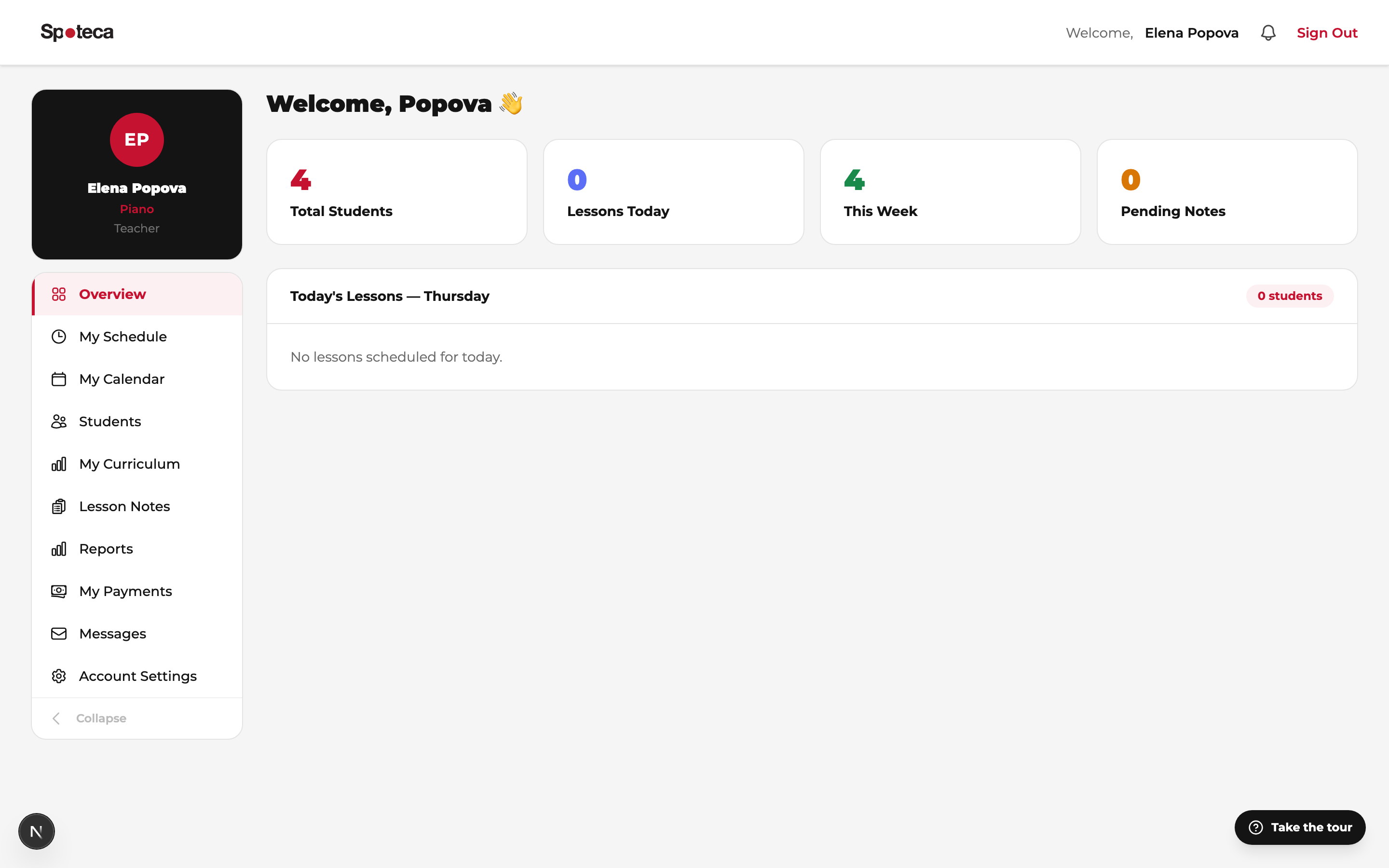
Your sidebar: Overview · My Schedule · My Calendar · Students · My Curriculum · Lesson Notes · Reports · My Payments · Messages · Account Settings. A guided tour runs on first login (replay it with the ? button).
2 · Set your availability — do this first ⚠️
Sidebar → My Schedule → “My Availability” tab
Open the grid
My Schedule has two tabs: Weekly Lessons and My Availability. Open the second. You'll see a weekly grid, Monday to Saturday, from 8:00 to 22:00 in 15-minute rows.
Paint your free hours
Click a slot to toggle it, or click-and-drag to paint whole blocks green in one stroke. Mark every window you're genuinely willing to teach.
Save
Hit Save availability. Done — the admin can now book students with you.
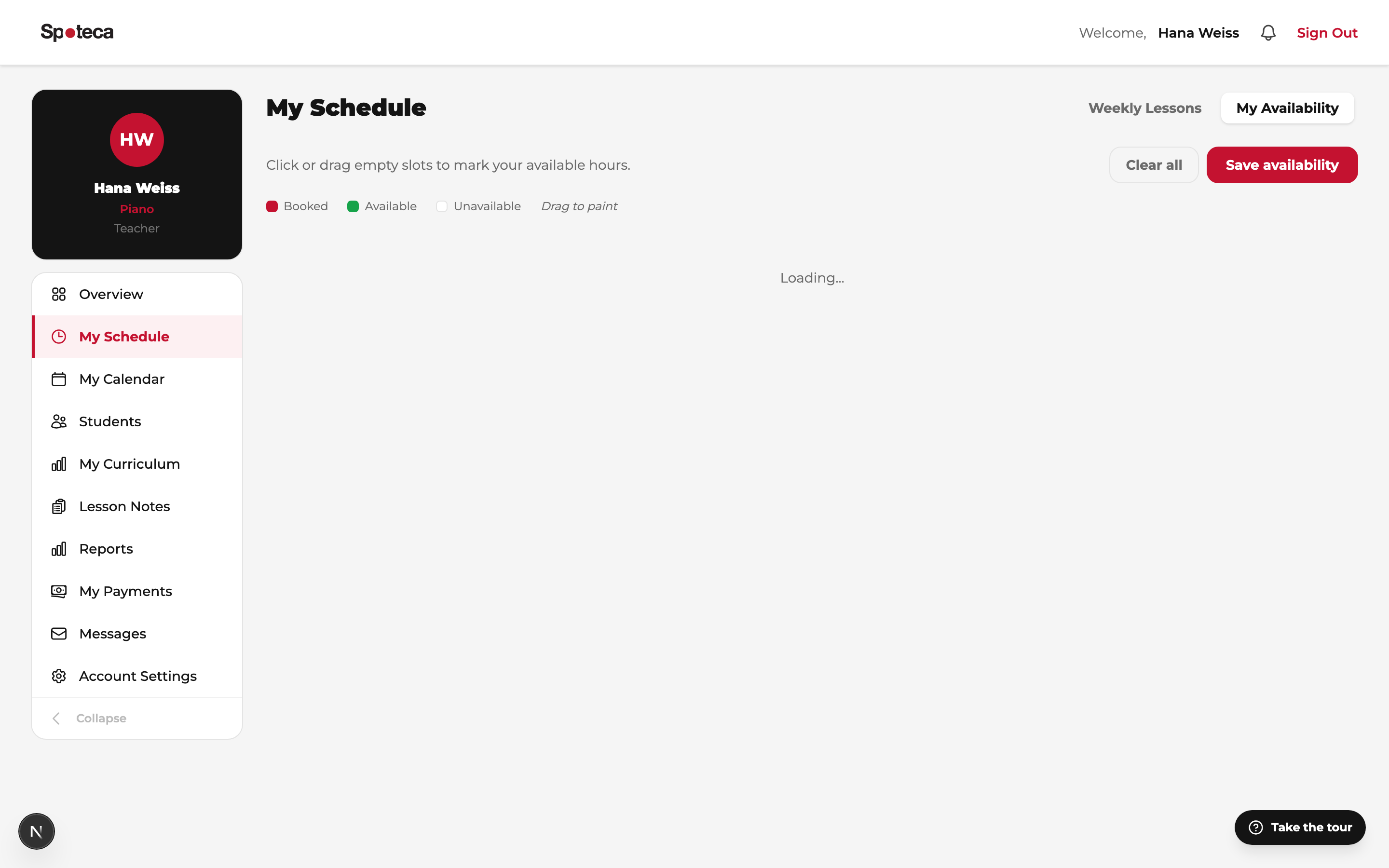
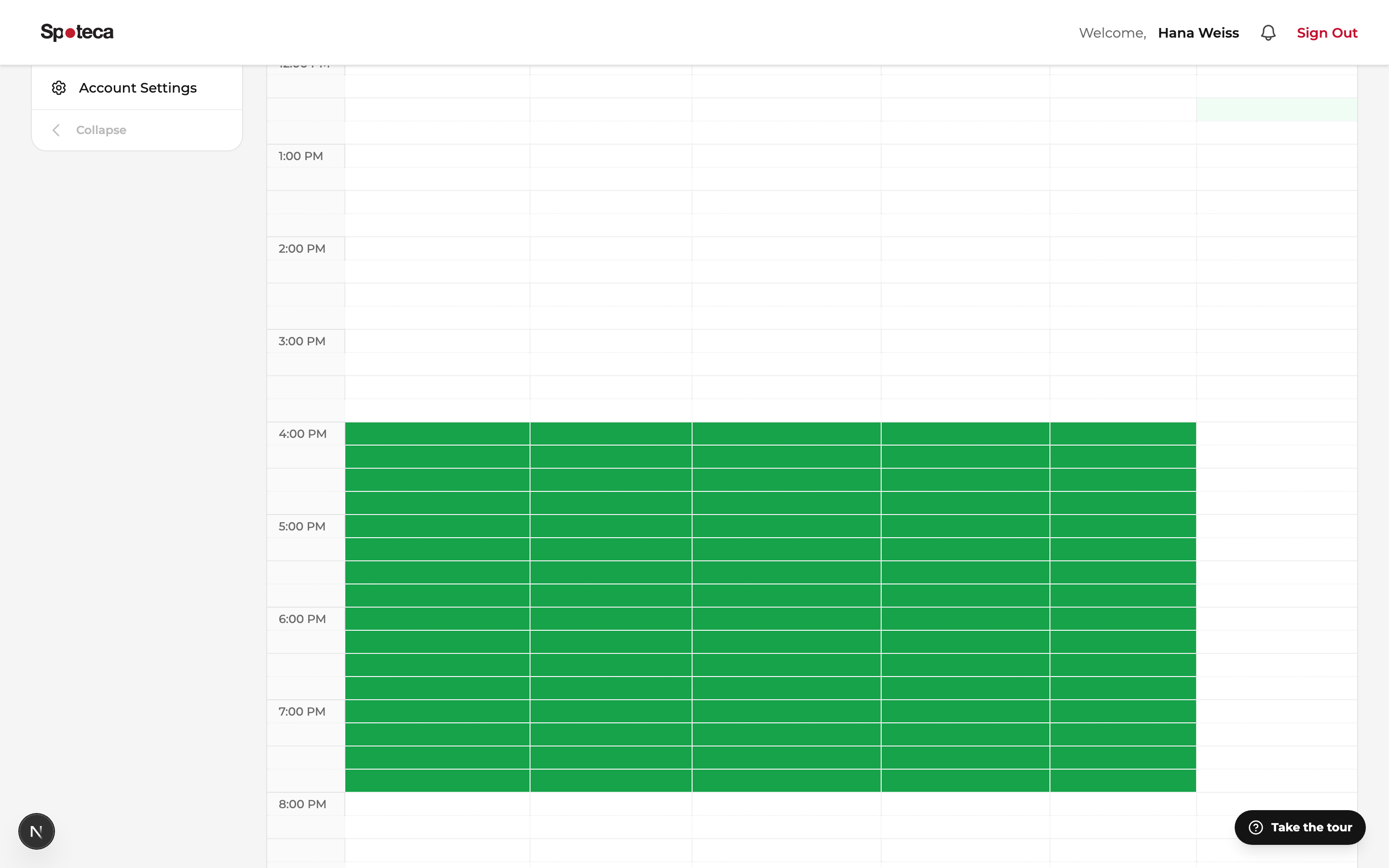
- Booked slots are protected — once a student occupies a slot it turns red and you can't accidentally un-mark it. To free it, the admin must move the lesson first.
- Update anytime — new semester, new life schedule? Repaint and save. Existing lessons are never touched by availability edits.
- Going away? Don't unpaint your grid for holidays — that's what absences are for. Tell your admin; they'll log the absence and handle rescheduling of affected lessons properly (see the Admin guide).
If your school sets your hours for you
3 · Your schedule & calendar
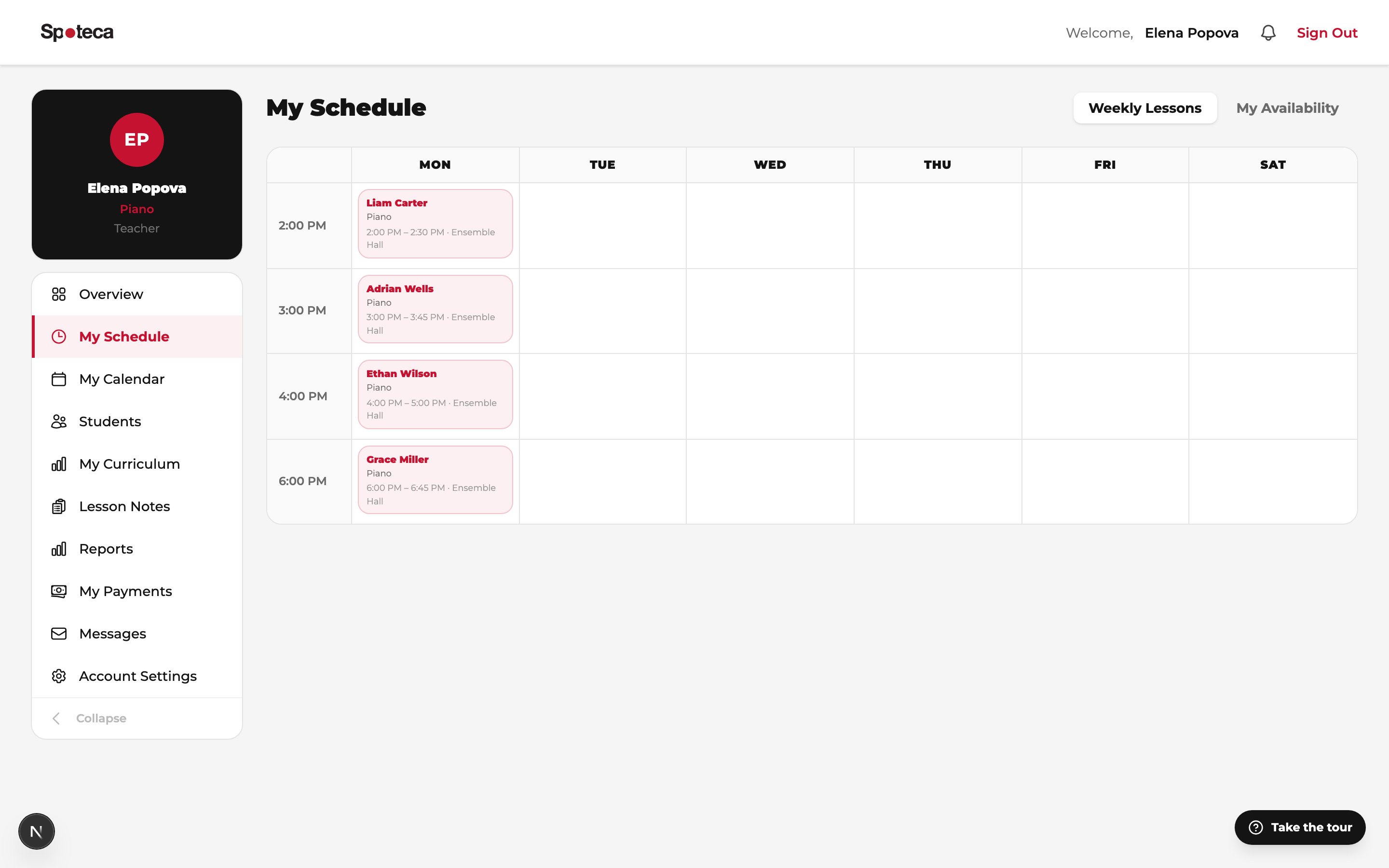
Back on the Weekly Lessons tab, your recurring week appears as the admin enrolls students: student name, instrument, exact time range, and room. It repeats weekly — no rebooking needed.
My Calendar shows the same lessons on real dates — including one-off changes: reschedules, cancellations, group sessions and school events. When in doubt about a specific date, trust the calendar.
4 · Your students
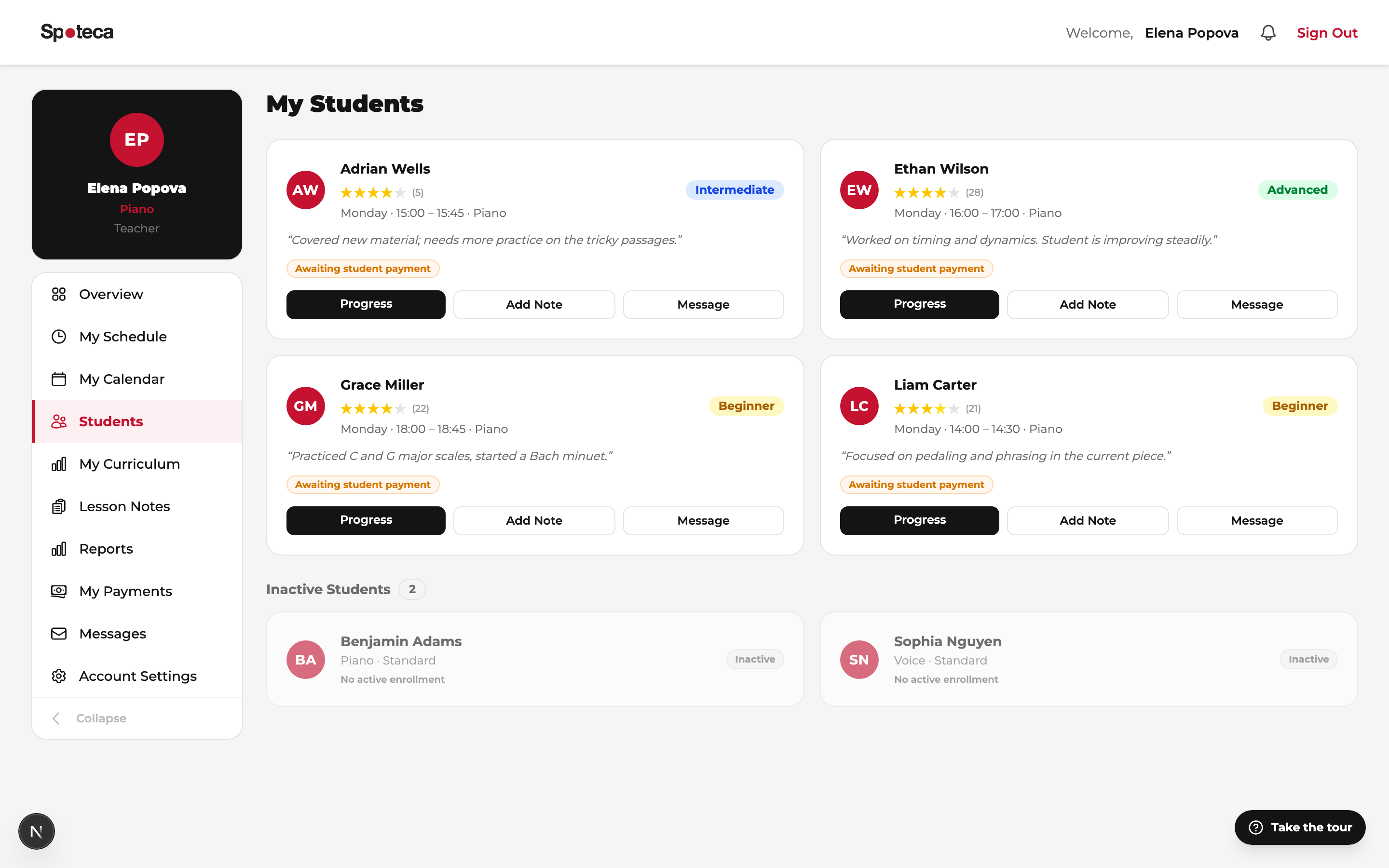
Sidebar → Students — everyone assigned to you, with instrument, level and plan. Open a student to see their profile, lesson history, attendance, notes trail and curriculum progress. This is your prep page before each lesson.
5 · Attendance
Mark each occurrence Present / Absent / Late / Excused right after the lesson (from the lesson, your calendar, or the attendance page). Accurate attendance matters: it feeds the student's record, the school's early-warning flags, and — on pay-per-attendance plans — your pay.
6 · Lesson notes & homework
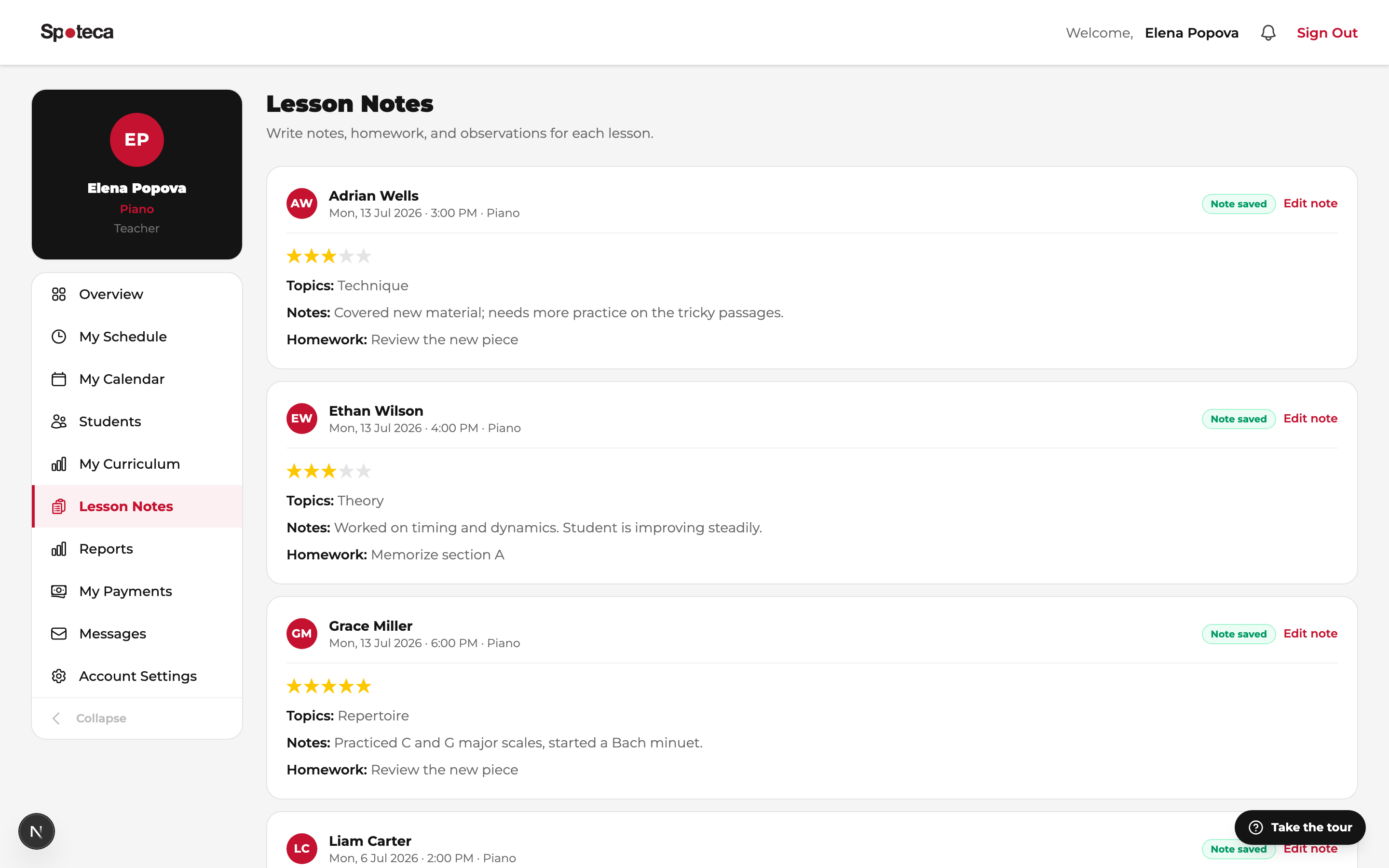
Sidebar → Lesson Notes
After each lesson, write a short note — it's the feedback loop parents love and the reason they keep paying:
- Content — what you covered.
- Topics — tag the areas touched (technique, theory…).
- Homework — what to practice for next time.
- Rating — a quick performance score for the session.
- Attachments — sheet music PDFs, reference recordings.
Students and their parents see notes in their own portals immediately.
7 · Curriculum & progress tracking
Sidebar → My Curriculum
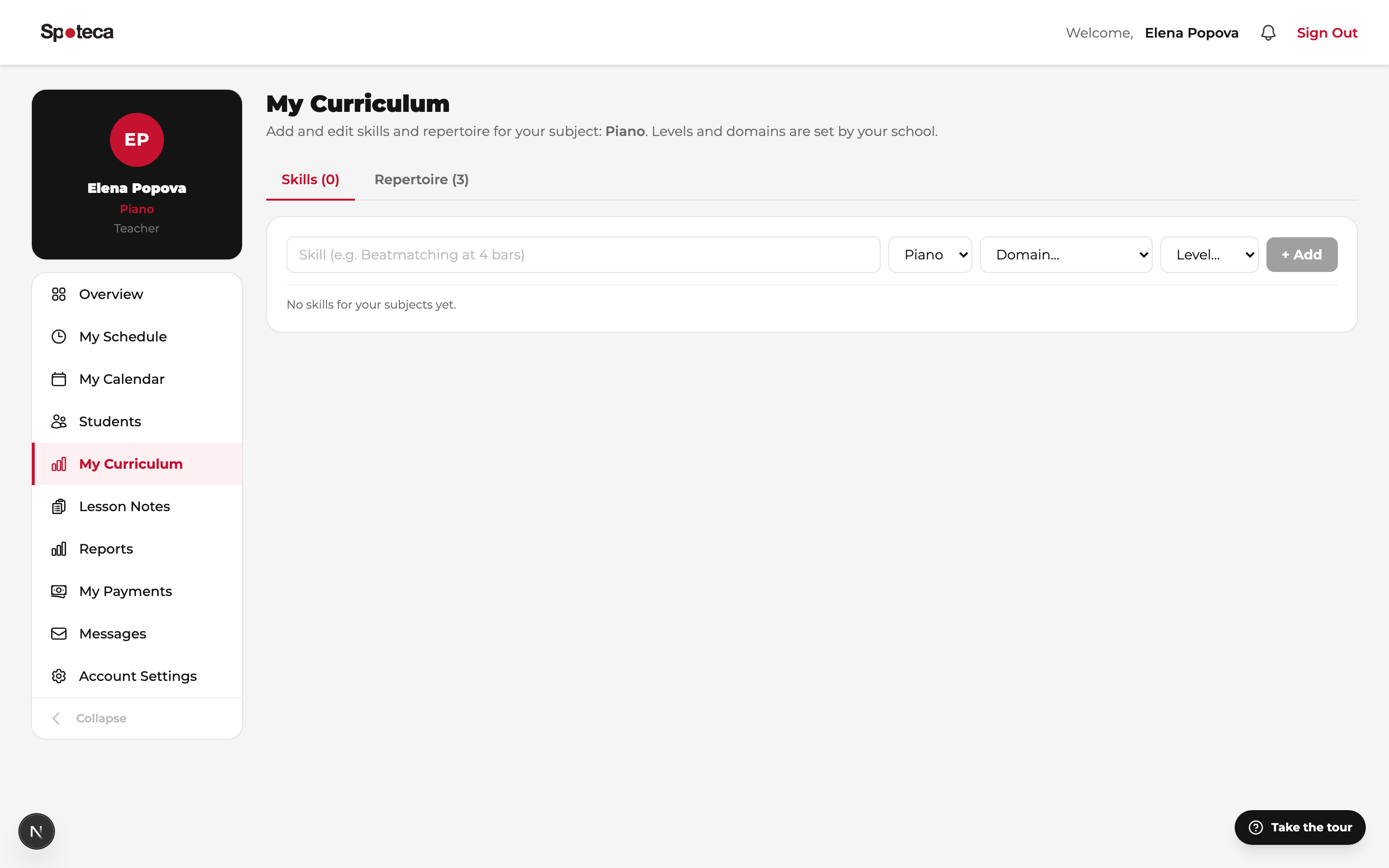
Your school defined a curriculum — levels, skill domains, skills, repertoire and badges. You drive each student along it:
- Skills — mark a student's skills as In progress → Mastered as they develop.
- Repertoire — assign pieces from the school library (or ad-hoc); track Assigned → Learning → Polishing → Performed with a progress bar.
- Levels — move students up when they're ready; record exam results as assessments.
- Badges — many award themselves (practice streaks, pieces performed); others you or the admin award manually.
Everything you mark appears live on the student's Journey page — their progress map — and in printable progress reports for parents.
8 · Your pay
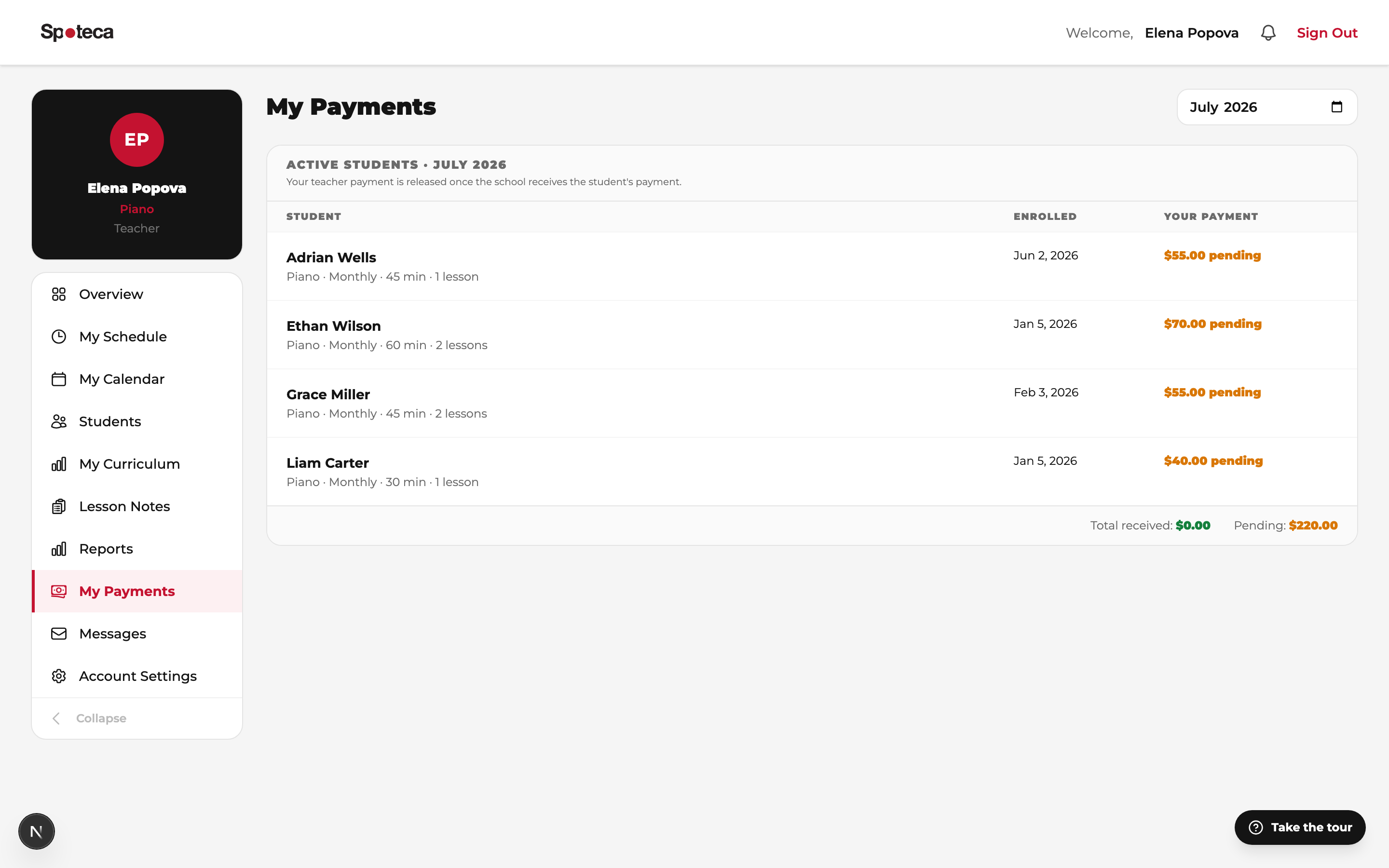
Sidebar → My Payments
Your monthly earnings are calculated automatically from each plan's rate basis — a monthly rate, a fixed amount per billing period or term, per scheduled lesson, or per attended lesson (your school may set custom rates per teacher). See the month's breakdown per student/class, deductions if any, payment status, and history. On pay-per-attendance plans, only sessions marked Present count — one more reason to keep attendance accurate.
9 · Messages & account settings
Messages — chat directly with your students, their parents, or the admin. Everything in one thread per person, with read receipts.
Account Settings — update your password, photo, bio and contact details. Your bio is visible to students on their "My Teacher" page — make it warm.
FAQ
I set availability but have no students yet.
That's the admin's move now — they enroll students into your green slots. Your part is done; maybe give them a nudge. 🙂
Can I block a single date (doctor's appointment)?
Availability is your recurring weekly pattern. For one-off dates, ask the admin to log an absence — affected lessons get rescheduled properly and parents are informed.
A student wants to move their weekly slot permanently.
Permanent slot changes go through the admin (they check your availability grid and the room). One-time moves are reschedules, also handled by the admin within the plan's allowance.
Why is a slot red when I never marked it available?
Red means booked. Group classes and events can be scheduled onto your calendar by the admin directly — they don't require individual availability.
My pay looks off.
Check attendance first (especially on pay-per-attendance plans), then ask the admin — they see the same per-lesson breakdown and any deductions with notes.