The Student & Parent Guide
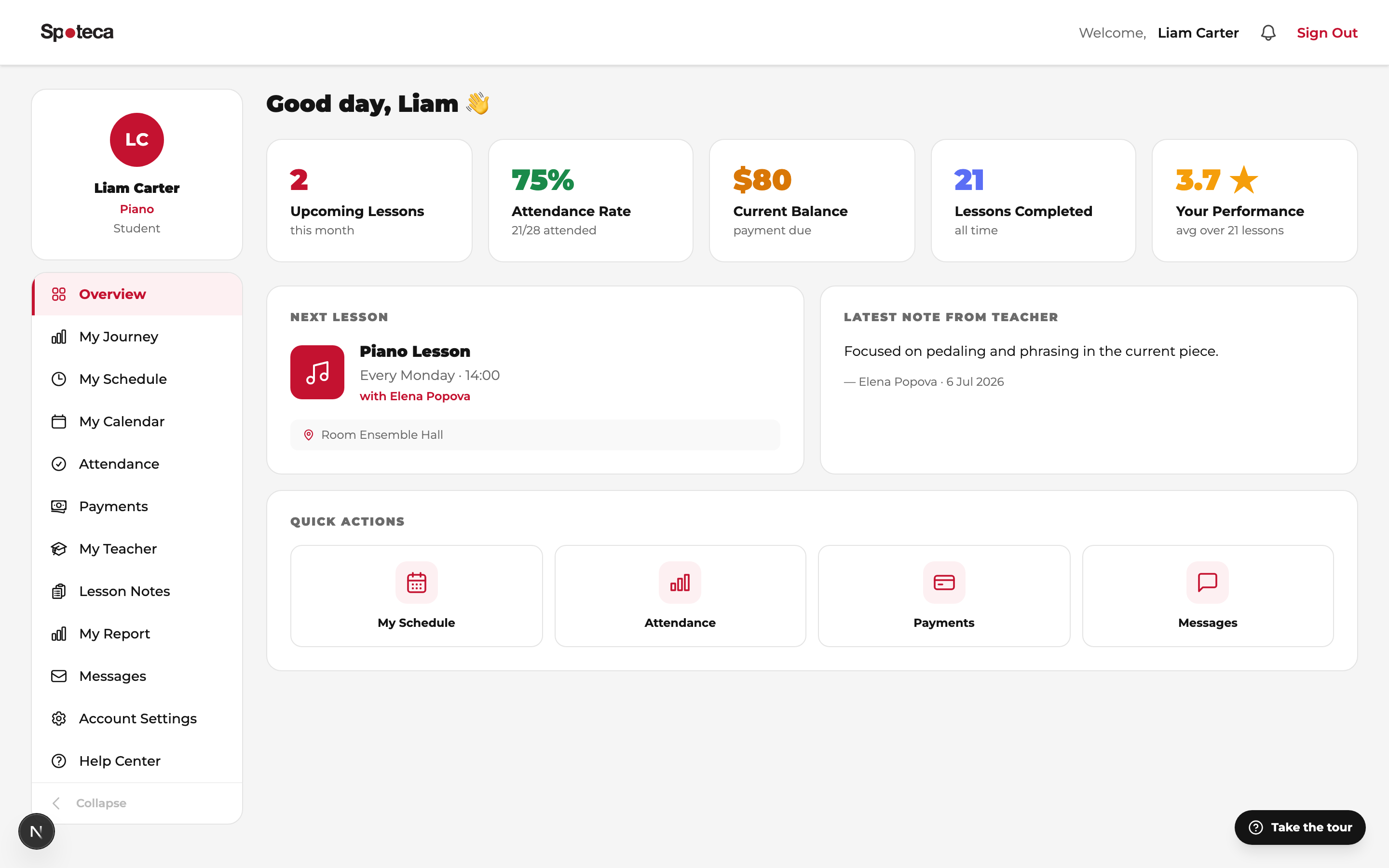
Your school set everything up — your lessons, your teacher, your plan. Here's where to find it all, how to follow your progress, and how the parent portal works.
1 · Logging in
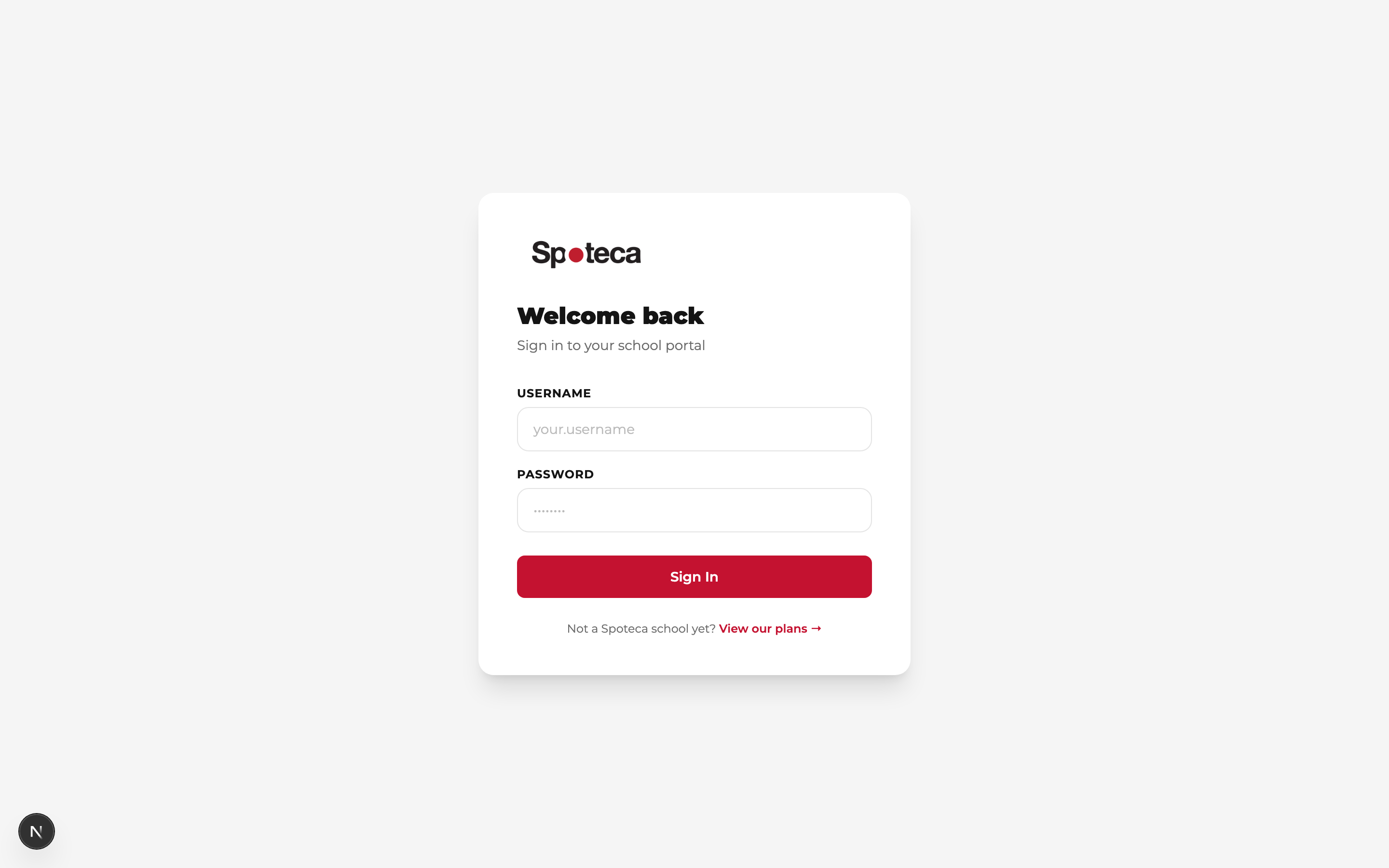
The school gives you a username and password. Sign in at spoteca.com/login. You can change your password in Account Settings.
2 · Your schedule
My Schedule shows your weekly lesson time — it repeats automatically, no rebooking. My Calendar shows real dates, including any one-time changes (reschedules, holidays, recitals, group sessions).
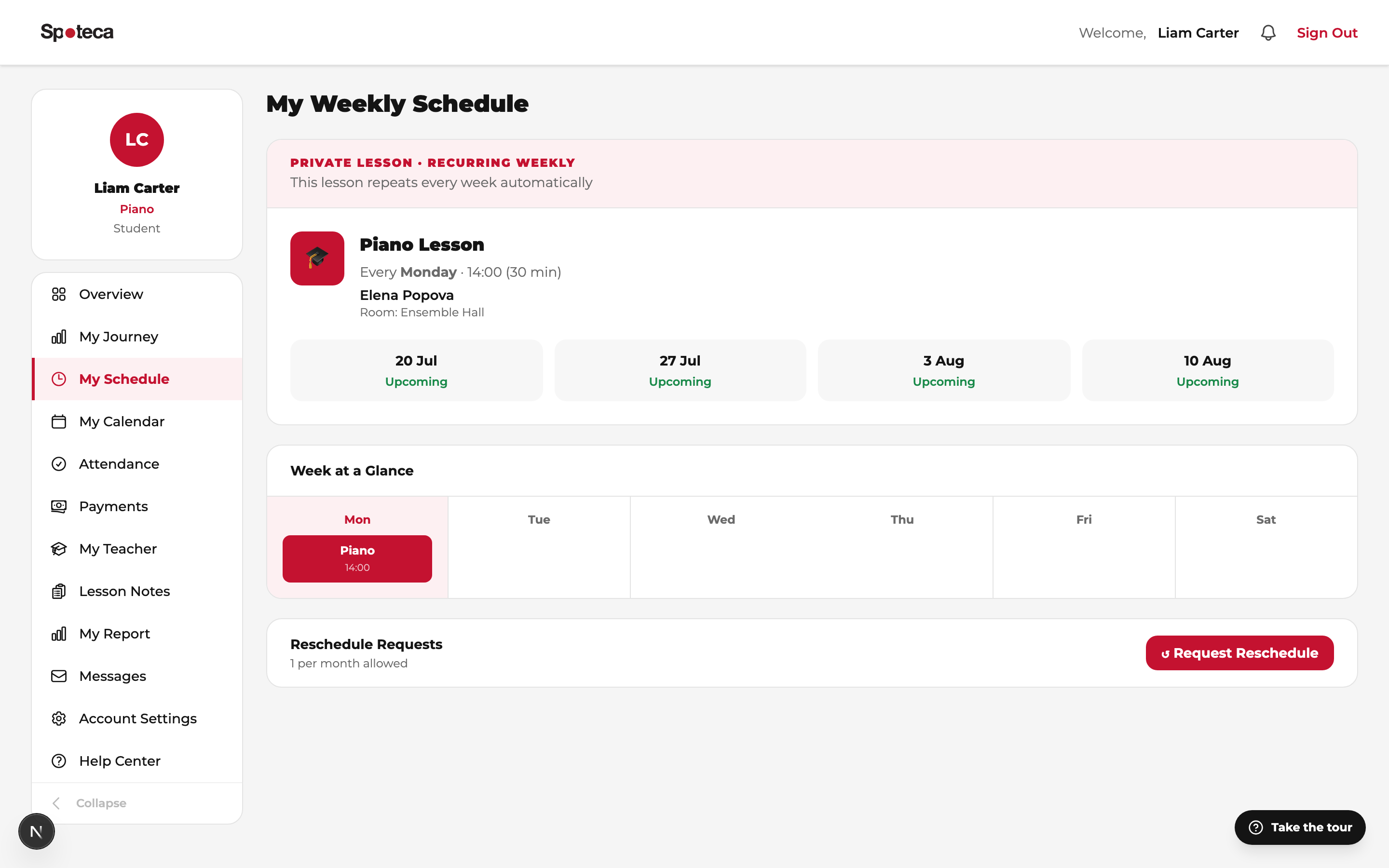
Need to move a lesson? Message the school — your plan includes a number of reschedules per month, and the admin will move you to a free slot with your teacher. You'll get automatic reminders before each lesson.
3 · Your Journey 🗺️
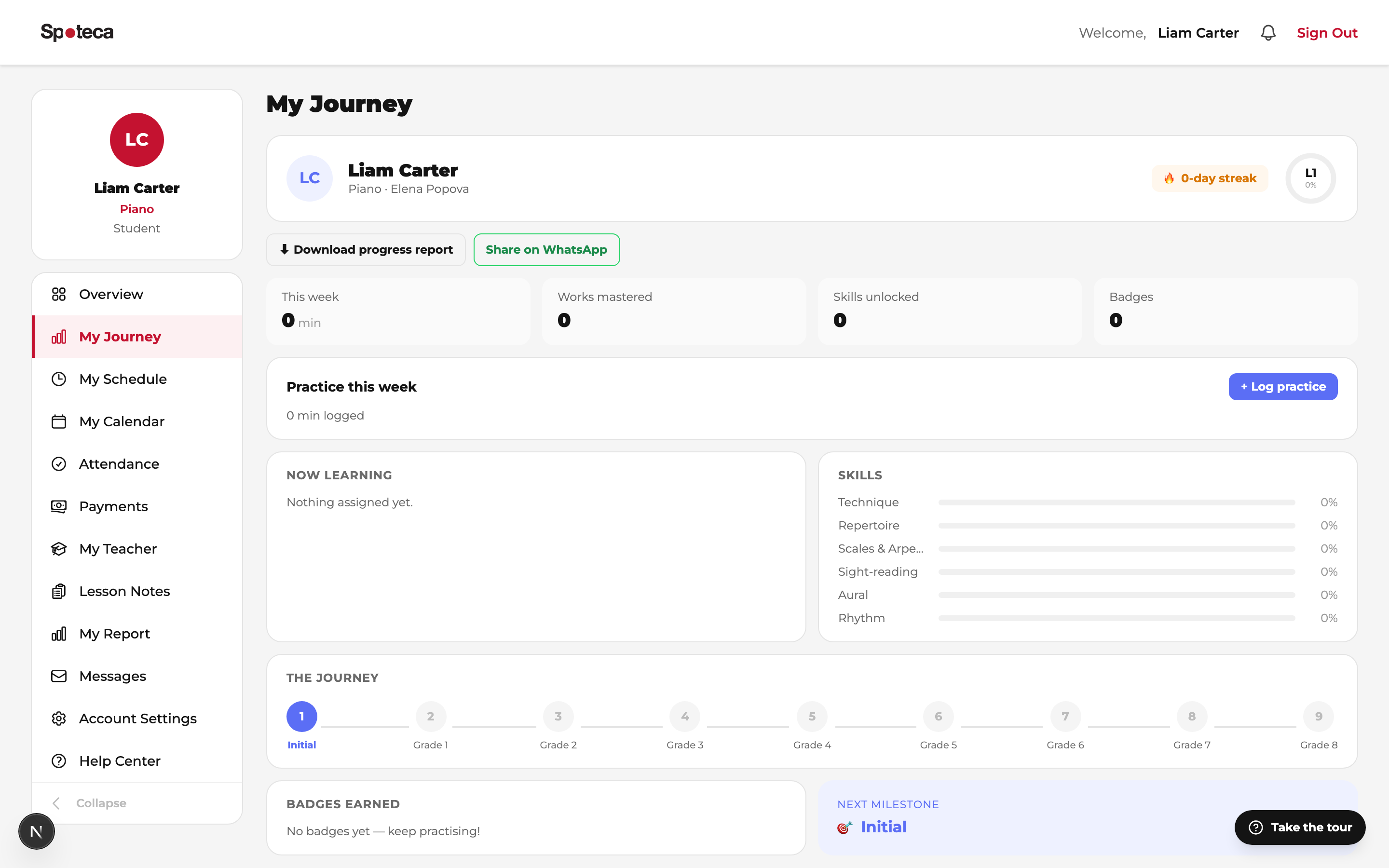
My Journey is your progress map. After lessons, your teacher updates it:
- Your level — where you are on the school's path (e.g. Grade 2) and what's next.
- Skills — every competency you're working on or have mastered, by area (technique, theory, aural…).
- Pieces — your repertoire: what you're learning, polishing, and have performed.
- Badges — milestones you've earned (first recital, practice streaks…).
- Assessments — exam and evaluation results.
4 · Practice log & badges
Log your practice sessions (minutes + an optional note) from your Journey/overview. Your school may set a weekly practice goal — watch your progress ring fill up. Consistent practice earns automatic badges: first practice, 7-day streak, 14-day streak, 30-day streak…
5 · Lesson notes from your teacher
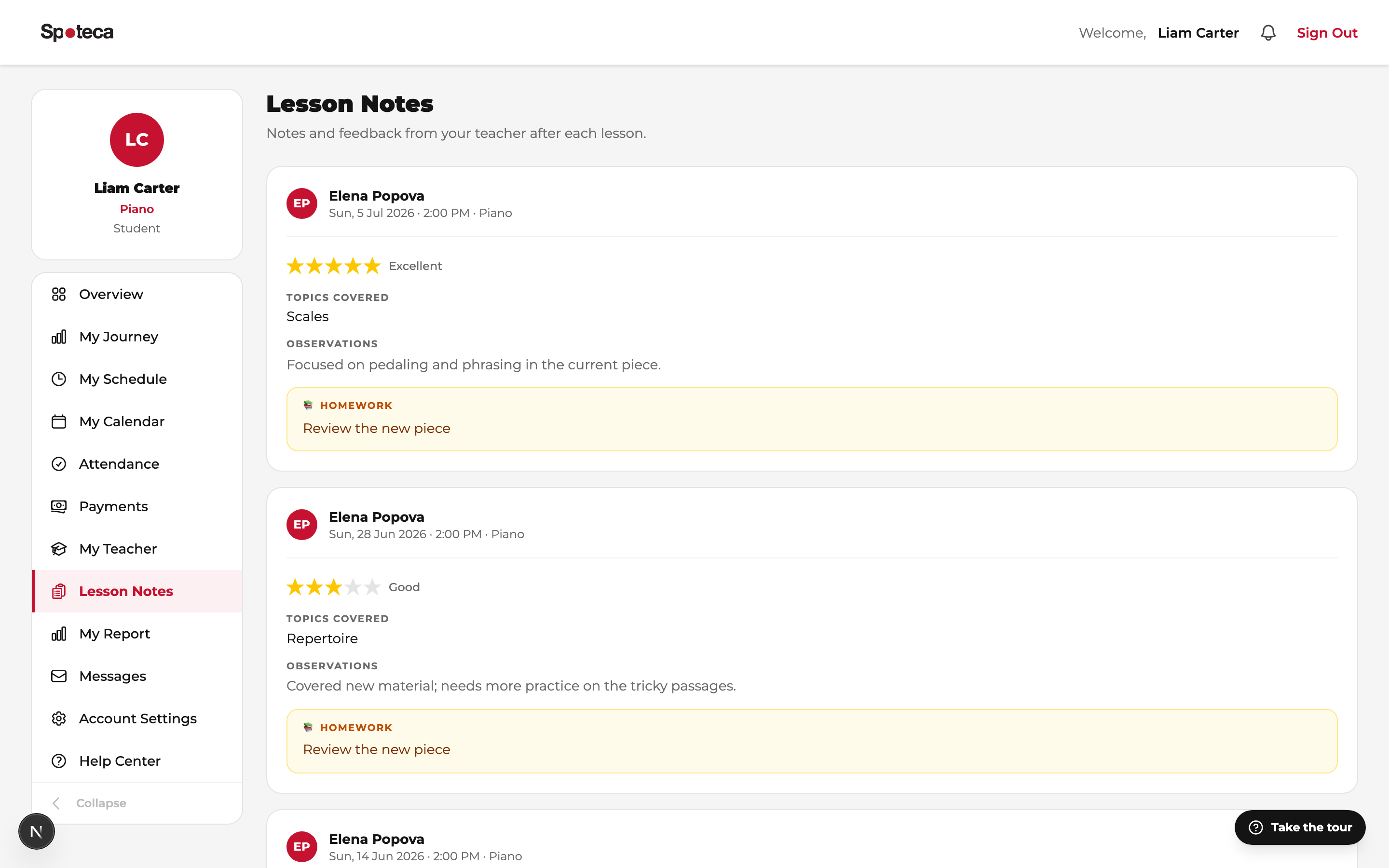
Lesson Notes — after each lesson your teacher writes what you covered, your homework, a session rating, and sometimes attachments (sheet music, recordings). Check it before you practice.
6 · Attendance
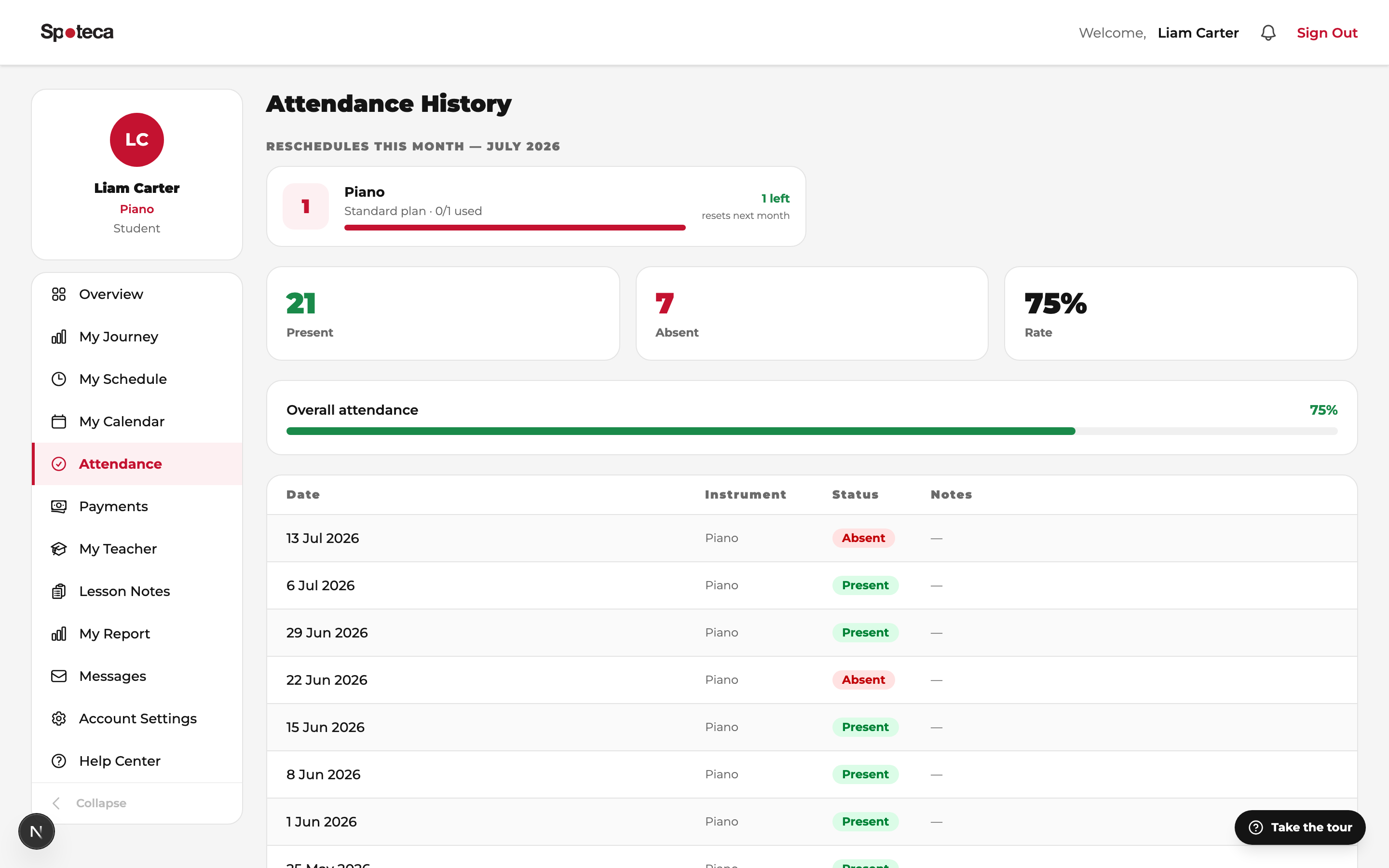
Attendance — your full history (present, absent, late, excused) and your attendance rate.
7 · Payments & receipts
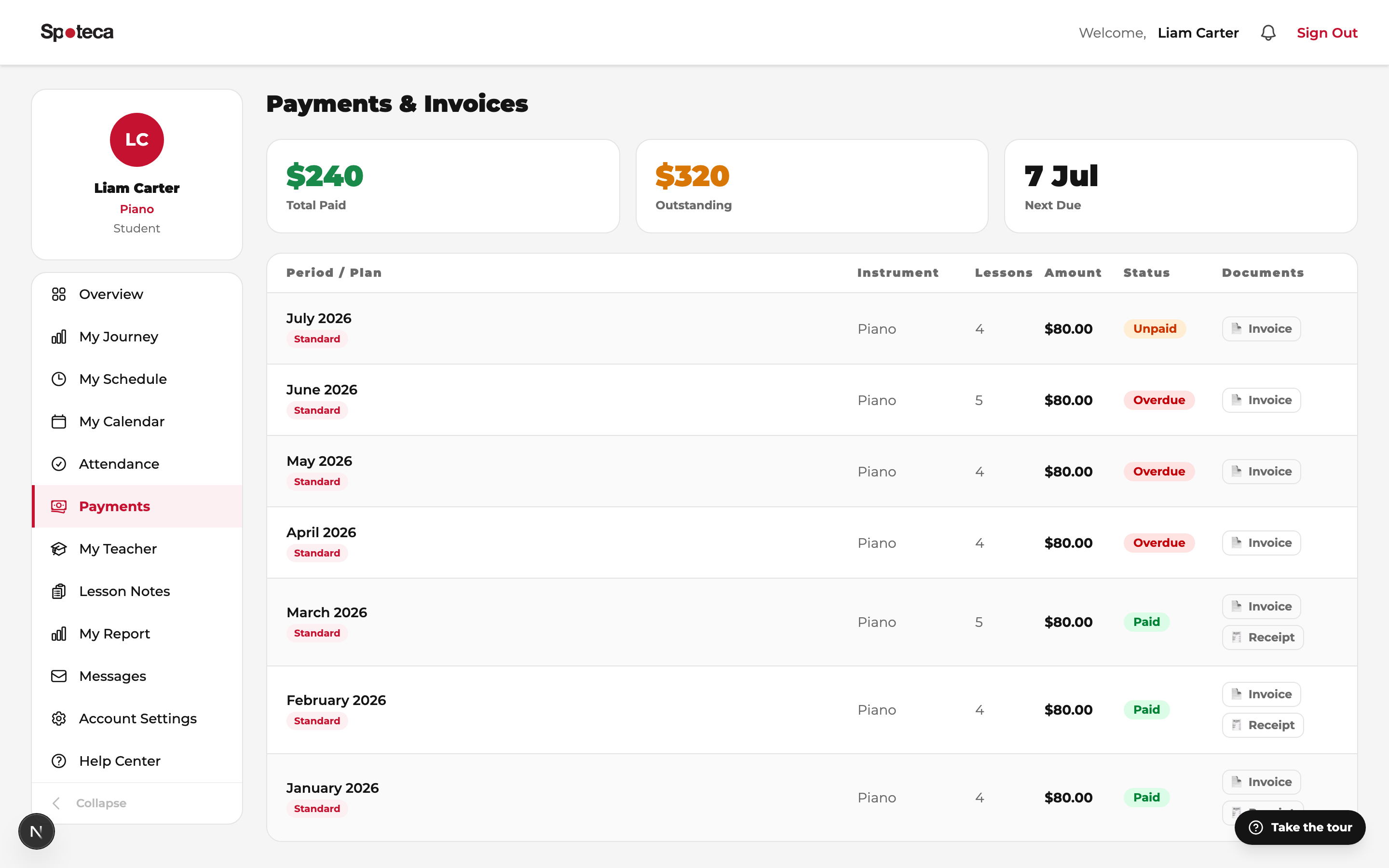
Payments — every invoice with its status. Overdue items are highlighted, and you can download invoices and receipts as PDFs. Payment is made to the school directly (cash/transfer/however your school collects); the school marks it received.
8 · Messages
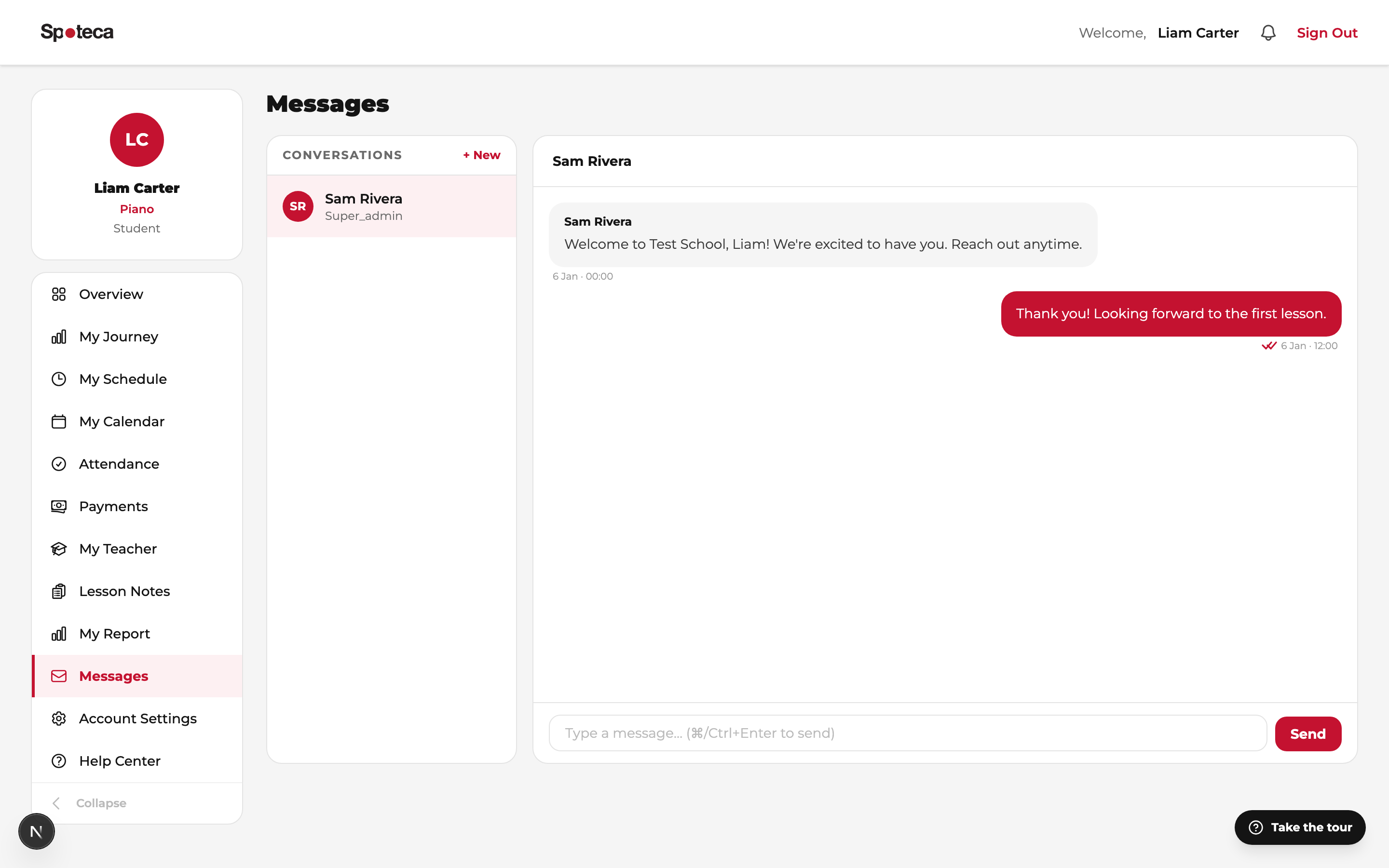
Messages — chat with your teacher or the school admin. Announcements from the school (holidays, recitals) appear in your notifications.
9 · For parents — the Guardian portal 👨👩👧
Parents get their own login, linked to their child (or children). Ask the school to create your guardian account. Your portal shows, per child:
| Section | What you see |
|---|---|
| Overview | Next lessons, recent notes, alerts. |
| Journey | Your child's level, skills, pieces and badges — updated by the teacher. |
| Schedule & Calendar | All lesson times and any changes. |
| Attendance | Presence history and rate. |
| Lesson Notes | The teacher's feedback and homework after every lesson. |
| Payments | What's due, what's paid, downloadable receipts. |
| Messages | Direct line to the teacher and the school. |
FAQ
I forgot my password.
Ask your school admin — they can set a new temporary password for you.
Can I choose or change my lesson time?
Lesson slots are set with the school based on your teacher's availability. Message the admin to discuss a change — permanent moves are possible when a slot is free.
I can't make it this week.
Tell the school as early as possible. Depending on your plan, you can reschedule (a set number of times per month) to another free slot.
Where do I see what to practice?
Lesson Notes → the homework field of your latest note. Then log your practice minutes and keep the streak alive. 🔥