The Student & Parent Guide
Your school set everything up — your lessons, your teacher, your plan. Here's where to find it all, how to follow your progress, and how the parent portal works.
1 · Logging in
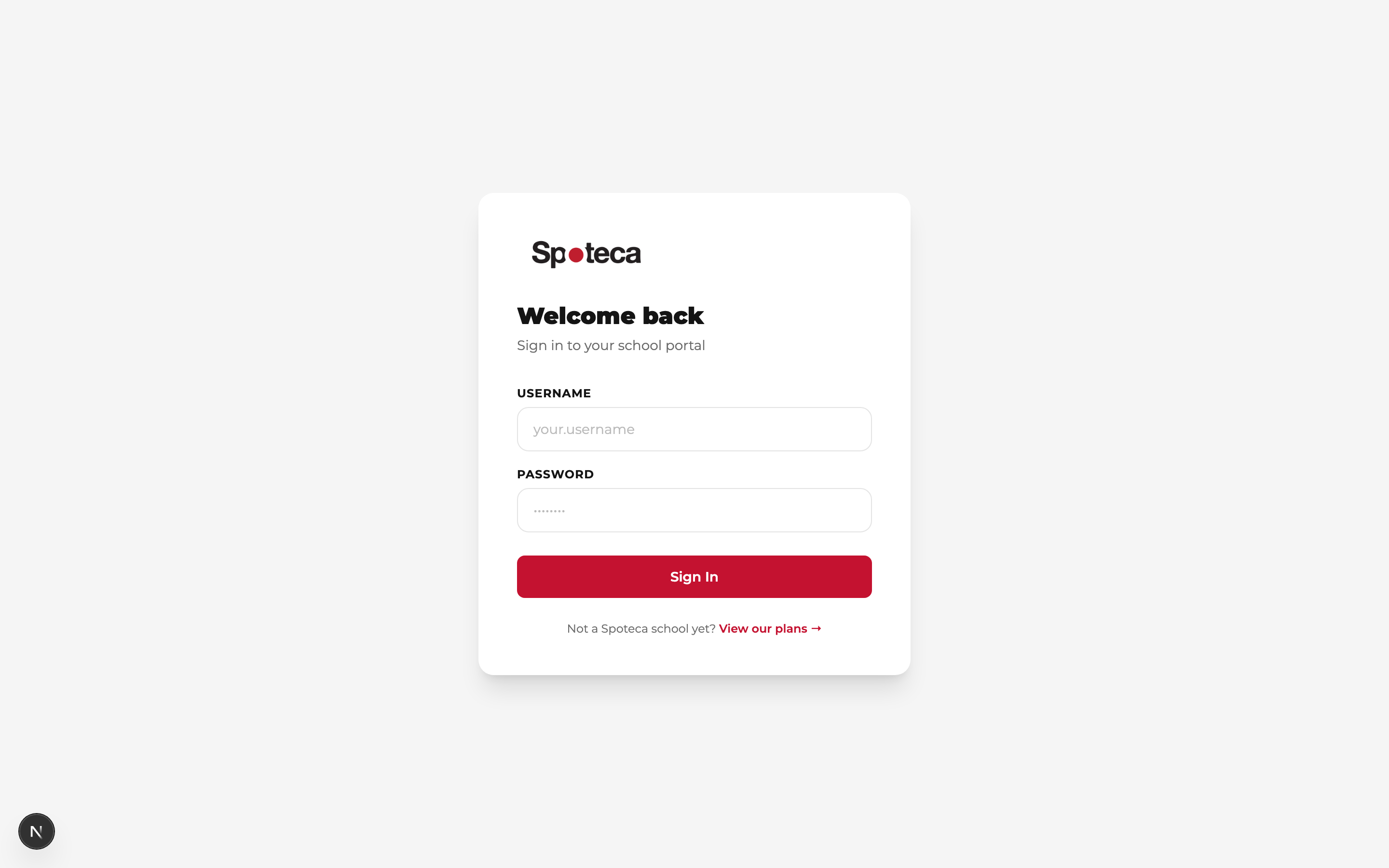
The school gives you a username and password. Sign in at spoteca.com/login. Forgot your password? Use Forgot your password? on the sign-in page — or ask the school.
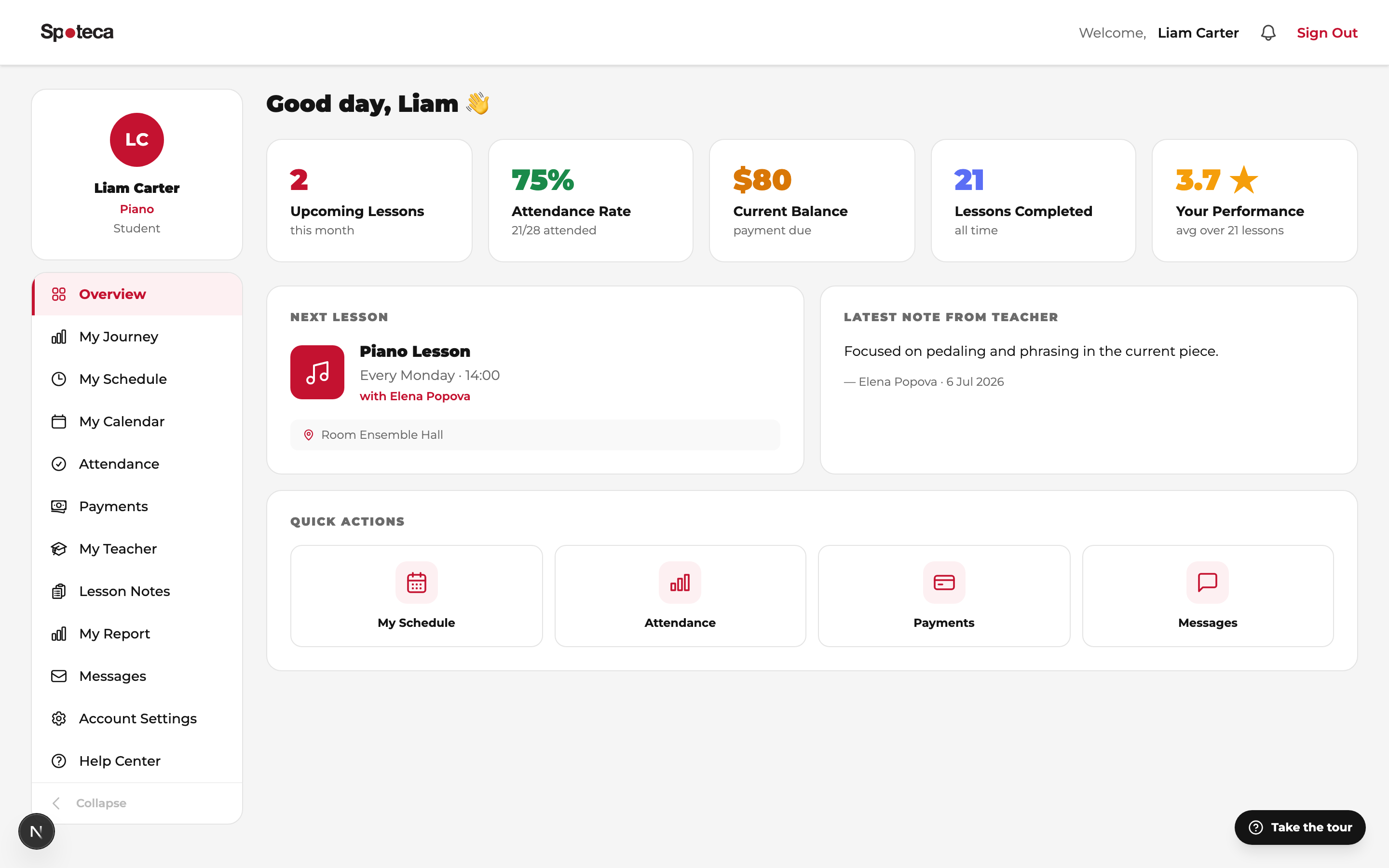
Account Settings holds your own details — name, email, phone, address, photo — and your password. Changing your email sends a confirmation link to the new address; nothing changes until you click it. The language menu at the top of every page switches between English, Français, العربية and Português.
2 · Your schedule
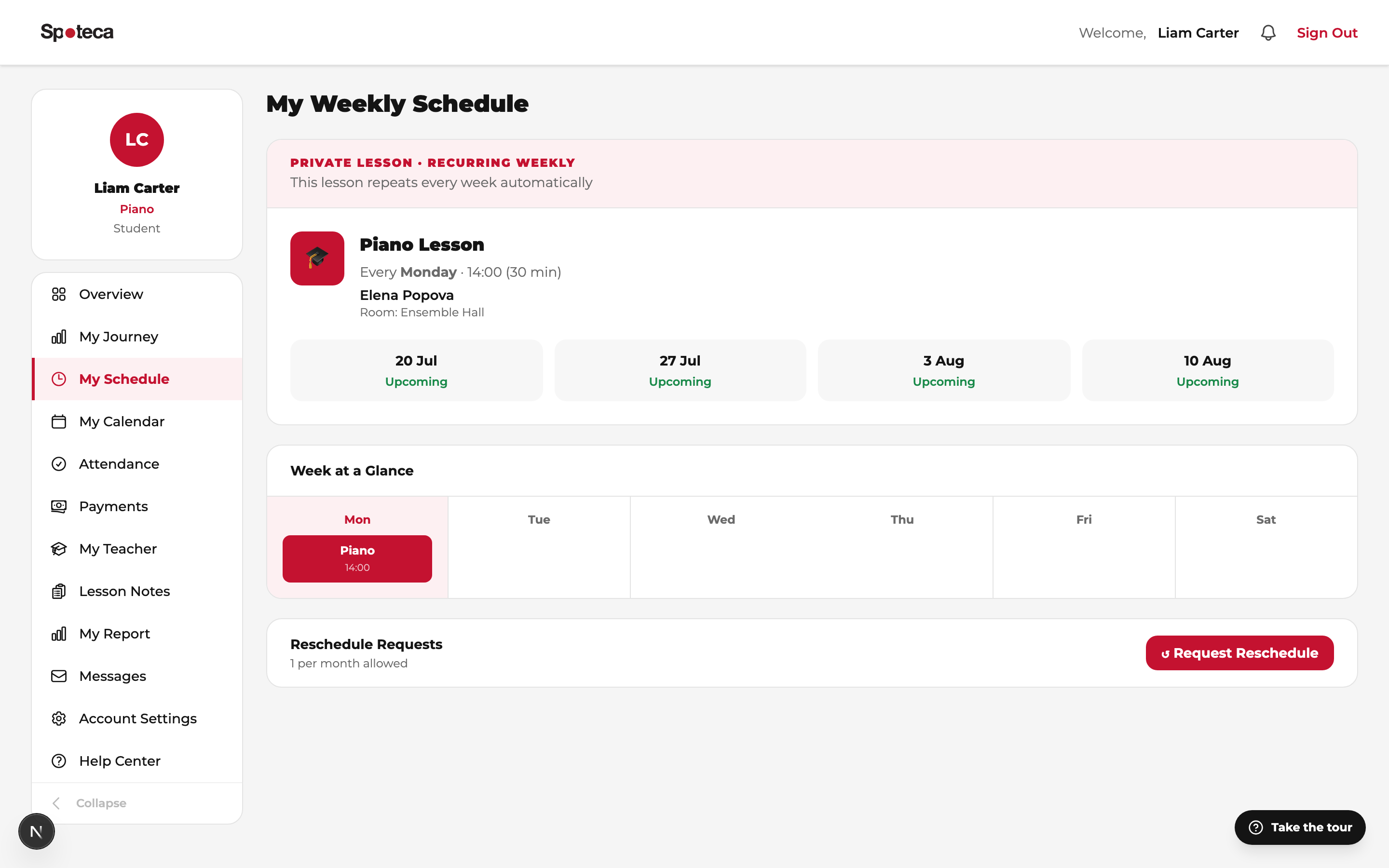
My Schedule shows your weekly lesson time — it repeats automatically, no rebooking. My Calendar shows real dates, including any one-time changes (reschedules, holidays, recitals, group sessions).
Moving a lesson
If your school allows it, you can ask to move a lesson yourself:
Request Reschedule
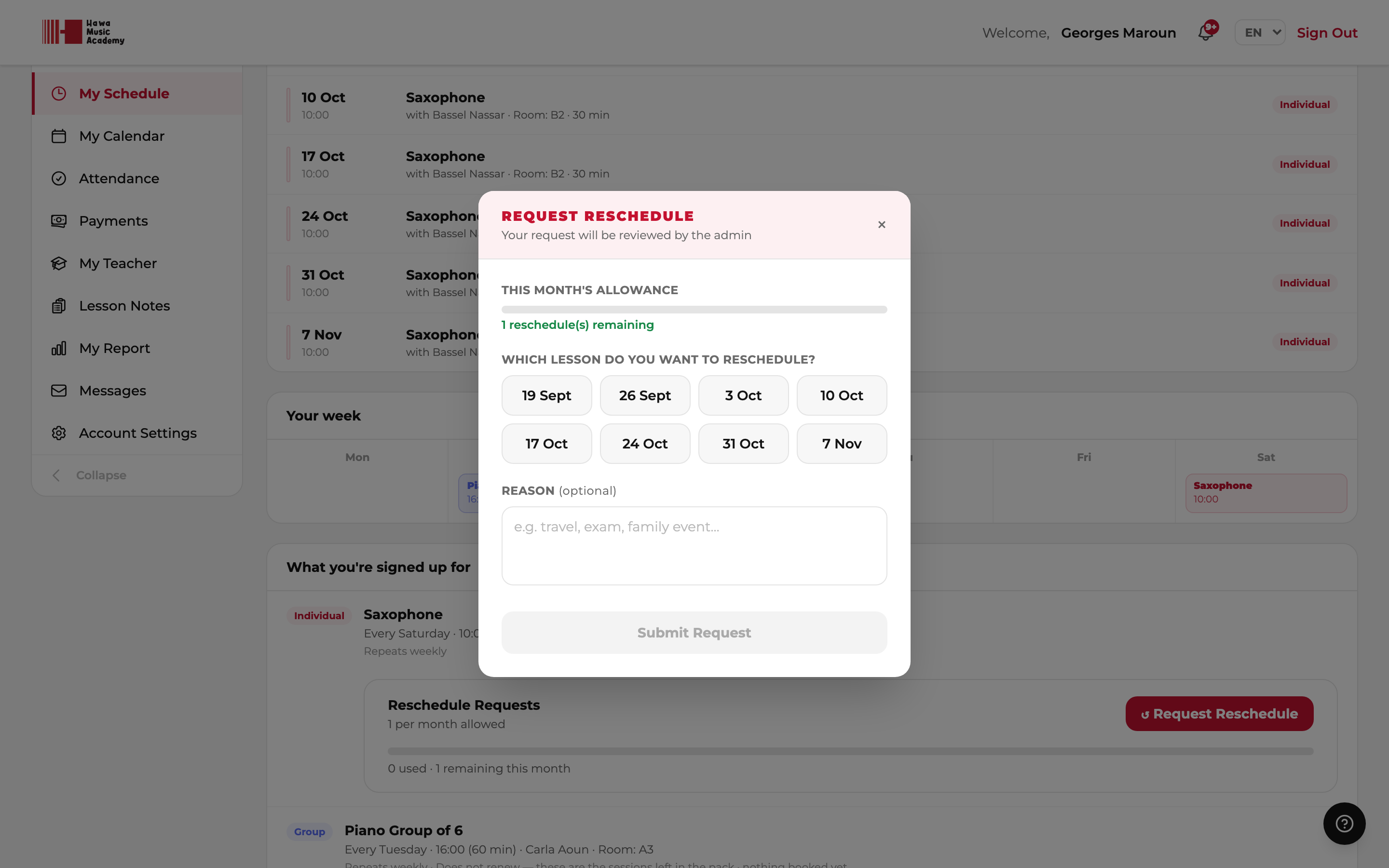
On My Schedule, press ↺ Request Reschedule and choose which lesson date you can't make.
Pick a new time
Spoteca offers only times your teacher is free and a room is available. Add a reason if you like.
The school confirms
Your school is notified, confirms the new time and assigns the room.
- Reschedules left — your plan includes a number of moves each month, per subject. The card on your dashboard and schedule shows how many you have left this month.
- A move you ask for uses one. A move the school makes is free.
- Some plans have a notice window: a lesson that starts sooner than that shows Too late — contact the school instead. Cancelling with less notice than the window may count as a used lesson.
You'll get automatic reminders before each lesson.
3 · Your Journey 🗺️
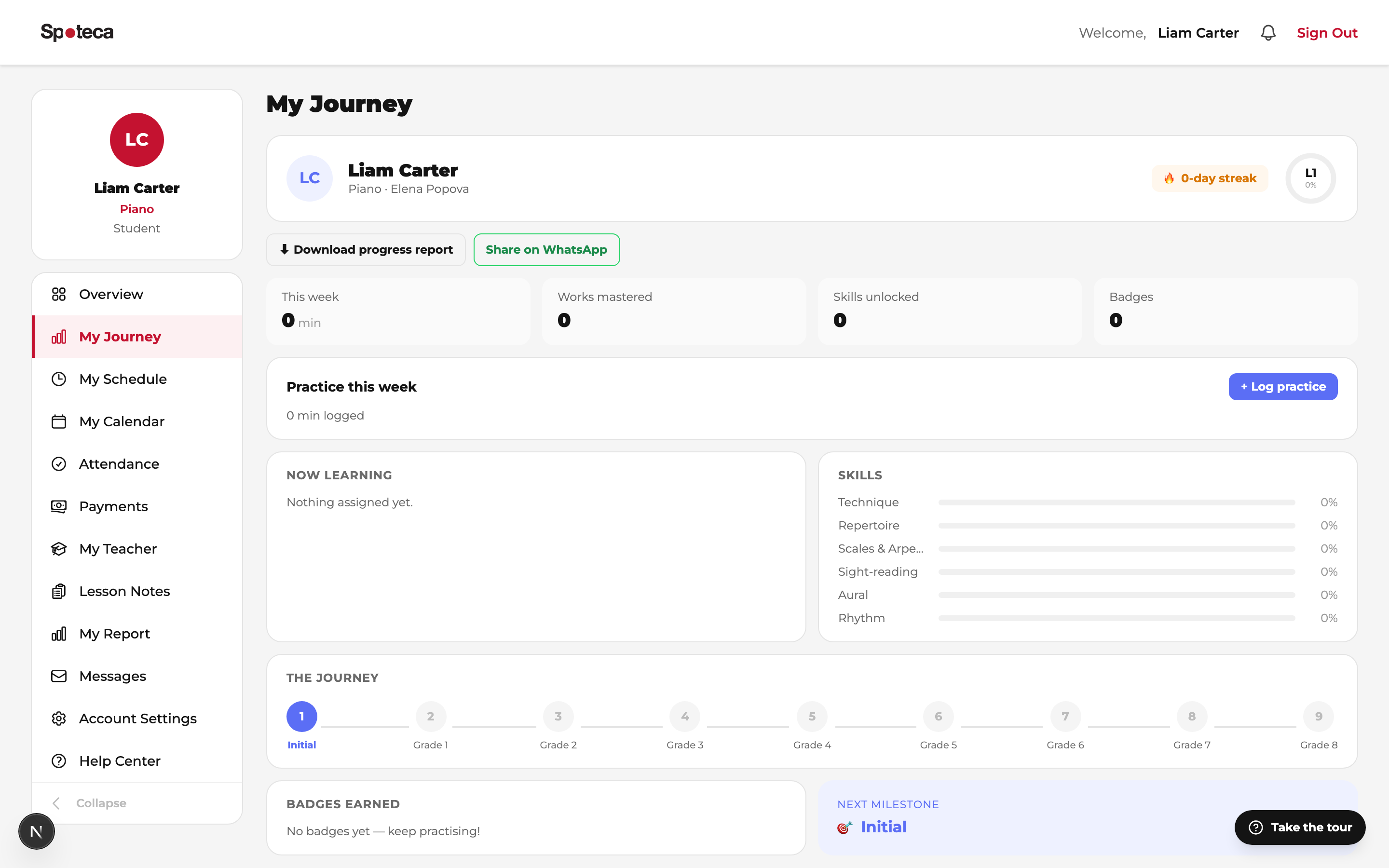
My Journey is your progress map. After lessons, your teacher updates it:
- Your level — where you are on the school's path (e.g. Grade 2) and what's next.
- Skills — every competency you're working on or have mastered, by area (technique, theory, aural…).
- Pieces — your repertoire: what you're learning, polishing, and have performed.
- Badges — milestones you've earned (first recital, practice streaks…).
- Exams & assessments — split in two. Coming up lists exams you have not sat yet, soonest first, with how long you have (“Tomorrow”, “in 9 days”) and where you sit it when that is not at your music school. Below it are the exams you have already taken, with your result and score. Your teacher adds these, so if one is missing or a grade is wrong, tell them.
4 · Practice log & badges
Log your practice sessions (minutes + an optional note) from your Journey/overview. Your school may set a weekly practice goal — watch your progress ring fill up. Consistent practice earns automatic badges: first practice, 7-day streak, 14-day streak, 30-day streak…
5 · Lesson notes from your teacher
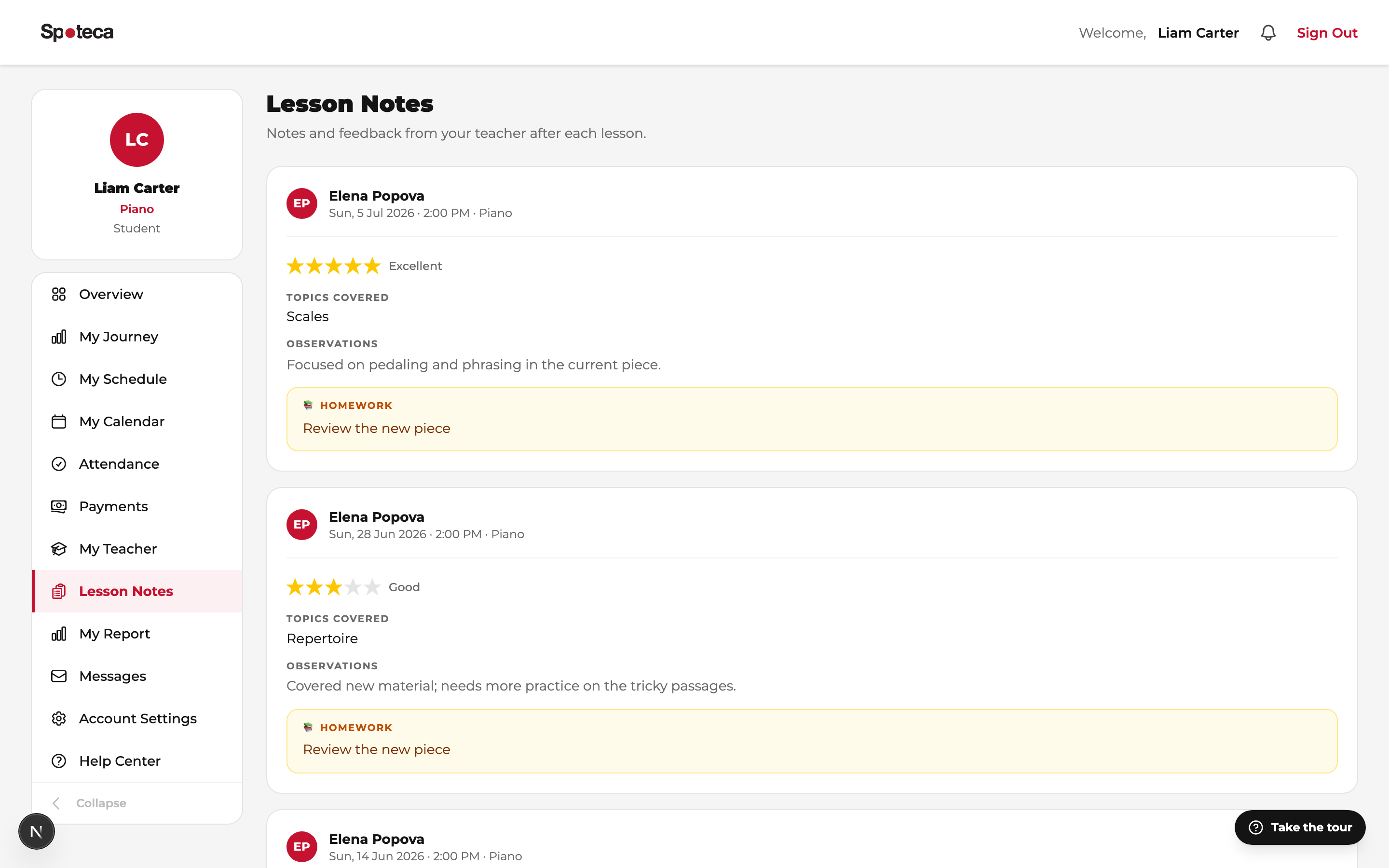
Lesson Notes — after each lesson your teacher writes what you covered, your homework, a session rating, and sometimes attachments (sheet music, recordings). Check it before you practice. You may also see an Attendance note — a short remark about the session itself, such as "arrived 15 minutes late"; the same remark shows beside that lesson on your calendar.
6 · Attendance
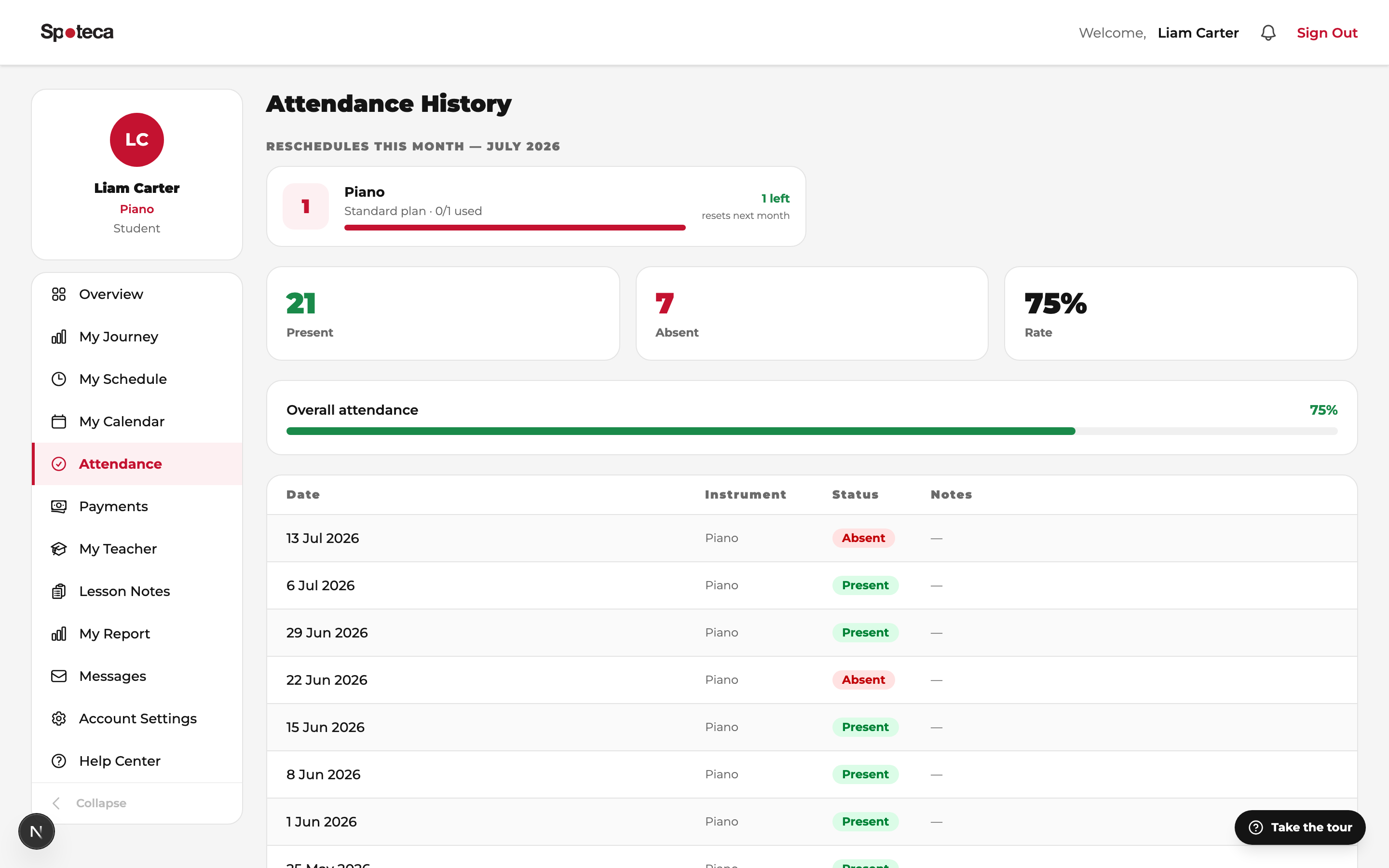
Attendance — your full history (present, absent, late, excused) and your attendance rate.
7 · Payments & receipts
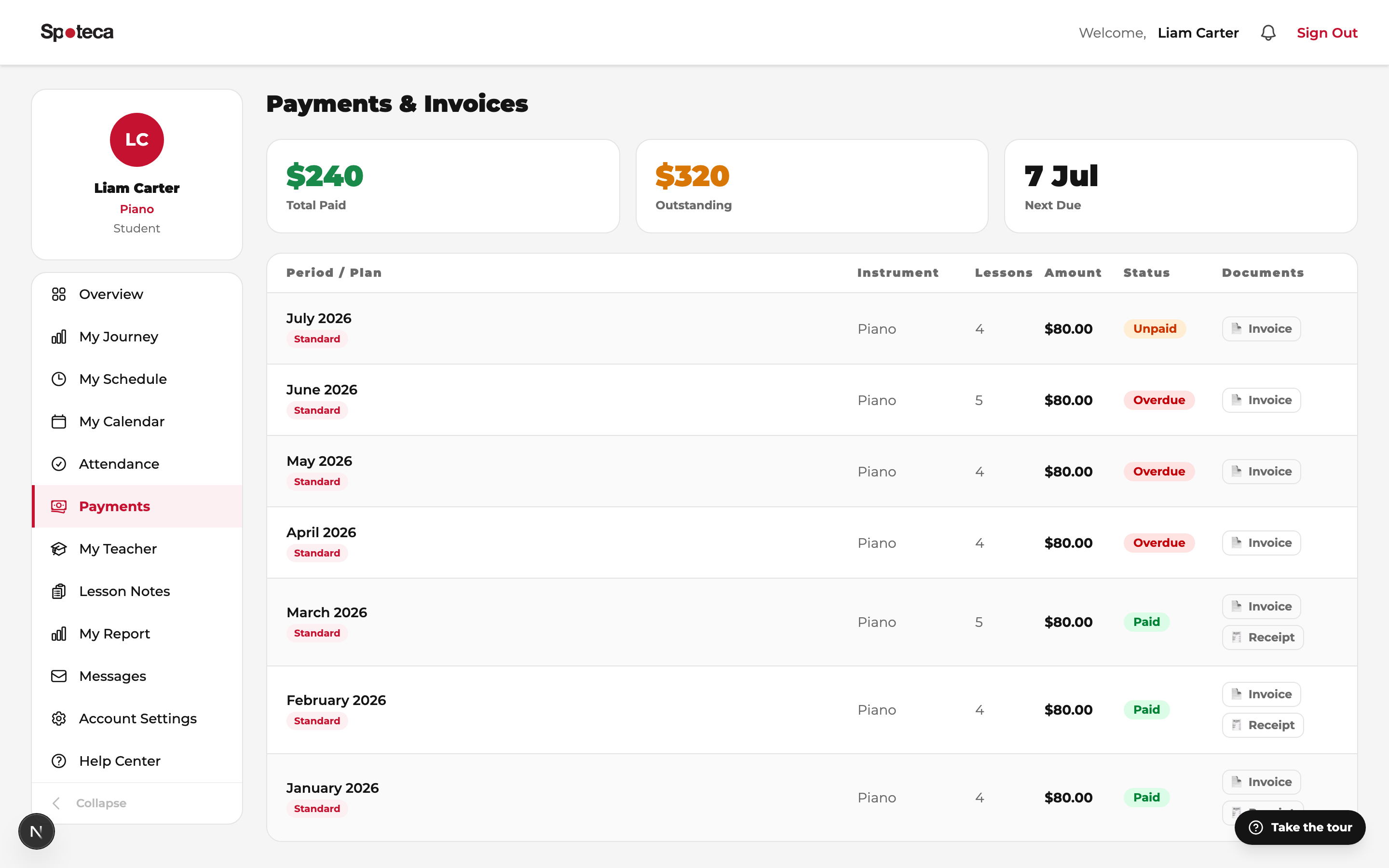
Payments — every invoice with its status. Overdue items are highlighted, and you can download invoices and receipts as PDFs. Payment is made to the school directly (cash/transfer/however your school collects); the school marks it received.
8 · Messages
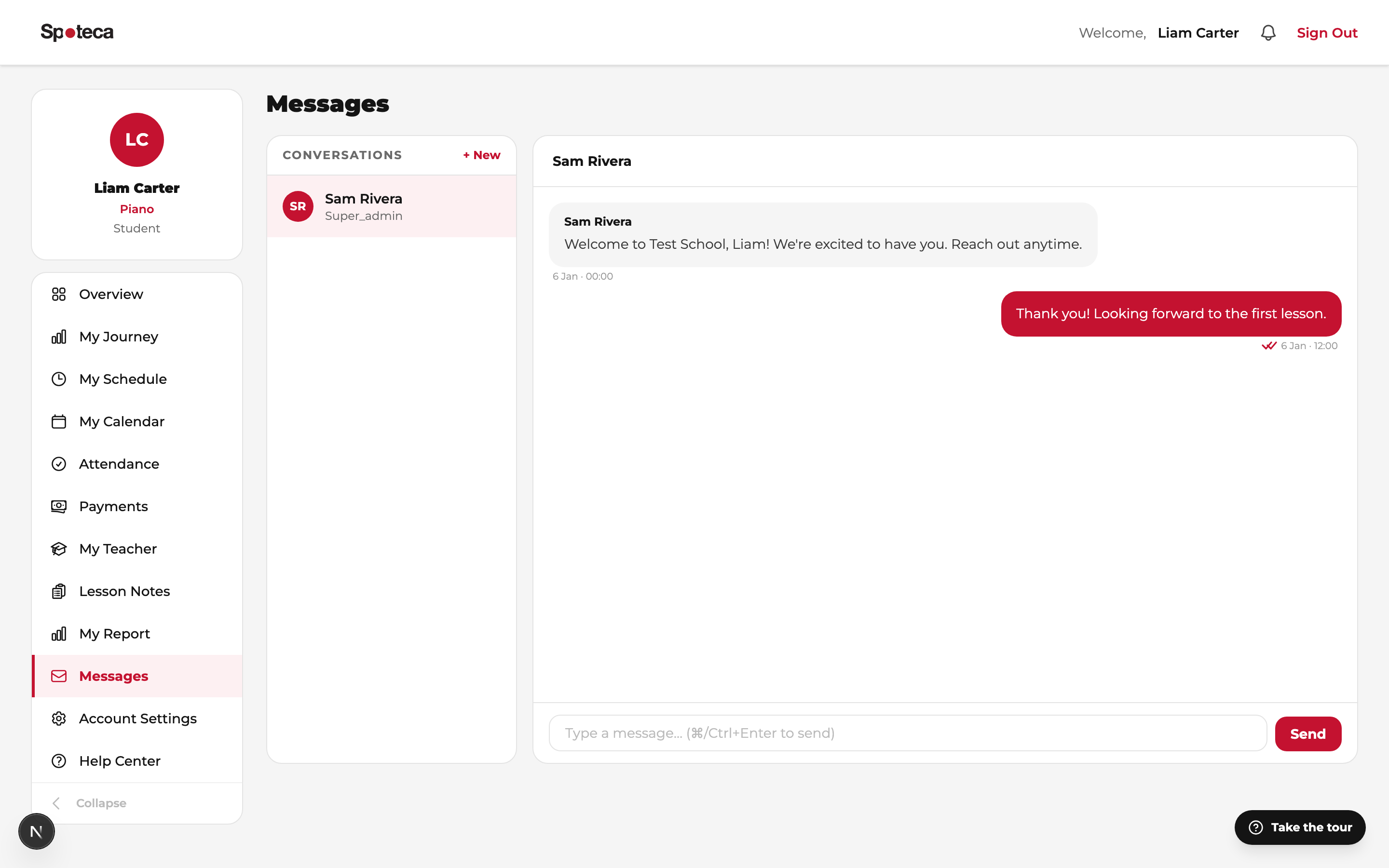
Messages — chat with your teacher or the school admin. Announcements from the school (holidays, recitals) appear in your notifications.
9 · For parents — the Guardian portal 👨👩👧
Parents get their own login, linked to their child (or children). Ask the school to create your guardian account. Your portal shows, per child:
| Section | What you see |
|---|---|
| Overview | Next lessons, recent notes, alerts, reschedules left. |
| Journey | Your child's level, skills, pieces and badges — updated by the teacher. |
| Schedule & Calendar | All lesson times and any changes — including group classes. |
| Attendance | Presence history and rate, with the teacher's note for each lesson. |
| Lesson Notes | The teacher's feedback and homework after every lesson. |
| Payments | What's due, what's paid, instalments, downloadable receipts. |
| Messages | Direct line to the teacher and the school. |
| History | Everything that happened, in order — lessons, invoices, payments and enrolments — one child at a time. |
FAQ
I forgot my password.
Use Forgot your password? on the sign-in page. If your account has no email address, ask your school — they can set a new temporary password.
Can I choose or change my lesson time?
Lesson slots are set with the school based on your teacher's availability. For a one-off change, use Request Reschedule; for a permanent change, message the school.
I can't make it this week.
Request a reschedule as early as you can — your plan includes a set number per month, per subject. If it's too late to request, contact the school.
Why can't I edit anything today?
If you see a note saying changes are temporarily switched off, your lessons and records are unaffected — contact the school office.
Where do I see what to practice?
Lesson Notes → the homework field of your latest note. Then log your practice minutes and keep the streak alive. 🔥