The Teacher Guide
Welcome! Your admin created your account — this guide gets you teaching. One thing before anything else: set your availability. Until you do, the school cannot schedule a single student with you.
1 · Your first login
Your admin gives you a username and password. Go to spoteca.com/login (or your school's portal link), sign in, and you'll land on your teacher dashboard. Forgot your password? Use Forgot your password? on the sign-in page, or ask your admin.
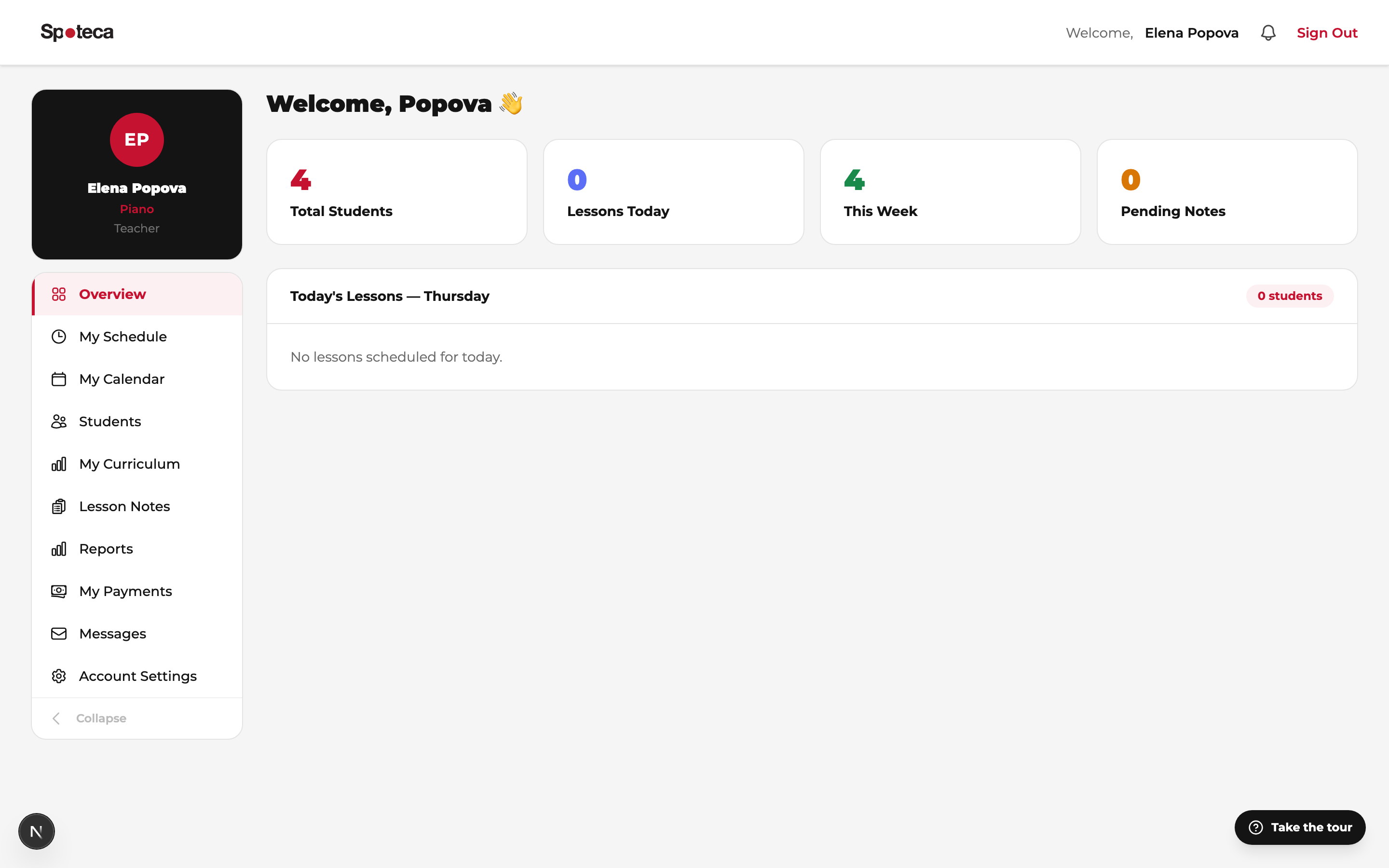
Your sidebar: Overview · My Schedule · My Calendar · Students · My Curriculum · Lesson Notes · Reports · My Payments · Messages · Account Settings. Stuck on anything? Tap the ? button (bottom corner) and choose Ask AI — it answers in your language and knows how your school is set up.
2 · Set your availability — do this first ⚠️
Sidebar → My Schedule → “My Availability” tab
Open the grid
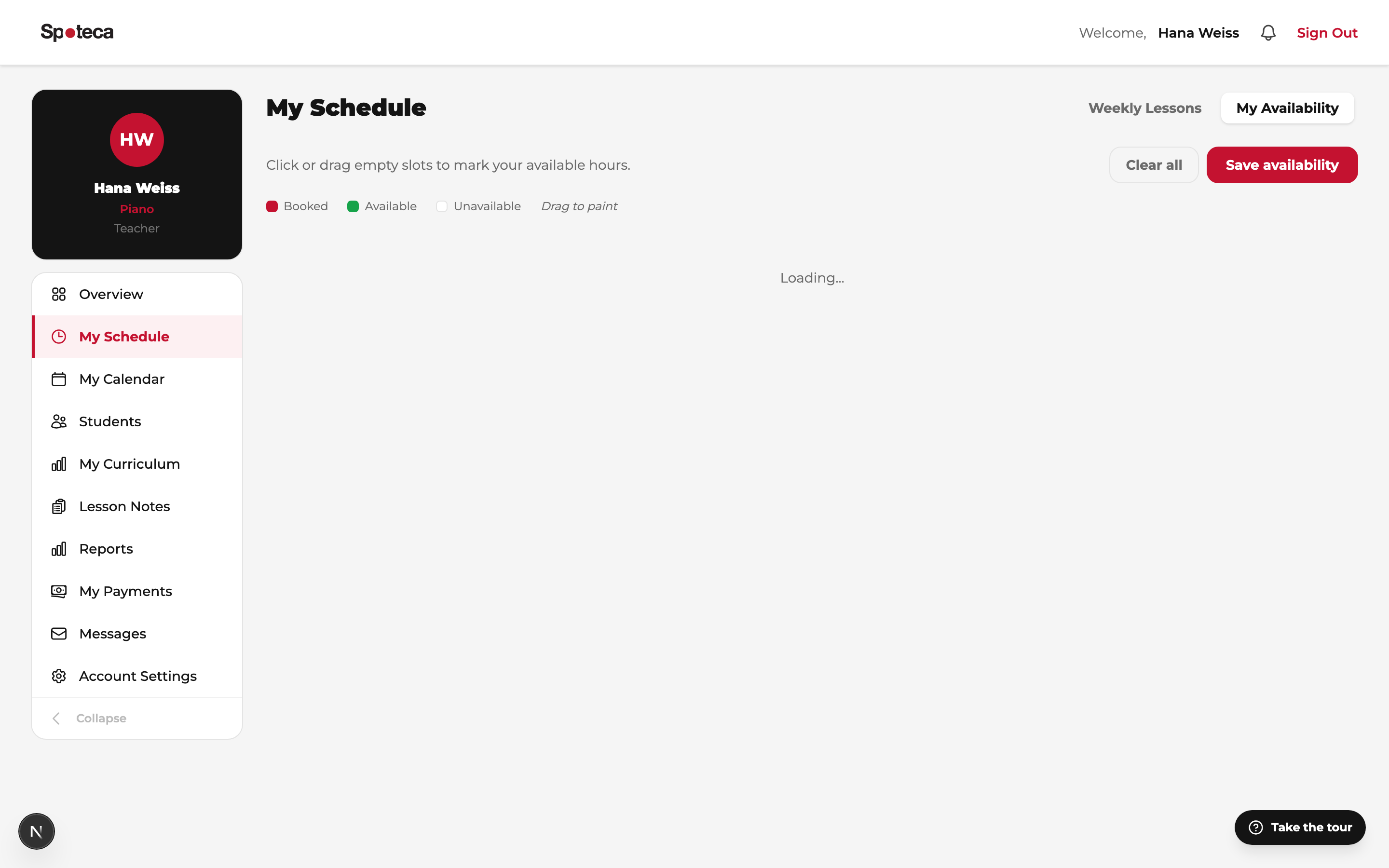
My Schedule has two tabs: Weekly Lessons and My Availability. Open the second. You'll see a weekly grid, Monday to Saturday, from 8:00 to 22:00 in 15-minute rows.
Paint your free hours
Click a slot to toggle it, or click-and-drag to paint whole blocks green in one stroke. Mark every window you're genuinely willing to teach.
Save
Hit Save availability. Done — the admin can now book students with you.
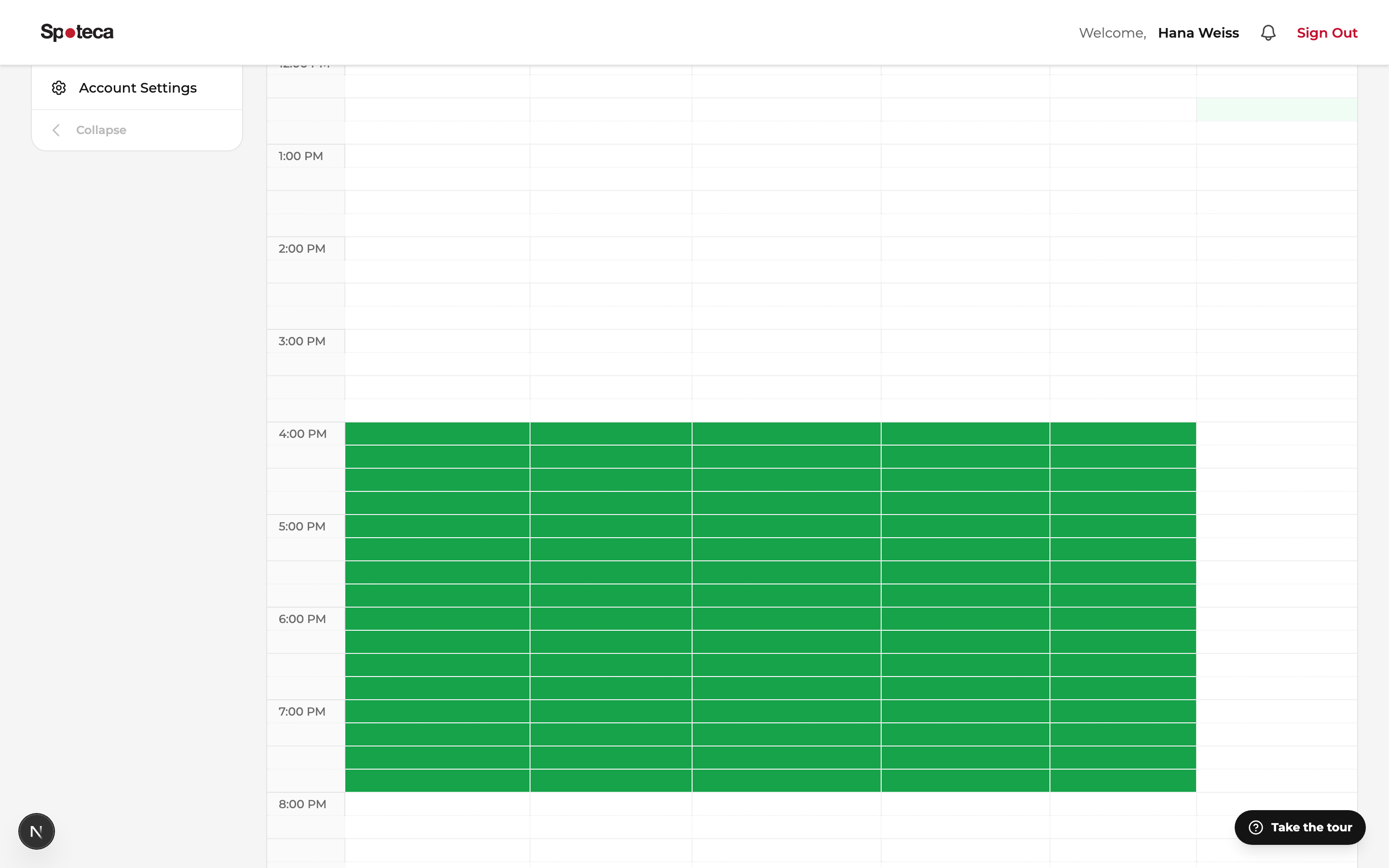
- Booked slots are protected — once a student occupies a slot it turns red and you can't accidentally un-mark it. To free it, the admin must move the lesson first.
- Update anytime — new semester, new life schedule? Repaint and save. Existing lessons are never touched by availability edits.
- Going away? Don't unpaint your grid for holidays — that's what absences are for. Tell your admin; they'll log the absence and handle rescheduling of affected lessons properly (see the Admin guide).
If your school sets your hours for you
3 · Your schedule & calendar
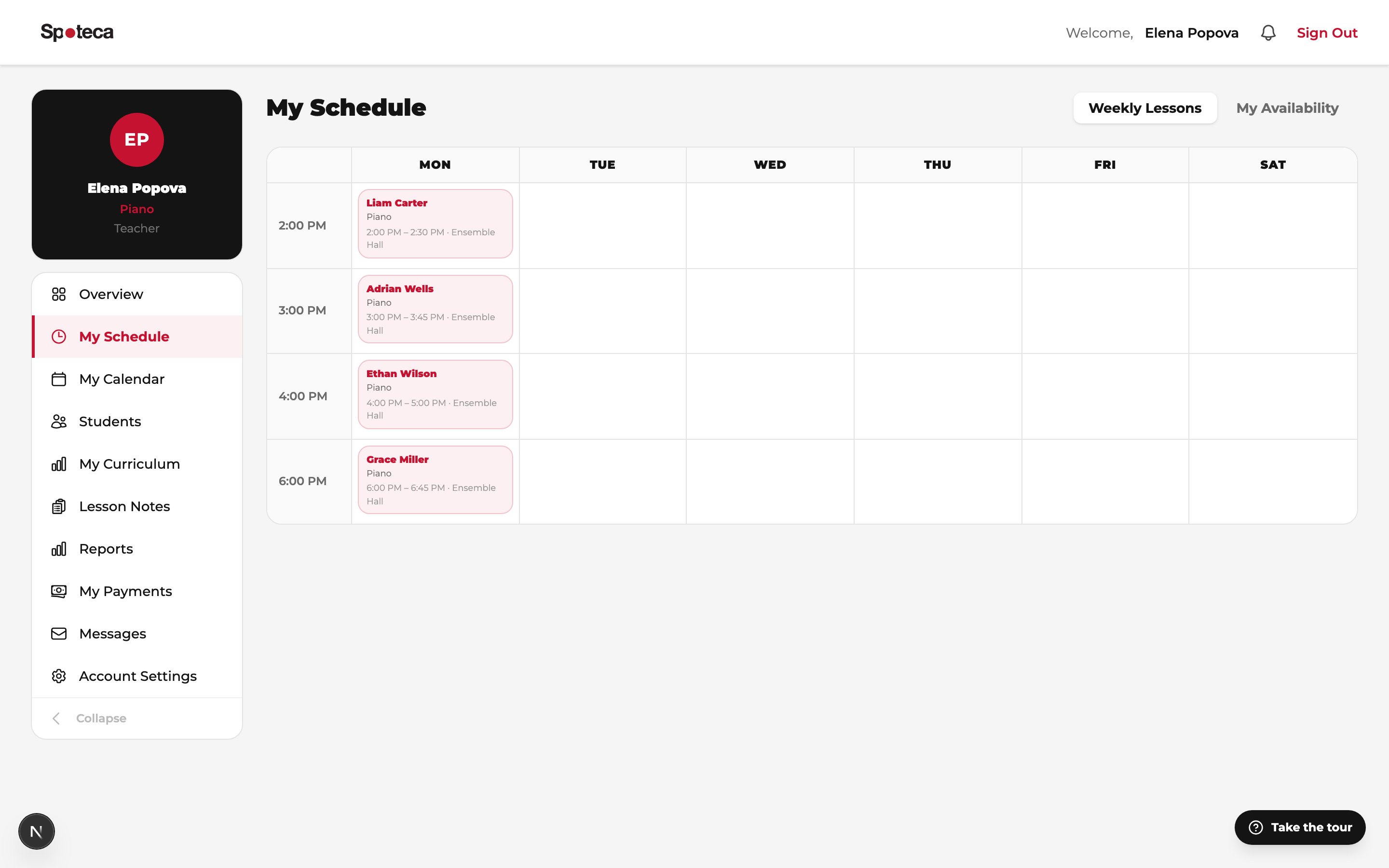
Back on the Weekly Lessons tab, your recurring week appears as the admin enrolls students: student name, subject, exact time range, and room. It repeats weekly — no rebooking needed.
My Calendar shows the same lessons on real dates — including one-off changes: reschedules, cancellations, group sessions and school events. When in doubt about a specific date, trust the calendar.
4 · Your students
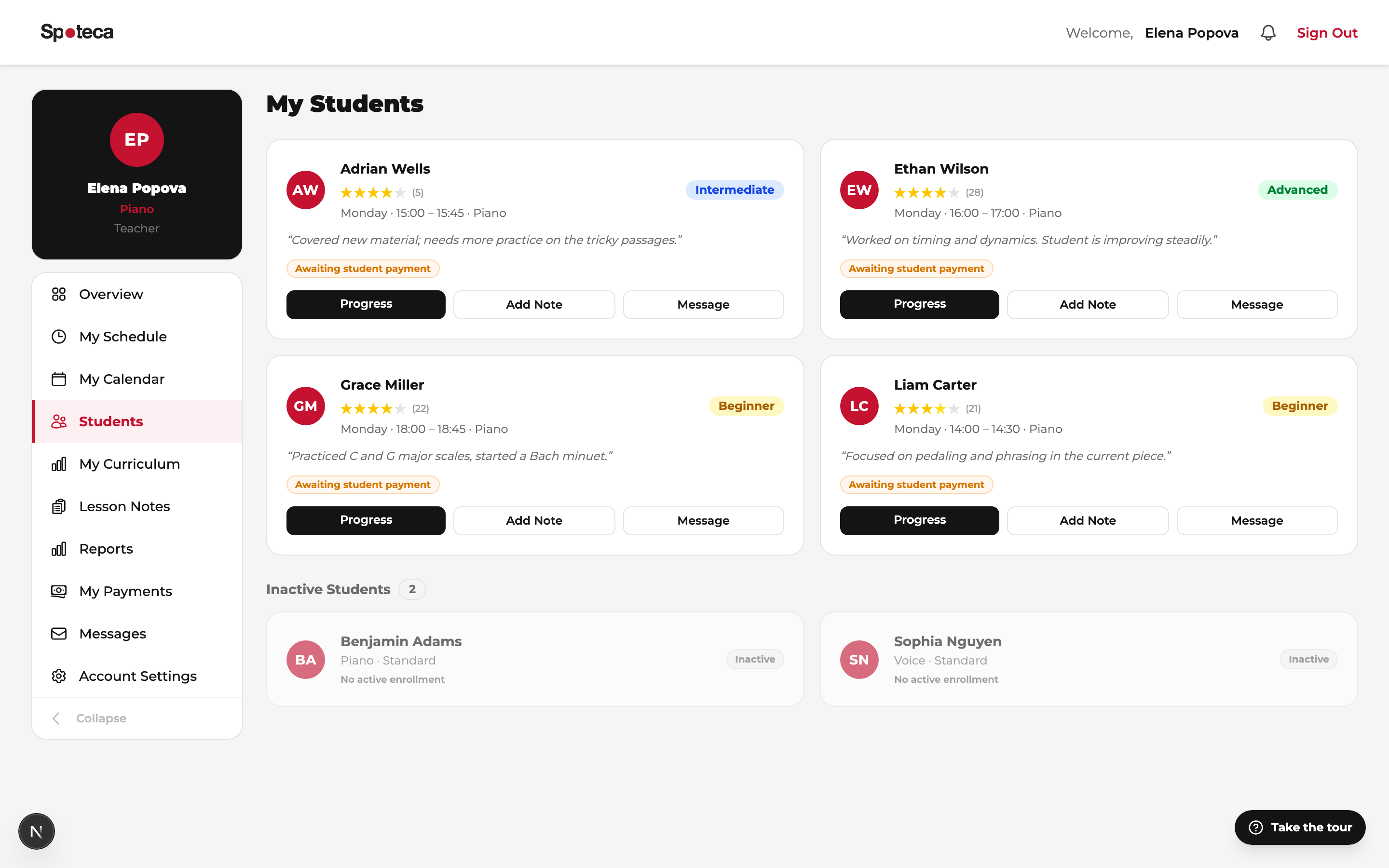
Sidebar → Students — everyone assigned to you, with subject, level and plan. Open a student to see their profile, lesson history, attendance, notes trail and curriculum progress. This is your prep page before each lesson.
5 · Attendance
Mark each occurrence Present / Absent / Late / Excused right after the lesson (from the lesson, your calendar, or the attendance page). Accurate attendance matters: it feeds the student's record, the school's early-warning flags, and — on pay-per-attendance plans — your pay.
6 · Lesson notes & homework
Sidebar → Lesson Notes
After each lesson, write a short note — it's the feedback loop parents love and the reason they keep paying:
- Content — what you covered.
- Topics — tag the areas touched (technique, theory…).
- Homework — what to practice for next time.
- Rating — a quick performance score for the session.
- Attachments — sheet music PDFs, reference recordings.
- Attendance note (optional) — a one-line note about the session itself, e.g. "arrived 15 minutes late". It appears beside that lesson on the student's calendar.
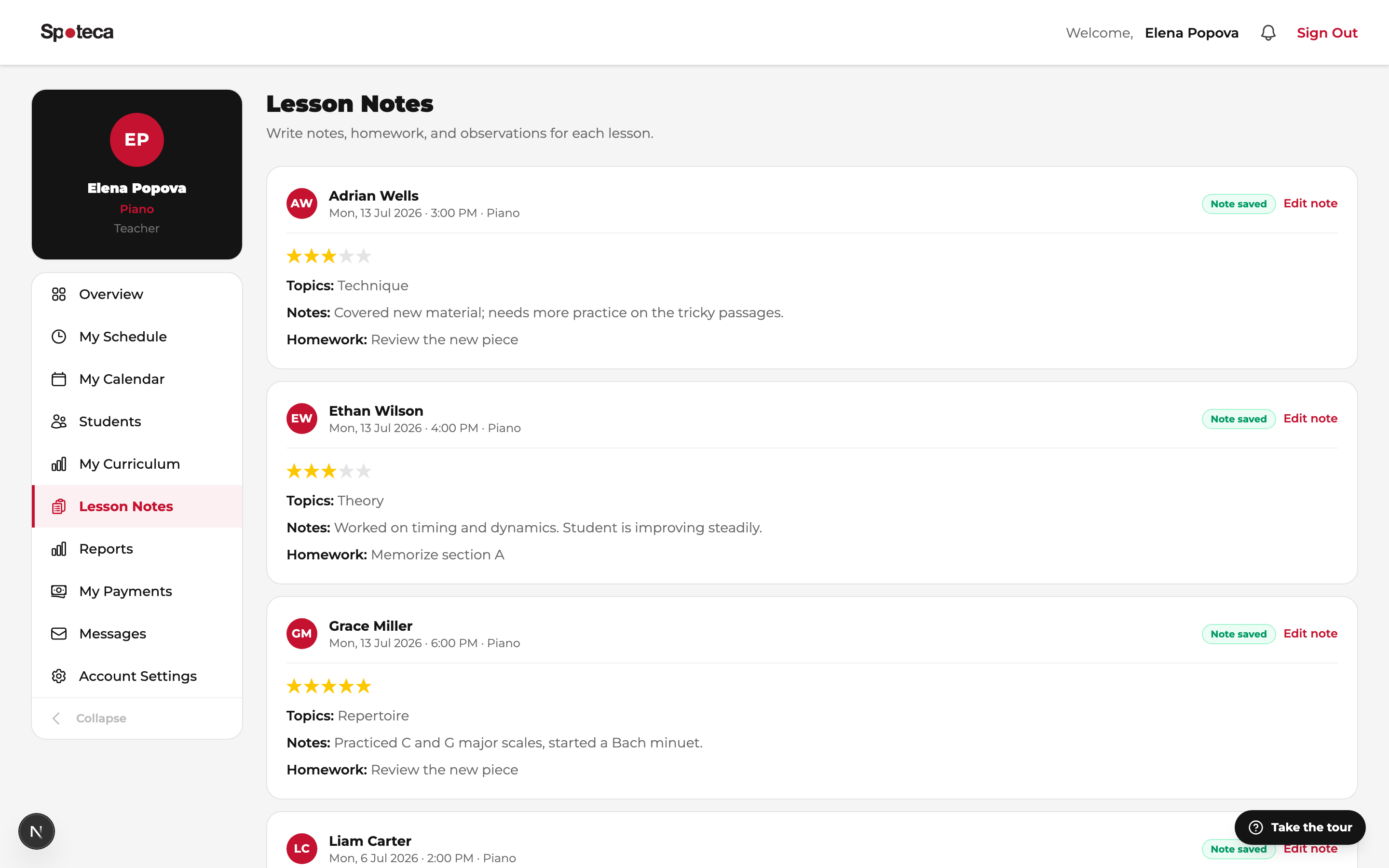
Students and their parents see notes in their own portals immediately.
The page lists every lesson you marked Present in the last 90 days, and opens on Needs notes — the lessons still waiting on you, with a running count. Switch to All lessons to revisit notes you've already written. Nothing is created until you save, so a lesson simply stays on the list until it has a real note.
7 · Curriculum & progress tracking
Sidebar → My Curriculum
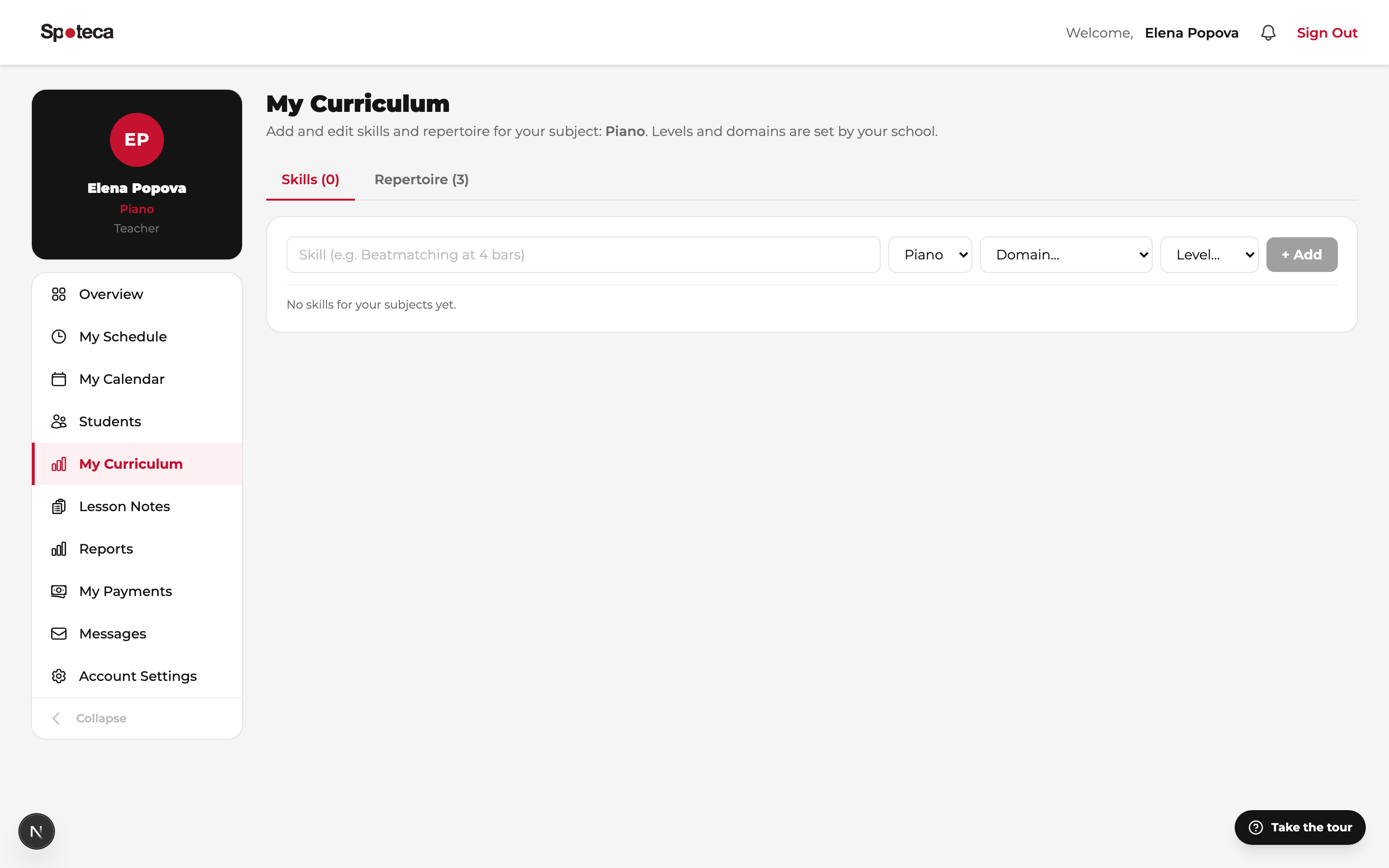
Your school defined a curriculum — levels, skill domains, skills, repertoire and badges. You drive each student along it:
- Skills — mark a student's skills as In progress → Mastered as they develop.
- Repertoire — assign pieces from the school library (or ad-hoc); track Assigned → Learning → Polishing → Performed with a progress bar.
- Levels — move students up when they're ready; record exam results as assessments.
- Badges — many award themselves (practice streaks, pieces performed); others you or the admin award manually.
Everything you mark appears live on the student's Journey page — their progress map — and in printable progress reports for parents.
Exams & assessments
On a student's Progress page, Exams & assessments records every test that student sits — yours and the ones they sit somewhere else. You can add an exam before it happens and come back afterwards to fill in the grade.
Two things are asked, and they are independent of each other:
- Who sets it — We set it (your school runs it) or Their school (somebody else runs it; name the school). An exam set elsewhere takes no room, no teacher and no slot from you — it is a reason to book more lessons before it, not fewer.
- When it is — a date ahead of you is a plan, a date behind you is a record. Both are allowed.
The status looks after itself: an exam still to come is planned, and once it has a result or a score it is done. The only one you set by hand is Missed it. Use Edit on a row to add the grade later — words (“Distinction”), a number with the mark it is out of (16 / 20), or both. Always give the scale when you give a number: 16 means nothing next to another school's mark without it.
Your Overview shows Exams coming up: your students' planned exams for the next 30 days with a countdown (“Tomorrow”, “in 9 days”), and Needs grade on anything whose day has passed without a result. Tap a row to go straight to that student's Progress page.
8 · Your pay
Sidebar → My Payments
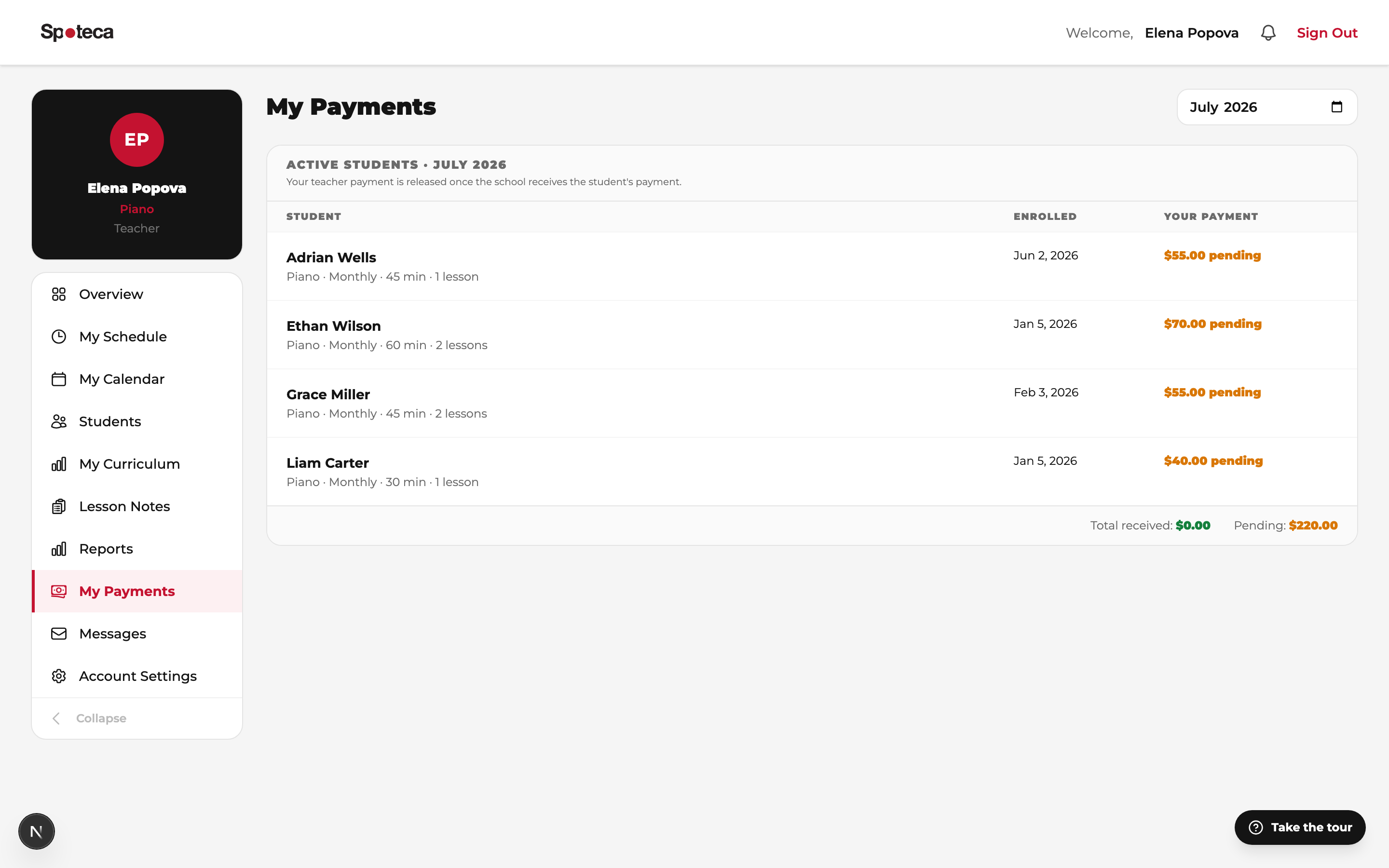
Your monthly earnings are calculated automatically from each plan's rate basis — a monthly rate, a fixed amount per billing period or term, per scheduled lesson, or per attended lesson (your school may set custom rates per teacher). See the month's breakdown per student/class, deductions if any, payment status, and history. On pay-per-attendance plans, only sessions marked Present count — one more reason to keep attendance accurate.
9 · Messages & account settings
Messages — chat directly with your students, their parents, or the admin. Everything in one thread per person, with read receipts.
Account Settings — your name, email, phone, address, photo, bio and password. Changing your email asks for your current password and sends a confirmation link to the new address; nothing changes until you click it. Your bio is visible to students on their "My Teacher" page — make it warm.
FAQ
I set availability but have no students yet.
That's the admin's move now — they enroll students into your green slots. Your part is done; maybe give them a nudge. 🙂
Can I block a single date (doctor's appointment)?
Availability is your recurring weekly pattern. For one-off dates, ask the admin to log an absence — affected lessons get rescheduled properly and parents are informed.
A student wants to move a lesson.
If the school allows it, the student (or a parent) requests it from their own Schedule page and the office confirms it. Permanent slot changes also go through the admin, who checks your grid and the room.
I've been given someone else's group class.
When the office changes a class's teacher, the students, register and billing carry on unchanged — the class simply appears on your schedule, calendar and Lesson Notes from then on.
Why is a slot red when I never marked it available?
Red means booked. Group classes and events can be scheduled onto your calendar by the admin directly — they don't require individual availability.
My pay looks off.
Check attendance first (especially on pay-per-attendance plans), then ask the admin — they see the same per-lesson breakdown and any deductions with notes.